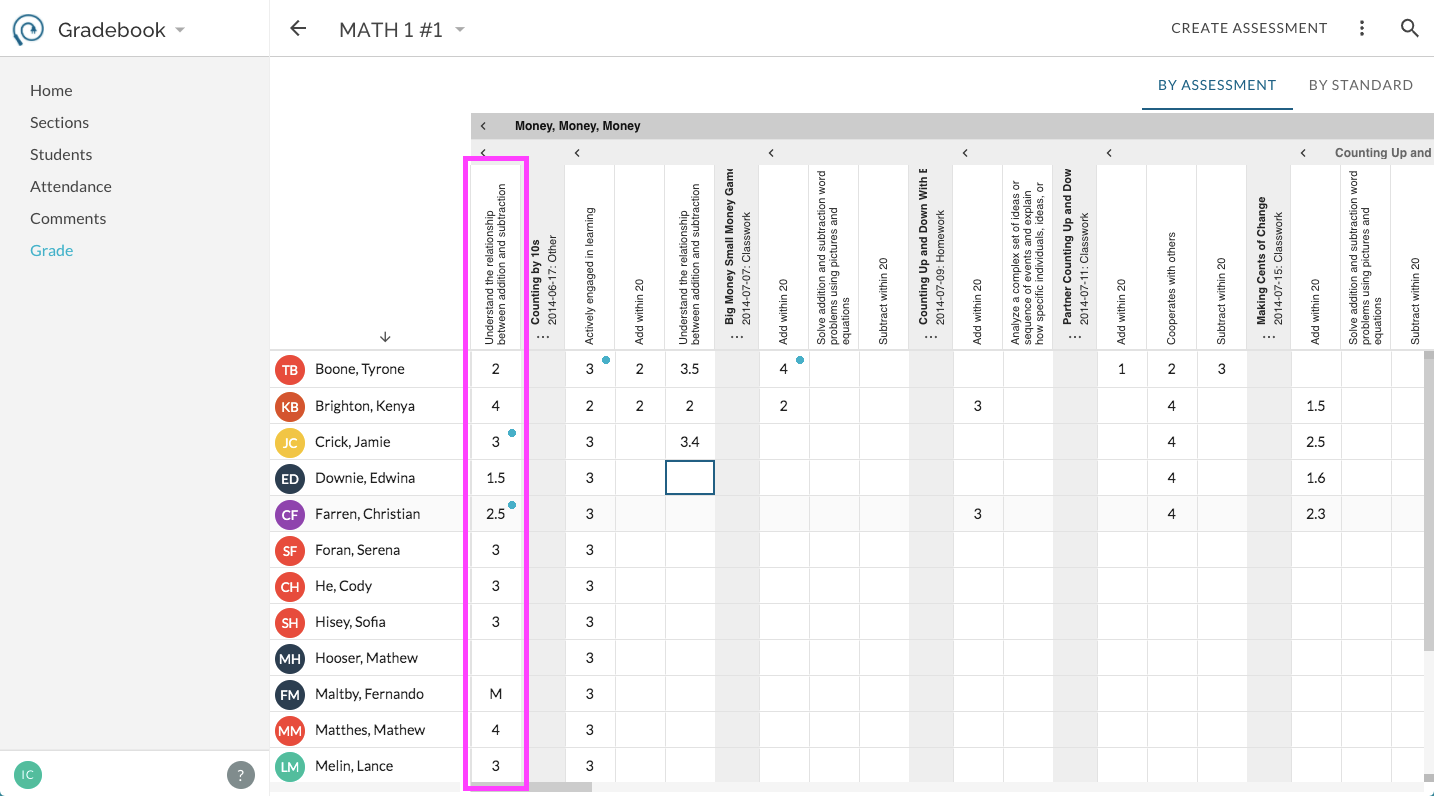
How do I import scores into my Gradebook from a .csv? (For information specific to importing scores from Google Classroom see here).
Note, only values for scores that are current values available for entry in your Grade book can be imported. Also, only numeric values can currently be imported in this way (i.e. no letter-code scores).
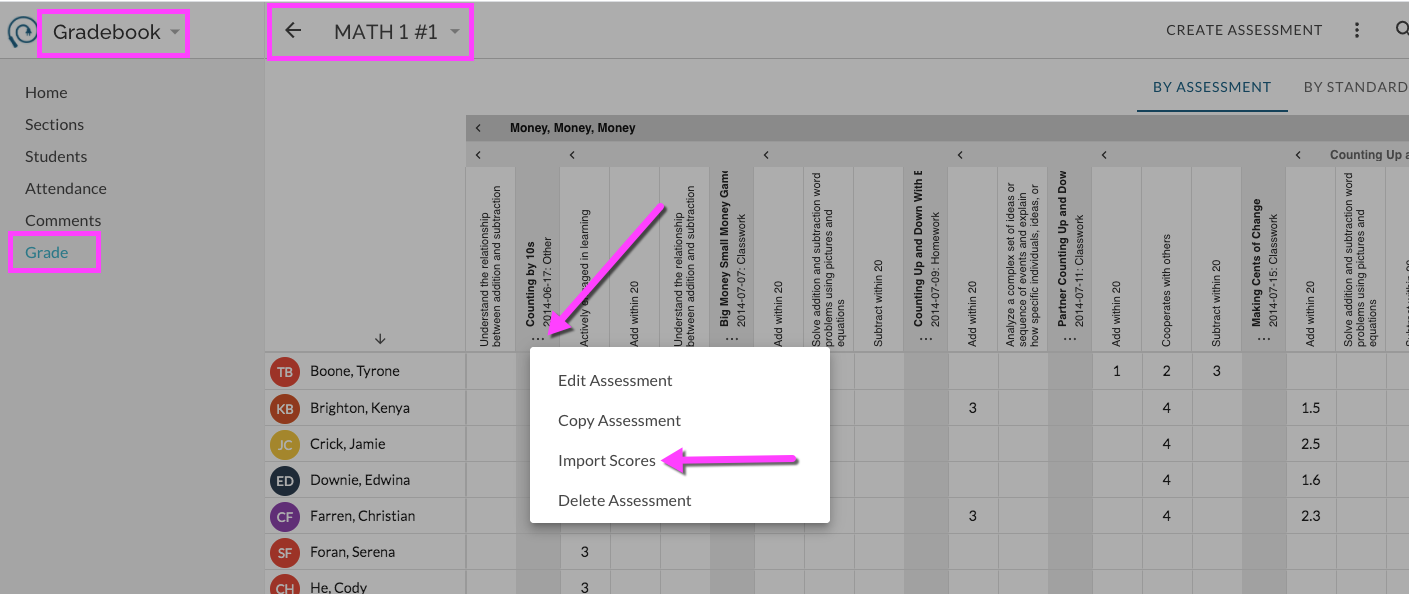
- From the Grade section of your account, select the item menu for the desired assessment. From the item menu select Import Scores from CSV:
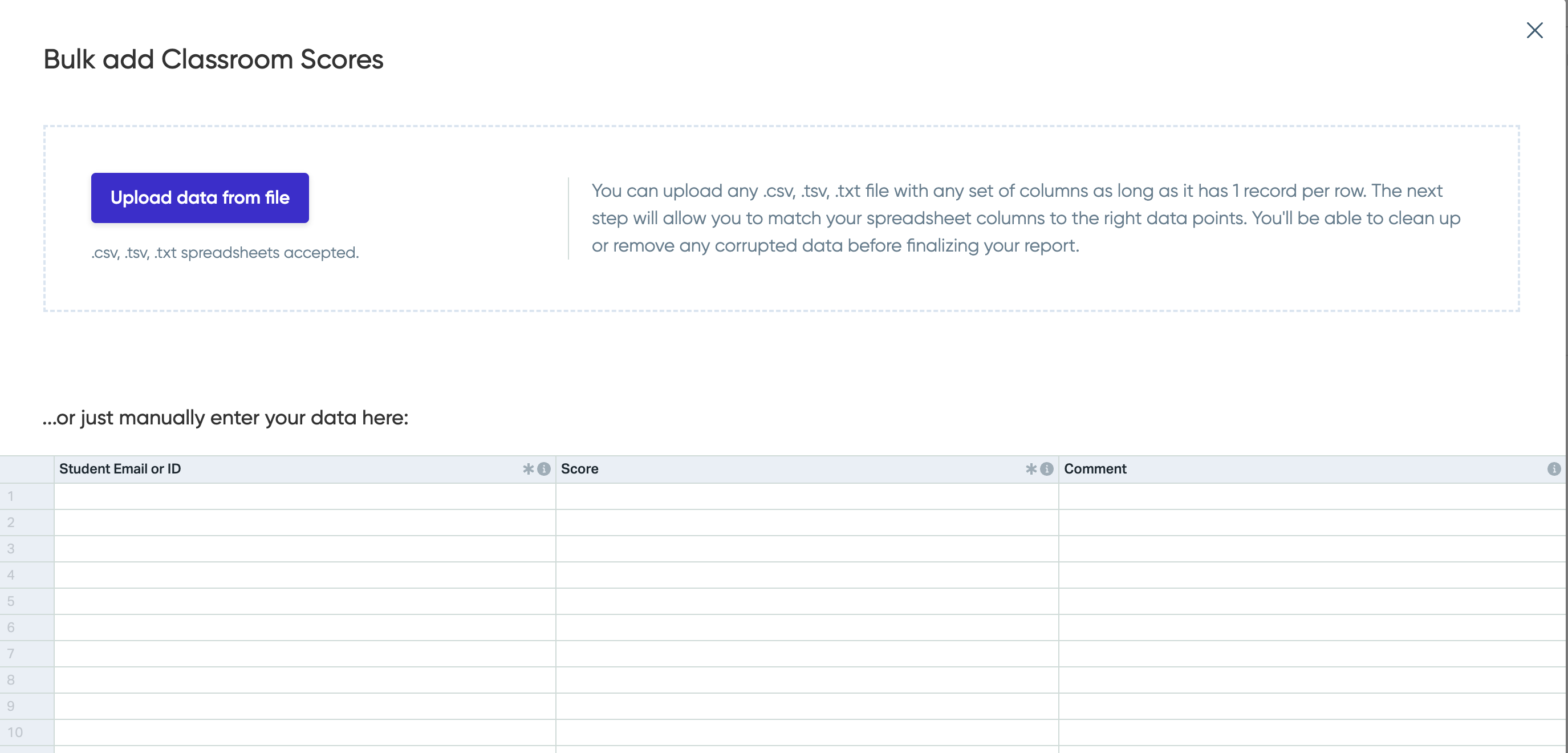
- An import wizard will display. Select to Upload Data from File if you have a .csv file ready. (Alternatively, you can copy/paste data into the manual entry section).
- You can upload any .csv, .tsv file with any set of columns as long as it has 1 record per row. Student email or ID is a required column. The next step will allow you to match your spreadsheet columns to the right data points. If the assignment has more than one standard aligned to it, you will have additional columns for each standard available. You'll be able to clean up or remove any incorrect or invalid data before finalizing your import.
- You can upload any .csv, .tsv file with any set of columns as long as it has 1 record per row. Student email or ID is a required column. The next step will allow you to match your spreadsheet columns to the right data points. If the assignment has more than one standard aligned to it, you will have additional columns for each standard available. You'll be able to clean up or remove any incorrect or invalid data before finalizing your import.
- Follow prompts within import wizard. Note that blank scores will be treated as rows with 'issues' or 'problems' by the wizard. You can ignore these warnings and import without addressing the 'issues'; JumpRope will leave the value blank in your Gradebook.
- After finishing wizard, scores will import into Gradebook. Note that this may take several seconds to populate.