

When a student is un-enrolled from a class (this could include a student changing sections of a class or simply no longer being enrolled in a class), their scores from that class have always remained on their individual mastery report. Teachers also have transparency into the students' scores from the perspective of the Grade sheet for the original class.
If a student that has scores entered is unenrolled from your class, they will be moved to the bottom of your Grade sheet. Their name will be italicized with a special icon next to it. From the Grade sheet here, you can add, edit, and delete scores for this student in the context of this specific class section. If you delete all scores in this section for an un-enrolled student, the student will be removed from the list the next time you load the Grade sheet.
Note: If the unenrolled student(s) only have scores incollapsed****units, their name will not be included on the list unless and until you expand the unit.
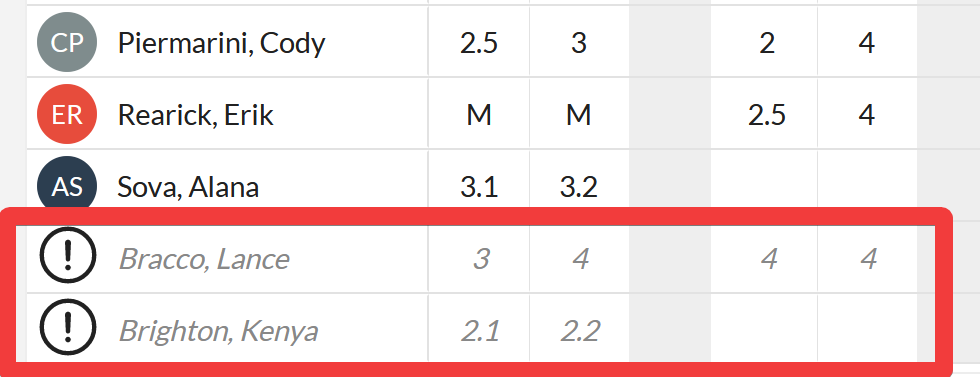
Here are some suggestions for common scenarios...
A student has changed sections of the same class.
Any scores that were entered for this student in the original section will continue to be visible and editable on the Grade sheet there. These student names will be grey and italicized at the bottom of the list. On the roster for the class they are currently enrolled in, the student will be active (i.e. name not grey nor italicized). Additional scores can be entered in the new grade sheet as needed.
You can a) leave the scores as they are in the original class; the student's mastery report will know to combine the multiple sections into one class. This means you will have blank spots on the Grade sheet for them in the new class. or b) re-enter the scores for the student into the current section and then delete the grey, italicized scores from the original section.
A student is unenrolled from my class and I do not wish to save the scores that I had entered for them.
From the Grade sheet, delete each of the grey, italicized scores for the given student. This will remove the scores and the class from the student's reports and remove their name from your Grade sheet.
A student is unenrolled from my class but I do wish to keep their scores and the class on their mastery report.
Do nothing with the scores on your Grade sheet for this student. If you need to edit them, you can. The class will stay on their mastery report.
More tips
When a student changes sections of a course, their 'old' scores are not deleted nor removed from their report. If you re-enter those scores in the 'new' section you are essentially duplicating them.
The new course Grade sheet will remain empty for the assignments that were entered in the old section. If a teacher enters scores into those fields in the new section, they are duplicating scores. Scores remain on the student's record/report even if you don't see them in your Grade sheet. The scores are also visible on the 'old' section Grade sheet and in the Mastery report for their current class.
A teacher has two options to manage 'old' section scores when a student changes sections of the same course:
- Don't do anything. Leave the scores in the 'old' section and begin entering scores in the 'new' section from the point the student was enrolled in the new section; leave the score cells empty for the older assignments. All overall grades for this course will automatically combine the scores from all sections.
- Re-enter the scores in the 'new' section AND then delete the scores from the 'old' section to avoid duplicates.
Administrators and Clean Grades Mode
Administrators may be practiced using the Clean Grades Mode feature to move scores from class to class when a student changes sections. In JumpRope, this is supported, however, the moved scores will not be accessible to a teacher in their gradesheet; the moved scores will be reported in the new class on mastery reports, progress reports, and the Family Portal.