

If you are an NYC school and use STARS program uploads, please contactsupport@jumpro.pe to learn more about updating your Student Account usernames to nycstudents.net emails and for options on keeping these up to date with your program uploads.
If your school utilizes an automated data transfer from your SIS to JumpRope, you may be able to configure student emails as a part of this process. Please reach out tosupport@jumpro.pe for more information.
Use the Student Accounts list to add or update student emails & passwords and to view login counts and statistics. If your students will be primarily using Google Single Sign-on to login, they do not need a school managed JumpRope password here; leave that field blank.
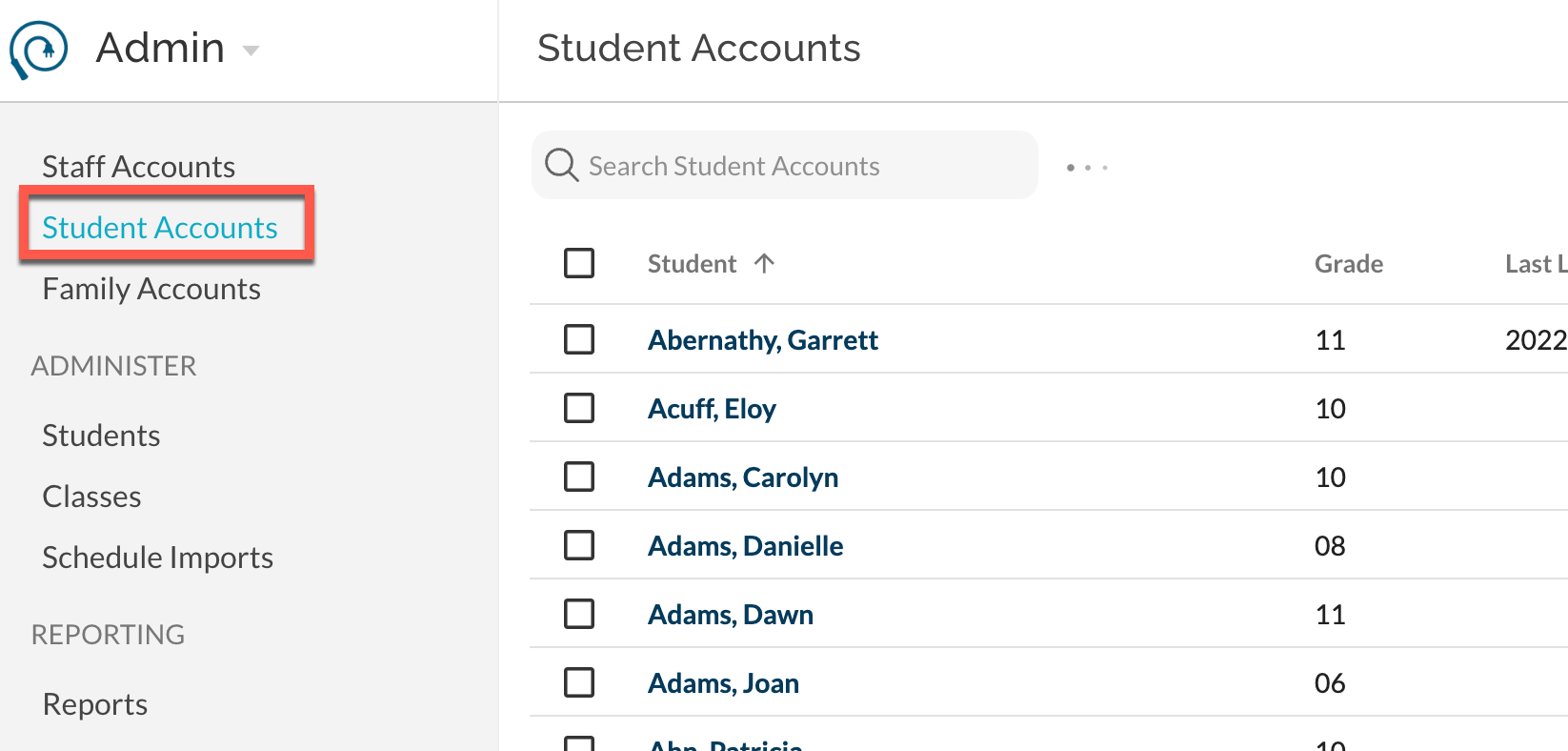
- To add or edit an individual email or password, click the name of the student you wish to edit.
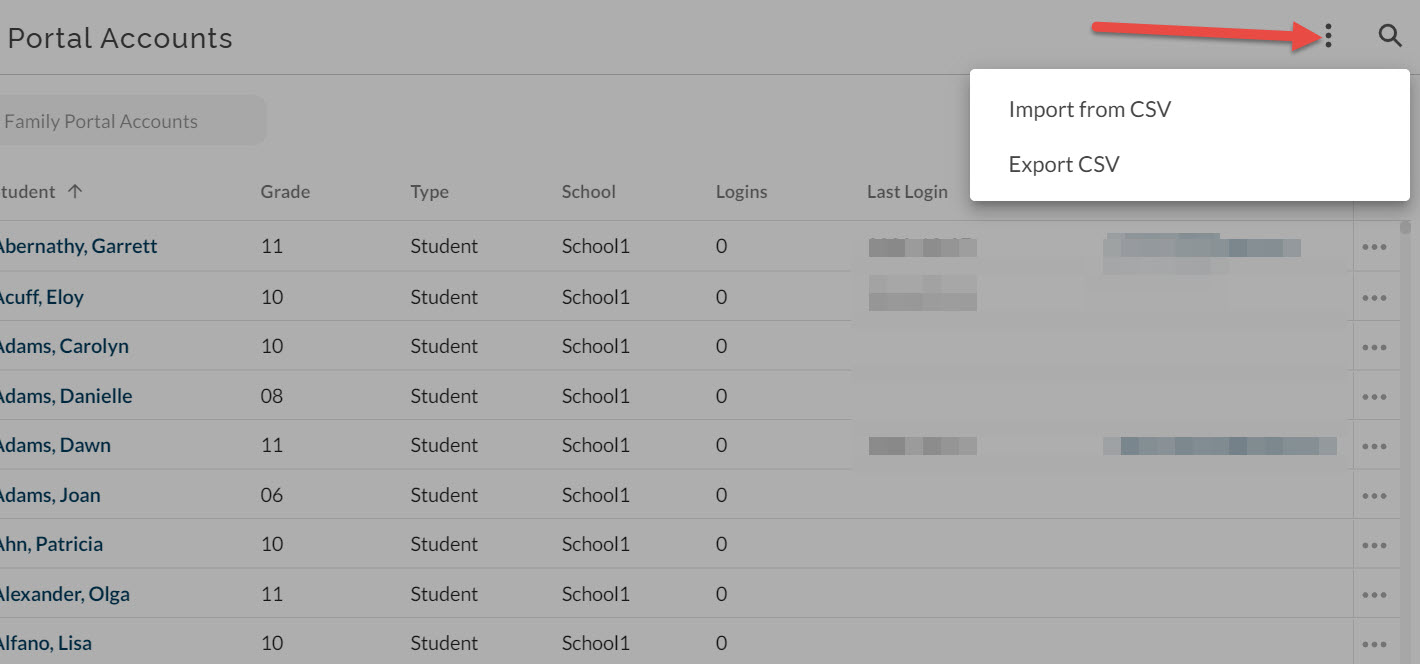
- To bulk import or export portal account information , select Import from CSV or Export to CSV from the menu in the top right. Learn more about bulk importing portal account information.
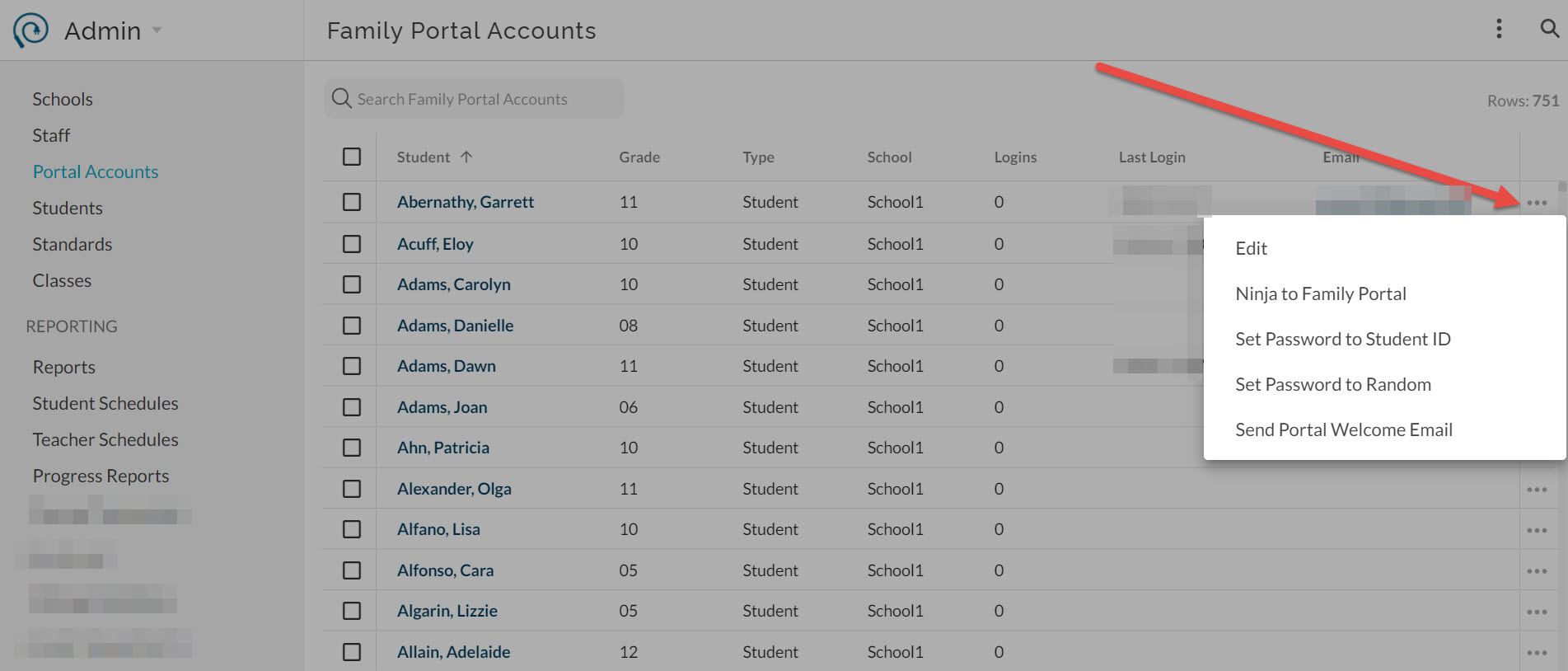
- To set passwords: NOTE: This is a school managed JumpRope password for your students, if they will be using Google Single Sign On, a password does not need to be included in this field.
- For individual students, select Set Password from the item menu at the far right of each student's name. In bulk for multiple students, check off set of students and click on Bulk actions menu that displays in upper right. Select Set Password.
- If desired, in Setup - Family Portal - General, manage the Default Student Portal Password for newly enrolled students.
- To ninja into the portal as a student , select Ninja to Family Portal from the item menu at the far right of each student's name.
- To send a welcome email to an individual student , select Send Portal Welcome Email from the item menu and follow the instructions. You will have the opportunity to confirm text being sent.
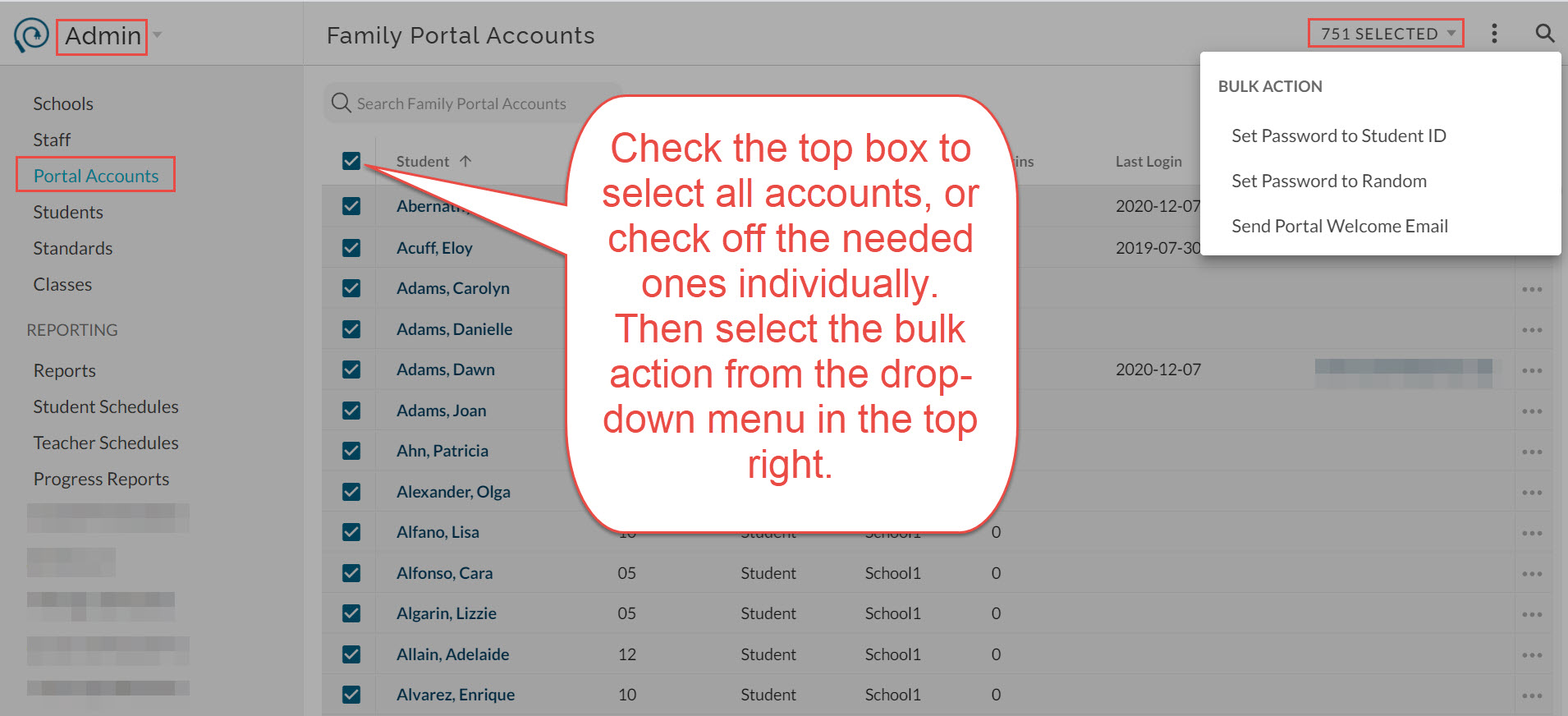
- To send multiple welcome emails , NOTE: The Welcome Email coaches students to use their JumpRope password that the school manages. If you intend for students to use Google Single Sign on, the Welcome Email is not necessary. Students may login directly from the Sign in with Google link on the JumpRope login page.
- Check off the desired student rows and select Send Portal Welcome Email from the bulk menu in the top right. You will have the opportunity to confirm sending.
See also:
- Configure Family Portal settings.
- How To - Import Student Portal Accounts in Bulk