How to create new Parent Standards one at a time
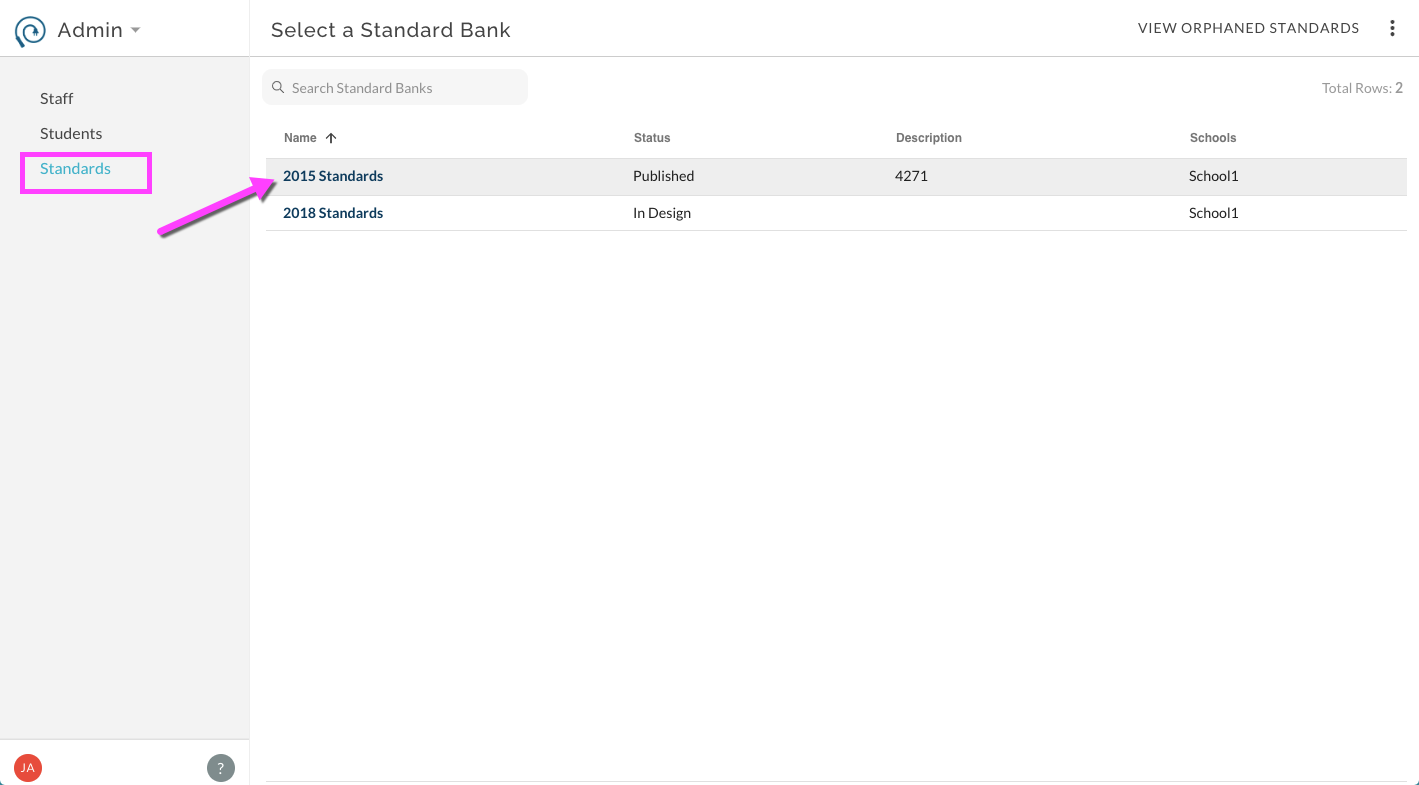
- From the Admin page, select Standards.
- Select a Standard Bank to continue by clicking on the name of the desired bank.
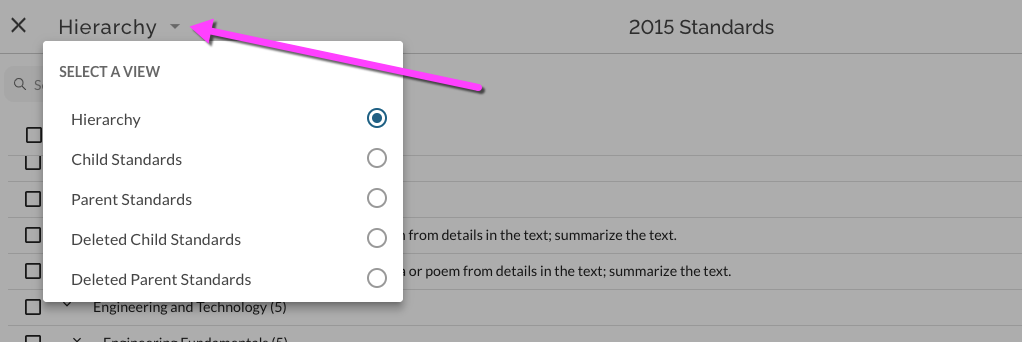
- Select a View
- Option 1 - In Hierarchy View, select More Options menu ︙in top right. Select New Parent Standard.
- Option 2 - In Parent Standards List View, select New Parent Standard in top right.
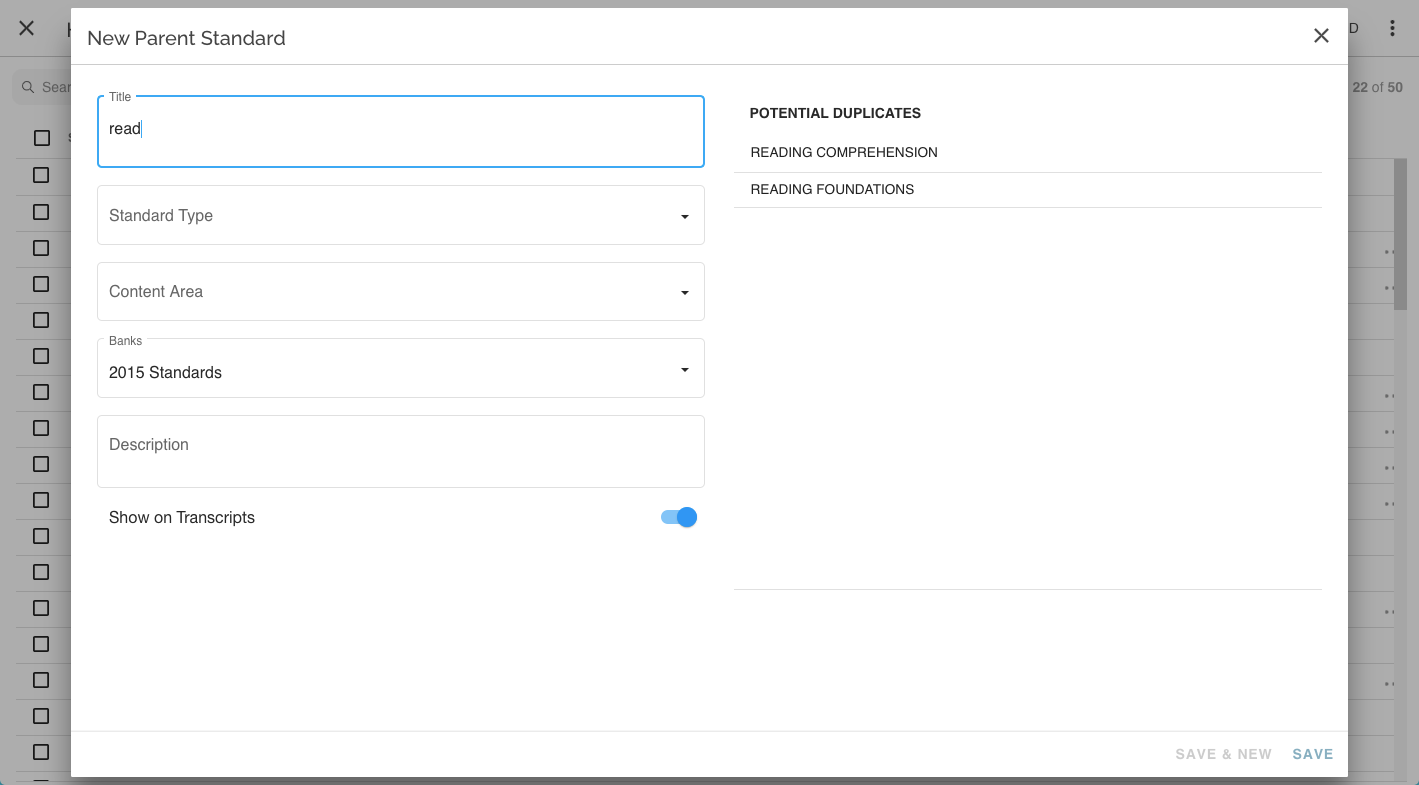
- In the details window that opens, enter Title, select Standard Type, Content Area, and Banks, enter optional Description, and toggle Show on Transcripts. Note that as you begin to type a title, potential duplicates will display to the right. This feature only lists possible duplicates, it does not prevent you from creating a duplicate Parent Standard. Select Save.
How to Create New Parent Standards imported in bulk
- From the Admin page, select Standards.
- Select a Standard Bank by clicking on the name of the desired bank.
- From either Hierarchy View or List View, select More Options menu︙in top right. Select Import Parent Standards.

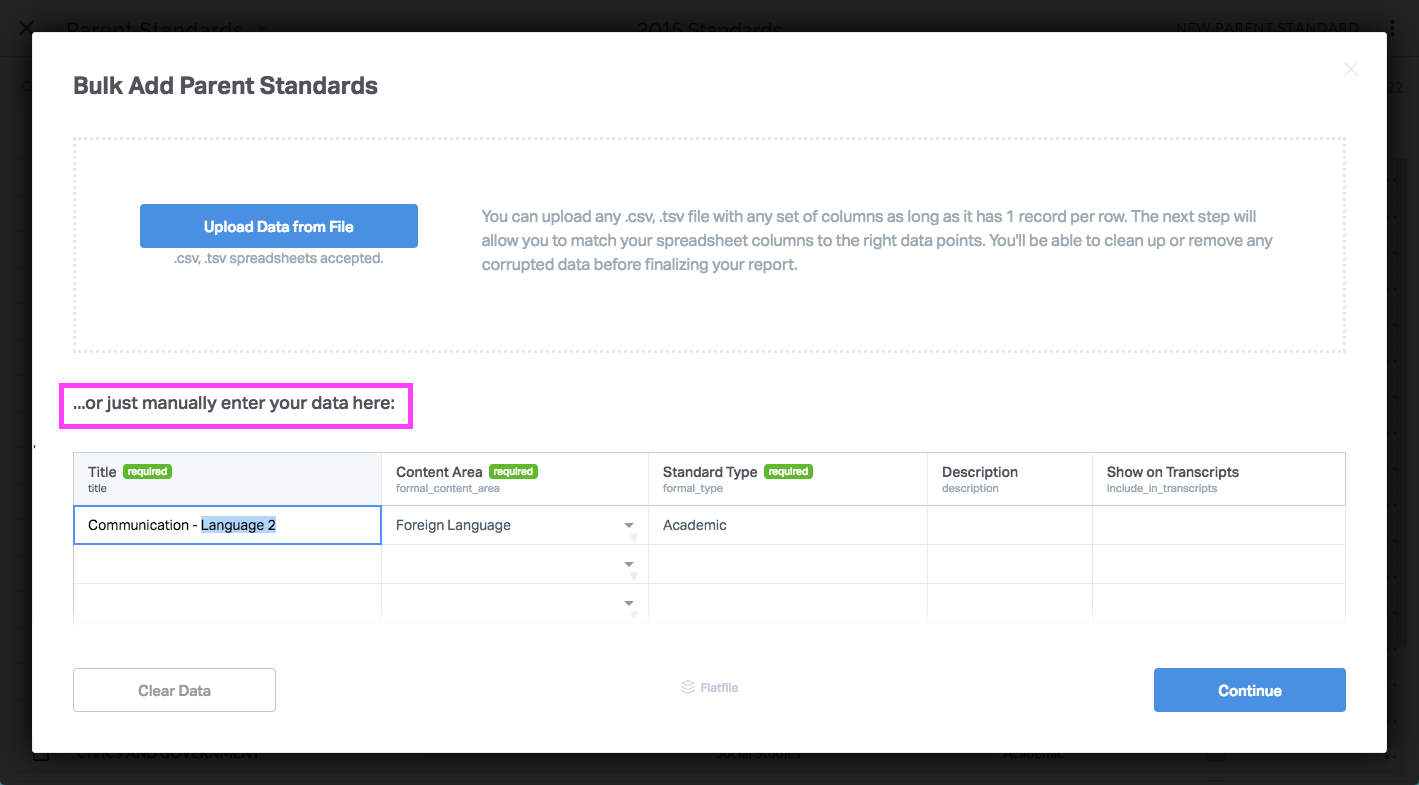
- If you already have standards in a spreadsheet (recommended) you do not have to use the Download Template option in the details window that opens, simply click Next. Otherwise, if you need a template, select Download Template and open the file and populate it. After selecting Next, in the mapping interface that opens, you can choose to upload a full template or simply type data directly into the import tool.
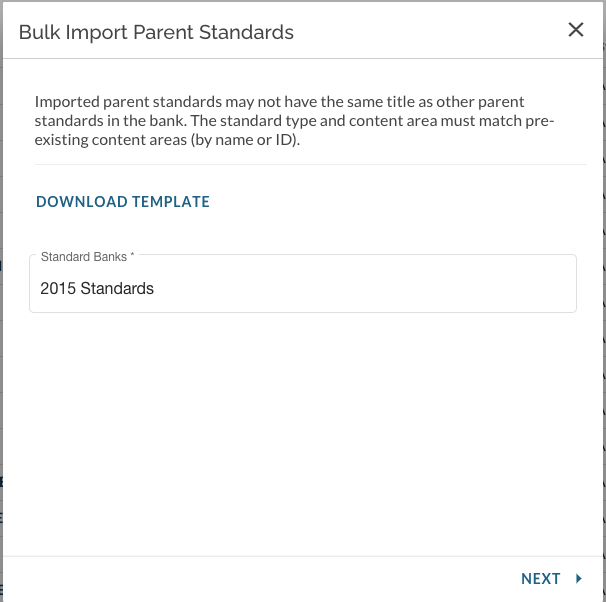
If using the Download Template
Open downloaded template file and complete with Parent Standard information:
- title - title of Parent Standard, limited in length to 120 characters
- formal_content_area - values in this column must be from the pre-populated list on template, can re-use items
- formal_type - values in this column must be from pre-populated list on template, can re-use items
- description - optional text to provide more detail regarding standard
- include_in_transcripts - optional values may be either "Yes" or "No"
- Click here for more information on Content Area and Standard Type.
- Delete from template example rows that are not needed.
- Save file
- Back in import window, in Bulk Import Parent Standards window, select to Upload Data from File. Select template file.
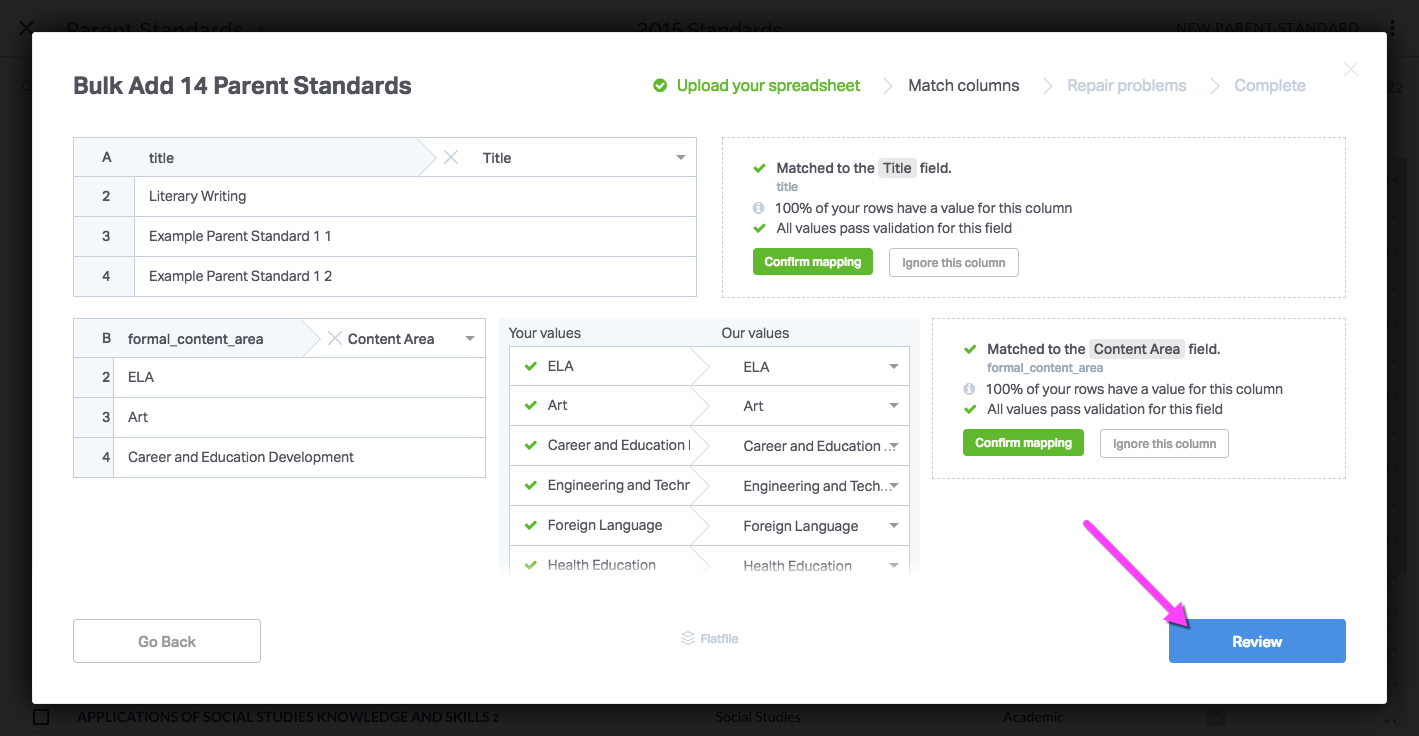
- Import will attempt to map fields from file. Scroll down to see more. Select to Review.
- In Review you will have the opportunity to repair problems. Make any corrections directly on screen.
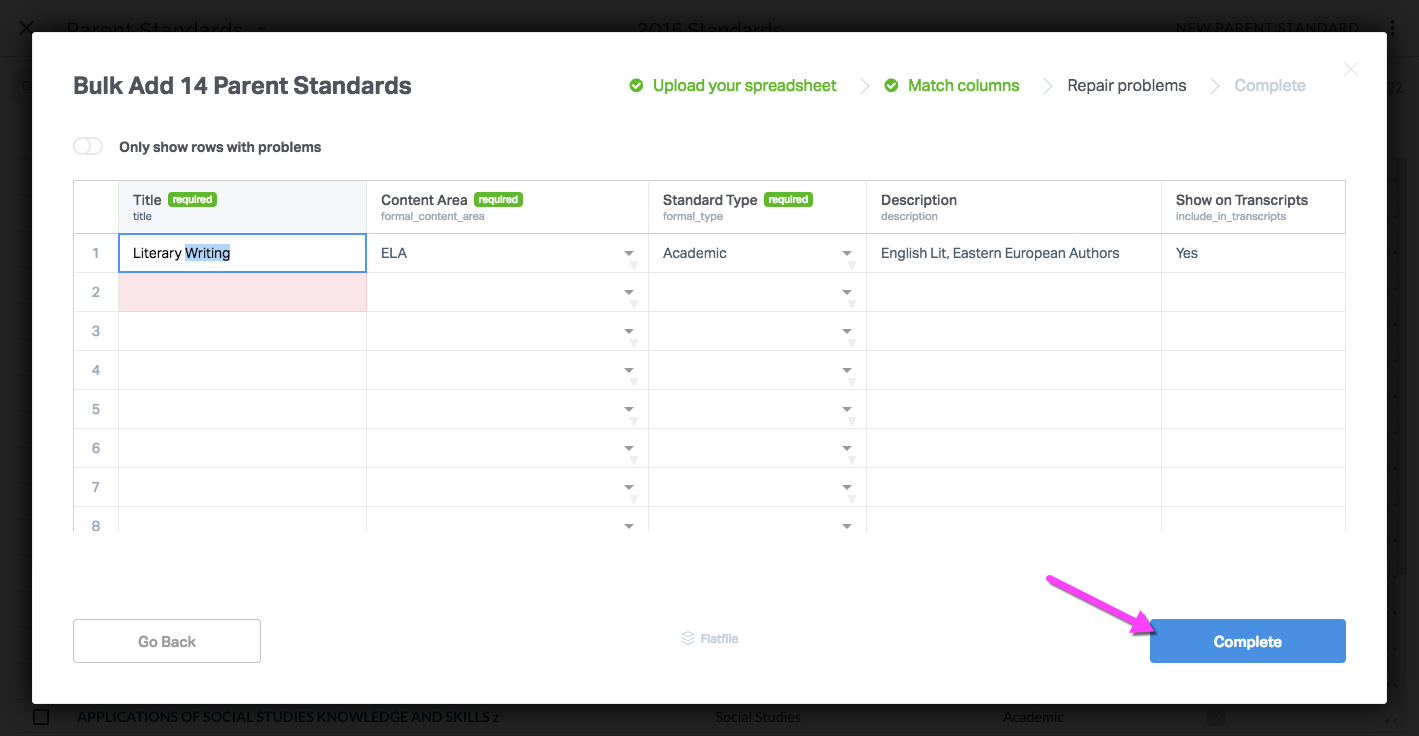
- Select Complete and Parent Standards will be created and imported.
If not using Download Template
Type directly into import tool or upload your own spreadsheet. Select Continue, Review, and Complete as above
How to Edit Parent Standards
- In Admin Console, Standards section, select desired Bank.
- In standards view, select Parent Standards list view.
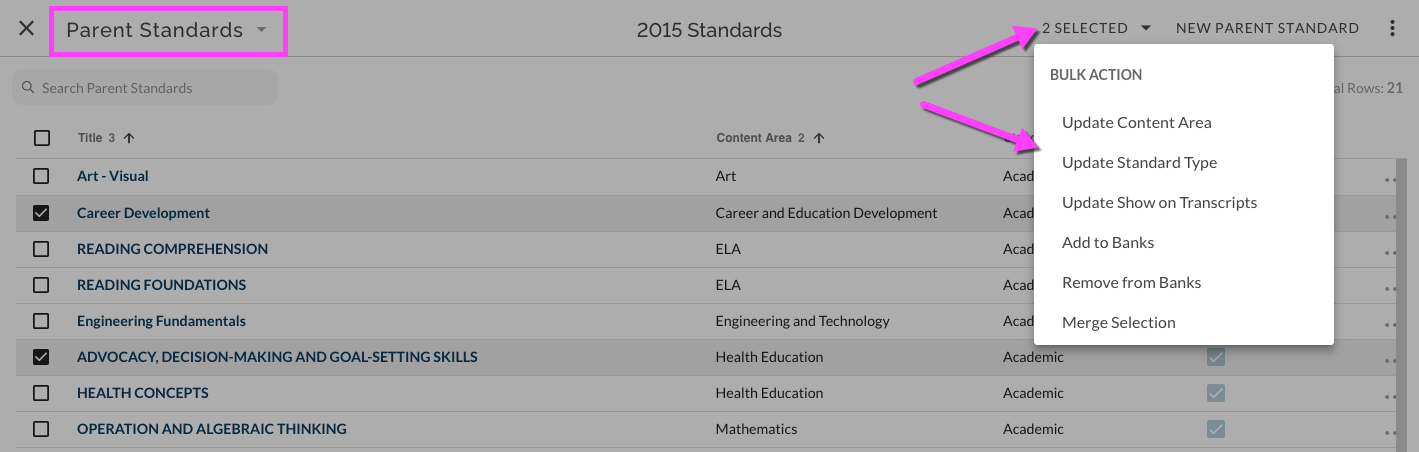
- Select desired Parent Standards by checking off one or more boxes.
- Open Bulk Action menu and select desired action
Editing Individual Parent Standards
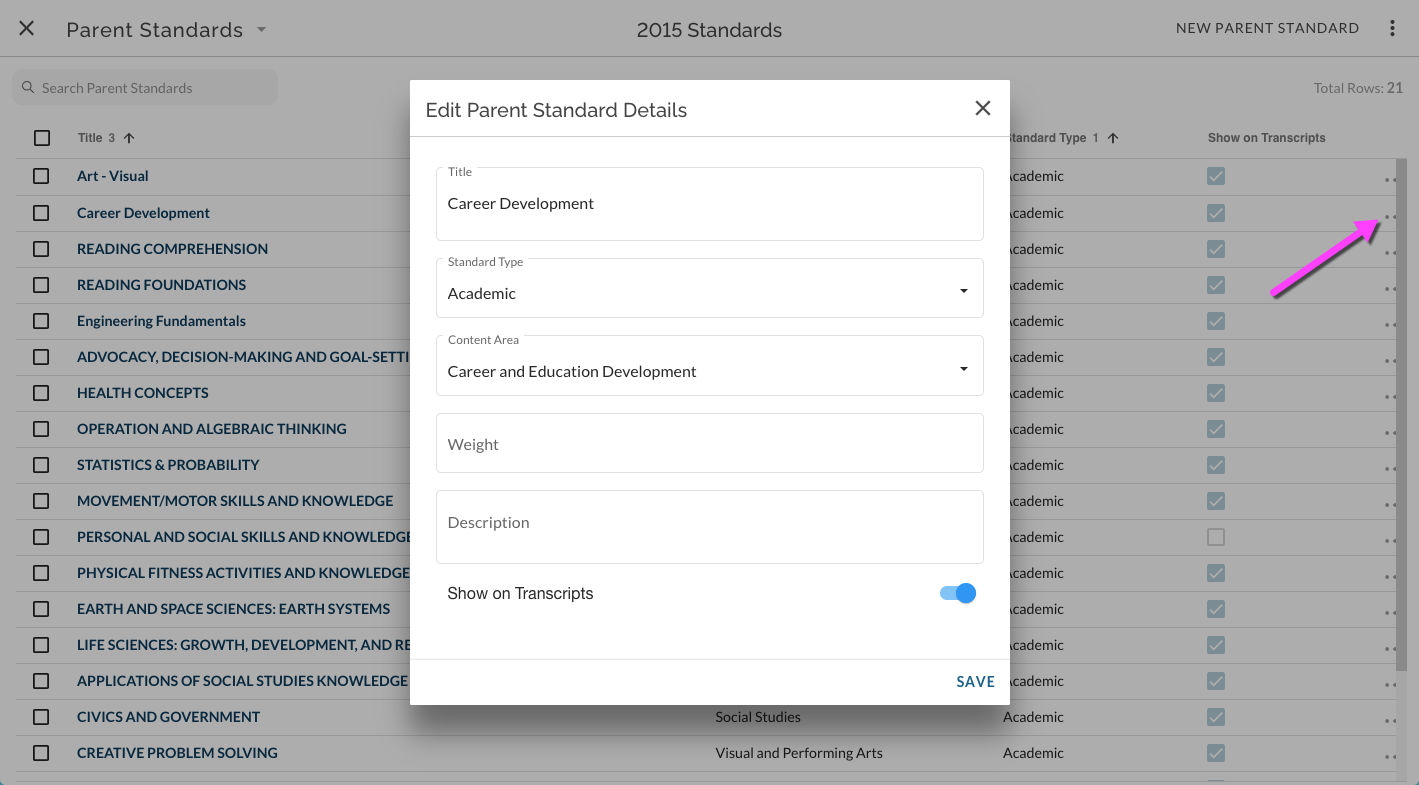
- Select More Options menu ⋯ and select Edit.
- In details window that opens, make desired changes to selected Parent Standard.
Managing Details on Individual Parent Standards
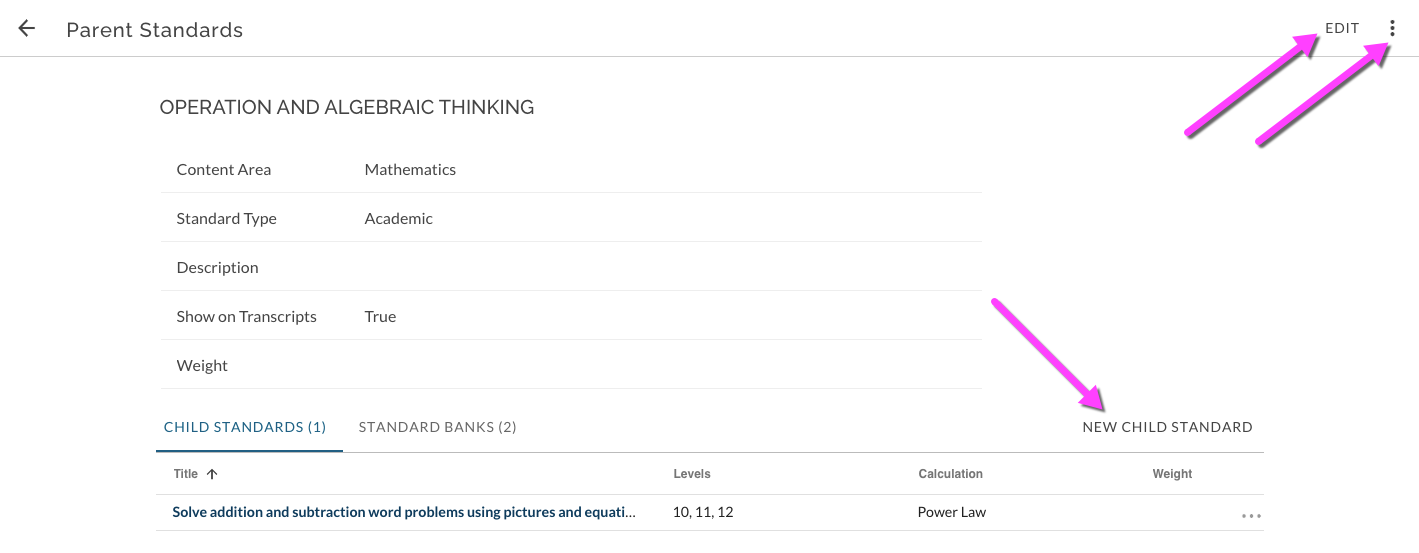
Click on title of desired Parent Standard. The detail view for the individual Parent Standard is opened.
Edit elements of the standard by clicking Edit in the top right. Delete the standard or view its revision history by selecting the More Options menu︙in the top right.
Create a new Child Standard within the Parent Standard by clicking New Child Standard