Note - create Parent Standards first. Each Child Standard must be associated with an existing Parent Standard. Parent Standards and Child Standards can be created together in a single bulk import when using the bulk import option.
How to create Child Standards one at a time.
How to create new Child Standards by importing in bulk from a spreadsheet.
How to edit Child Standards (including 'removing' from the published bank.
How to - Export the Standards Bank
Child Standard - The most granular, directly assessed statement. Is nested within a Parent Standard.
Parent Standard - Category/Strand/Domain which contains one or more Child Standards. This Parent Standard informs the Content Area and Standard Type of the Child Standards nested within it.
How to create child standards one at a time
In Admin -> Standards, select a standard bank by clicking on its title. If only one bank exists at your school it will automatically be selected.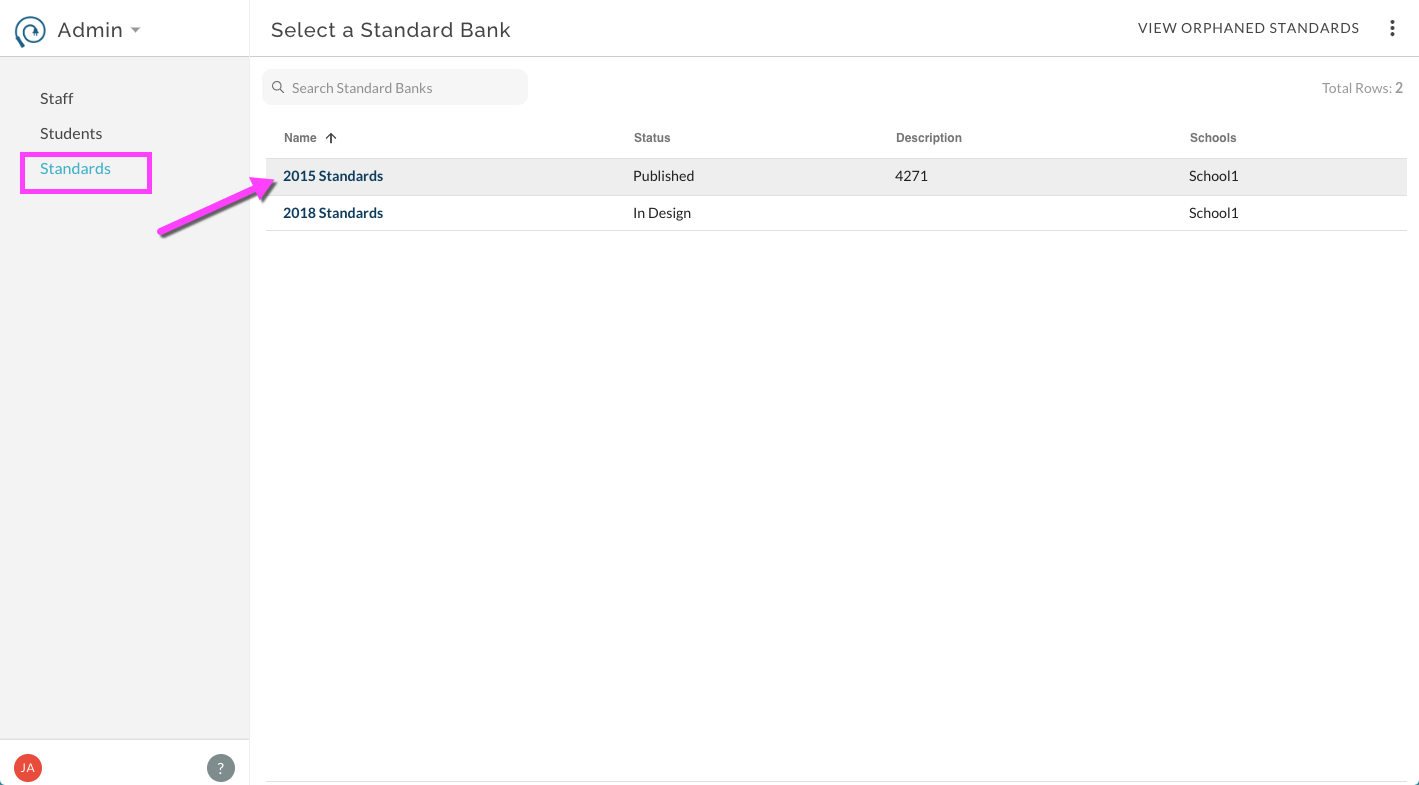
Select a View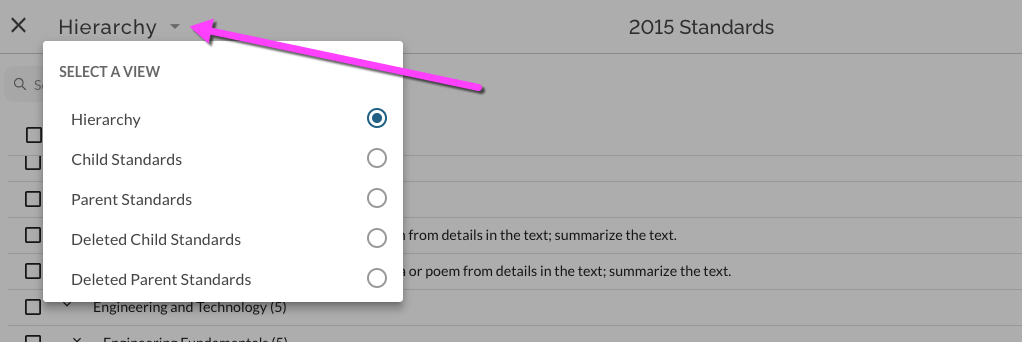
In either Hierarchy view or Child Standards view, select New Child Standard from top right.
In details window that opens enter Title, select Parent Standard, select level(s), select Calculation type, optionally set weight, and optionally enter text for each mastery level descriptor. The Aligned To code is optional, and is simply a place to store a short code that will appear in certain reports that you can use to reference external systems - it does not appear to teachers or students. Note that as you begin to type a title, potential duplicates will display to the right. This feature only lists possible duplicates, it does not prevent you from creating a duplicate Child Standard. Select Save.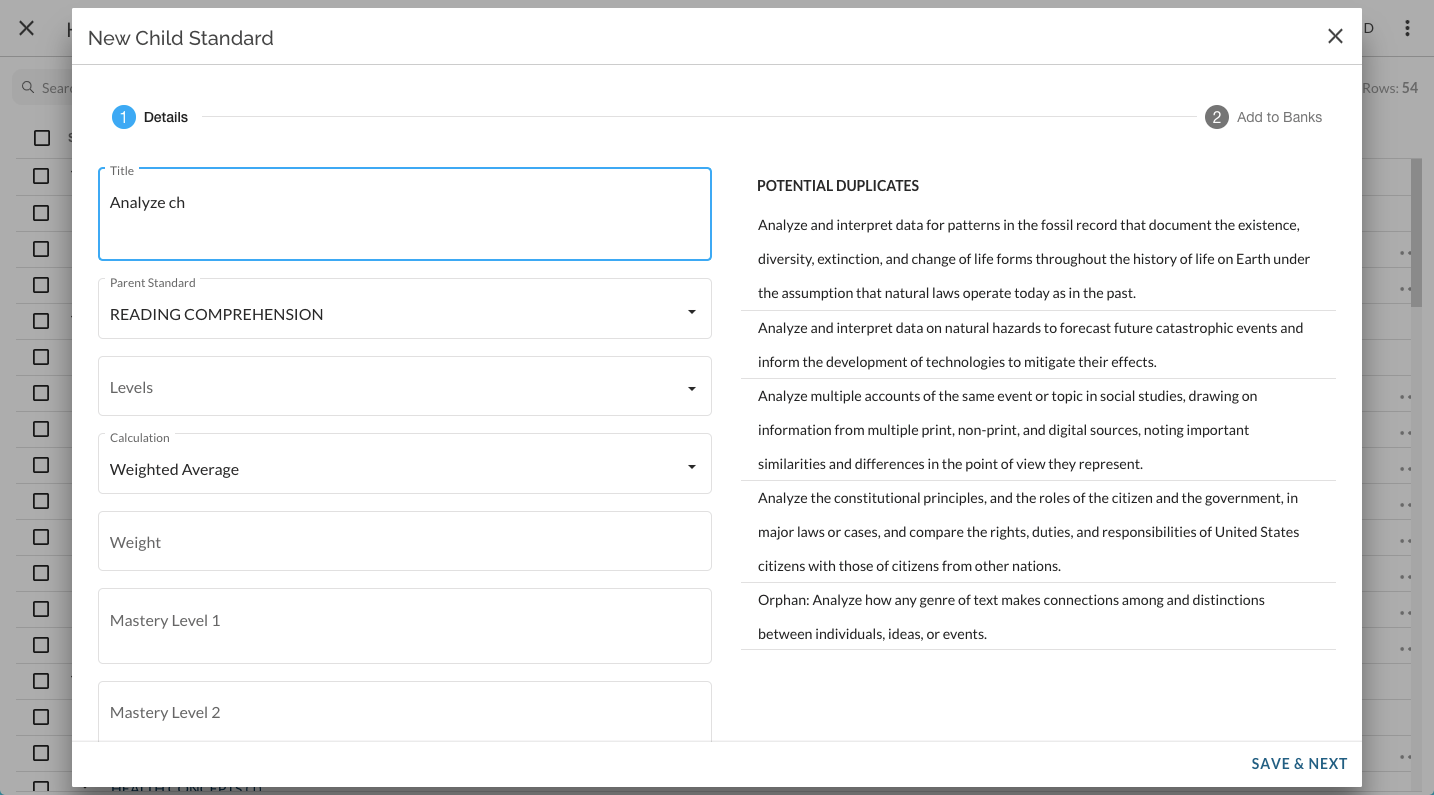
How to create new Child Standards by importing in bulk
In Admin -> Standards, select a standard bank by clicking on its title. If only one bank exists at your school it will automatically be selected.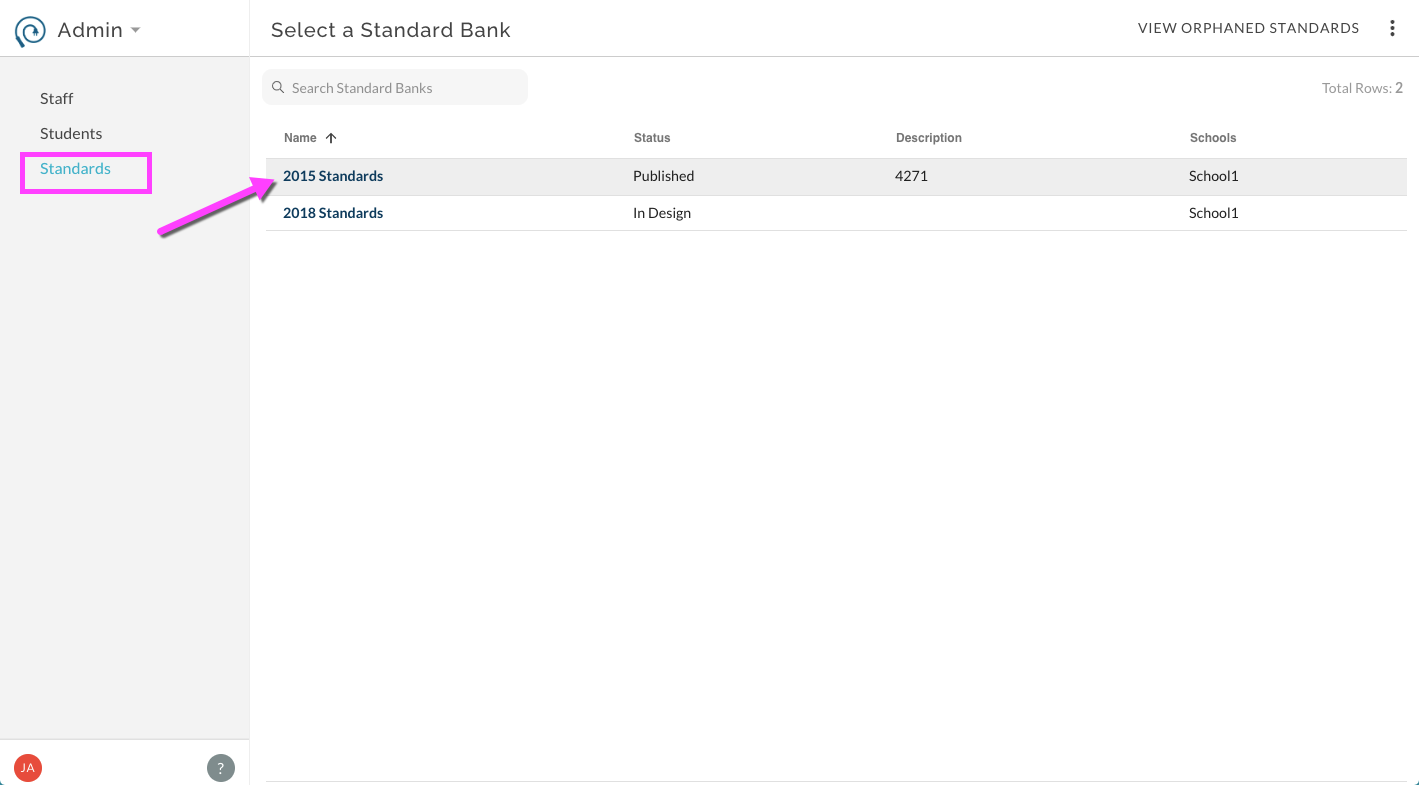
From either Hierarchy view or Child Standards view, select the more options menu in top right. Select Import Child Standards.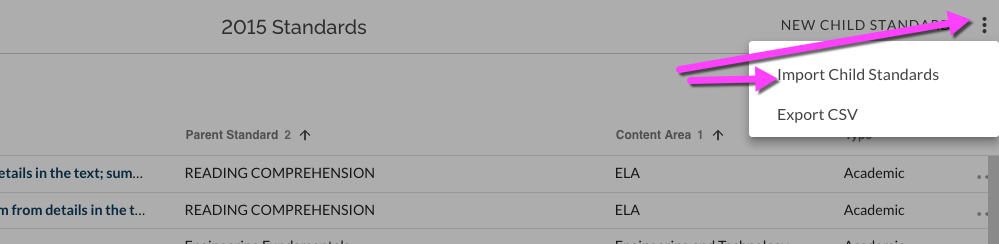
In the details window that opens, choose your bank and select Next. 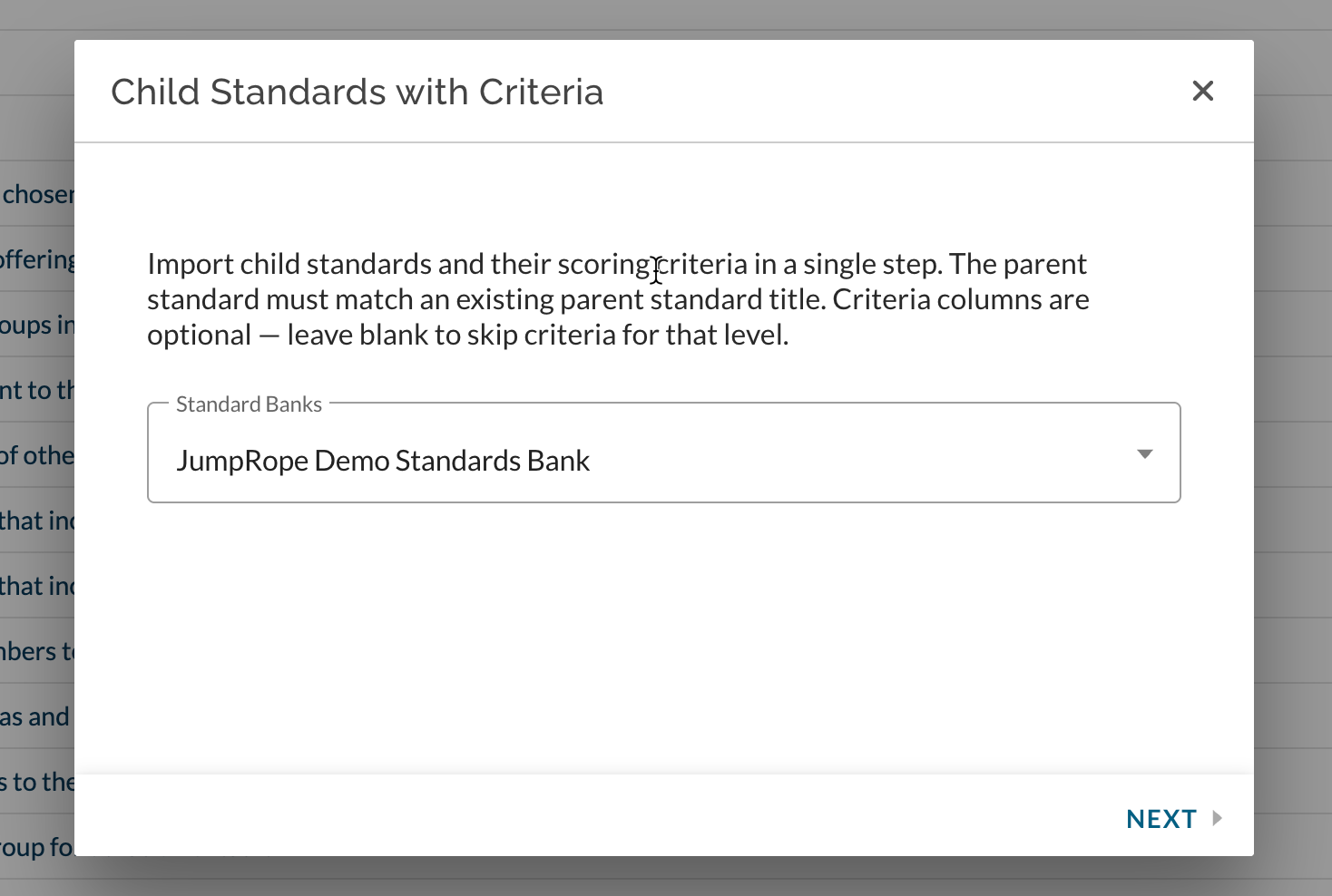
From the Select Data step within the mapping interface (see below), you can download the .csv template, fill it out, and upload it. You can also upload any .csv file with any set of columns.__ The next step will allow you to match your spreadsheet columns to the expected fields. You'll be able to clean up or remove any data before finalizing your import.
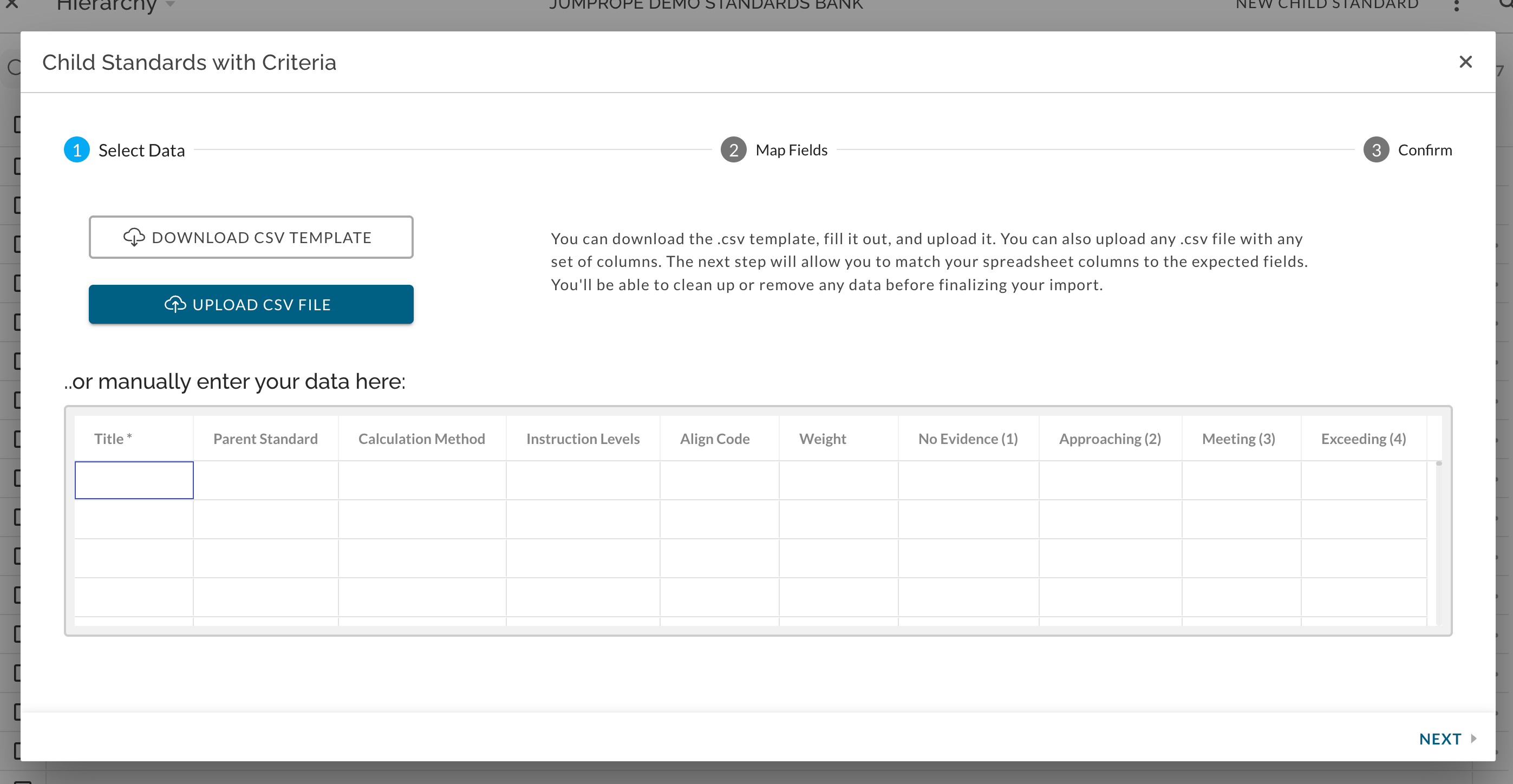
- title - title of Child Standard
- parent_standard - the template will pre-populate with examples of your existing Parent Standards. You can re-use these in the template but each new Child Standard must be associated with an existing Parent Standard.
- If the bulk import process detects a Parent Standard that does not yet exist at the school, it will attempt to also create that Parent Standard, saving a step!
- calculation_type - values in this column must be from the pre-populated list on the template, you can re-use items.
- instruction_levels - values in this column must be from the pre-populated list on the template, you can re-use items. Use a comma separated list for multiple grades (i.e. 9,10,11,12).
- align_code - optional text (A-Z, 0-9, periods, hyphens, and underscores) up to 20 characters.
- weight - optional
- mastery_description 1,2,3,4 - optional text for mastery level descriptors of scoring criteria.
The Map Fields step will open upon clicking Next or uploading a file. Map the incoming column fields to the desired mapped field.
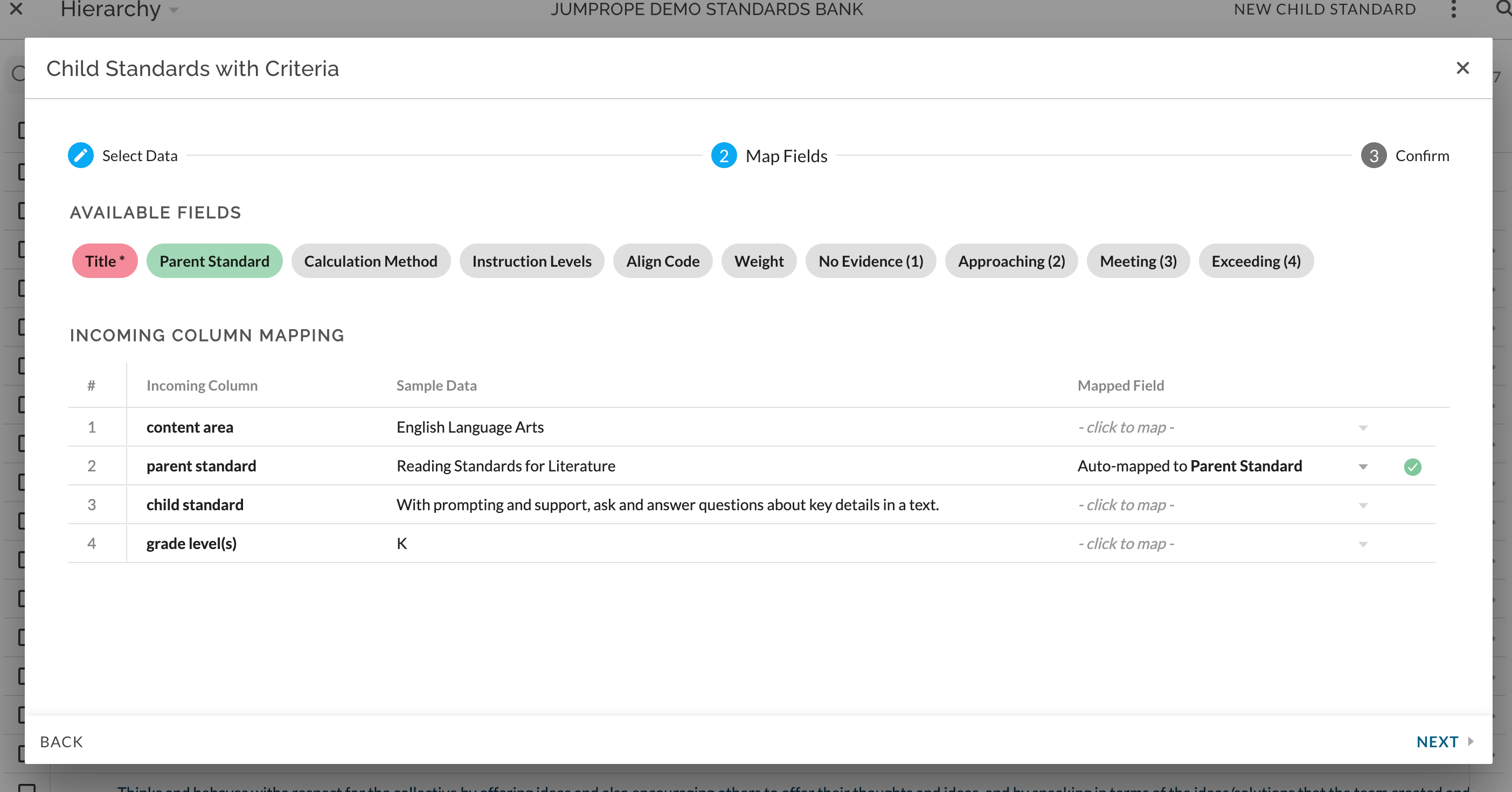
Choose Next to review data. Edit as needed and then select Import.
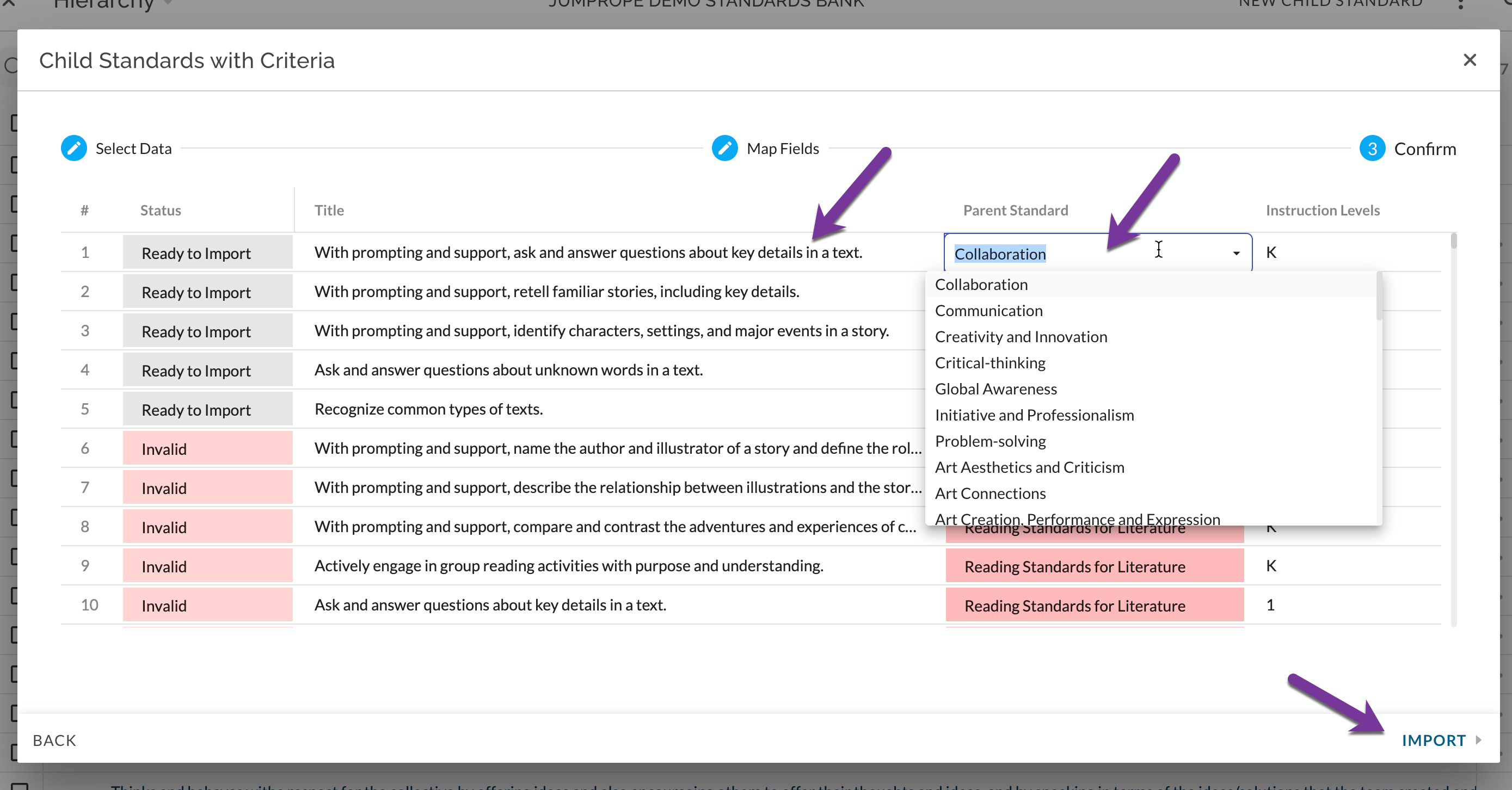
If not using template -
Type directly into the import tool. Select Next, review, and complete as above.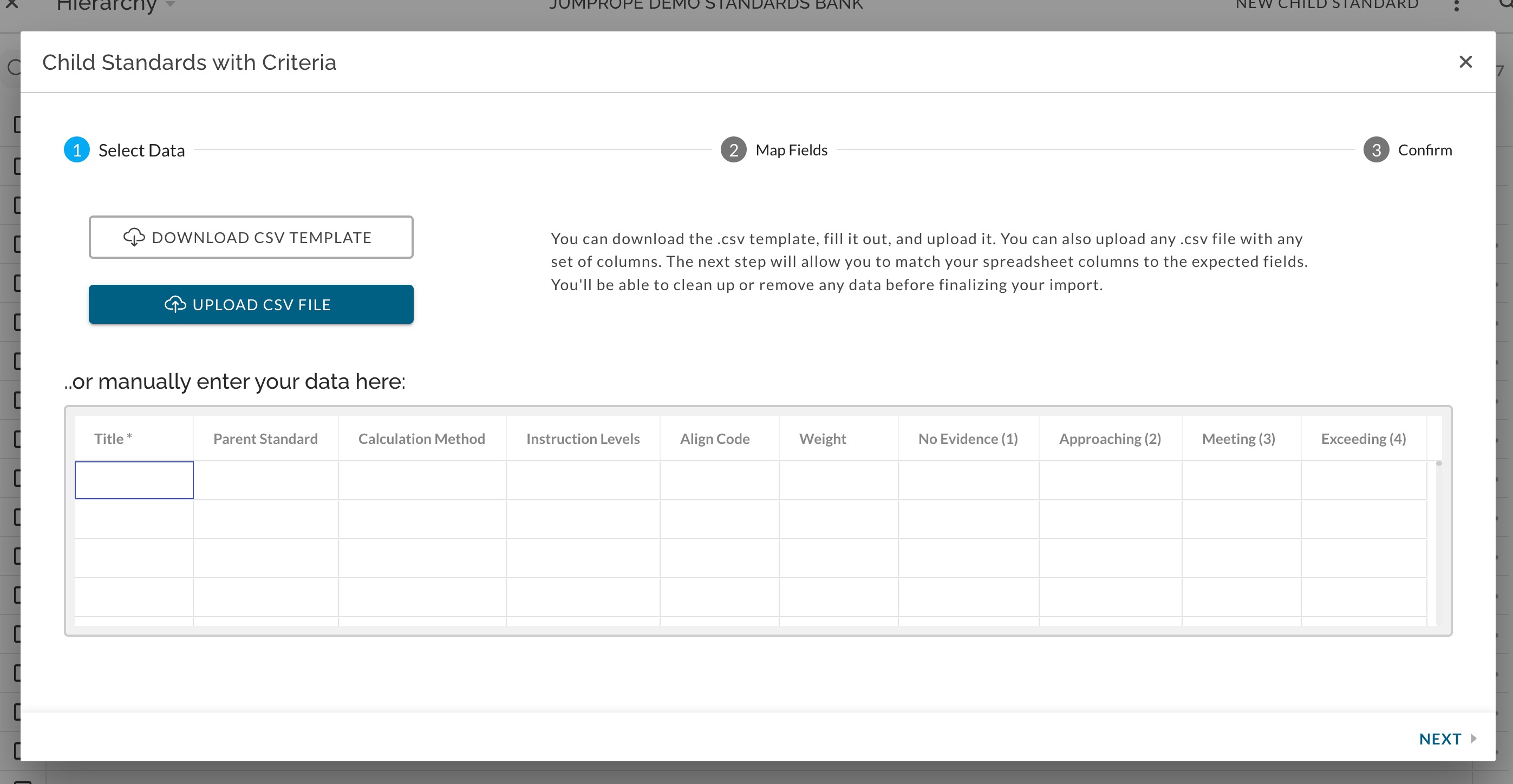
How to Edit Child Standards (including 'removing' from the published bank)
In Admin -> Standards, select the desired bank. If only one bank exists at your school it will automatically be selected. Select Hierarchy view or Child Standards view.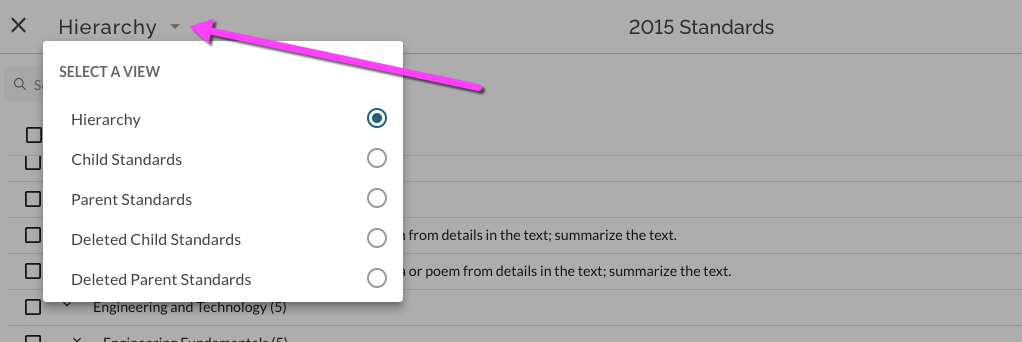
Edit Child Standards in Bulk
Select desired Child Standards by checking off one or more boxes. Click on column headers for filter options. Open Bulk Action menu and select desired action. To 'remove' from the published bank select "Remove from Standard Banks".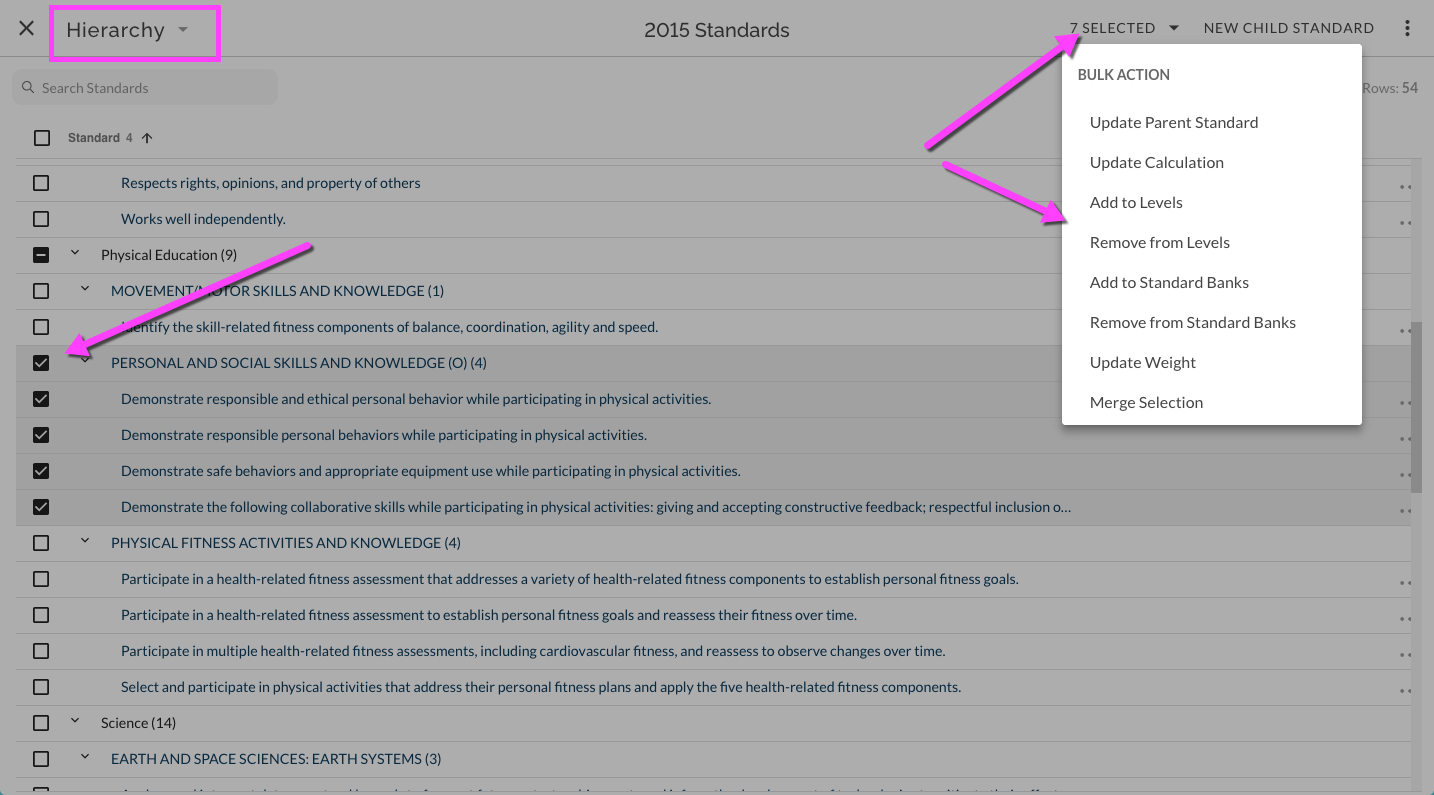
Edit an individual Child Standard
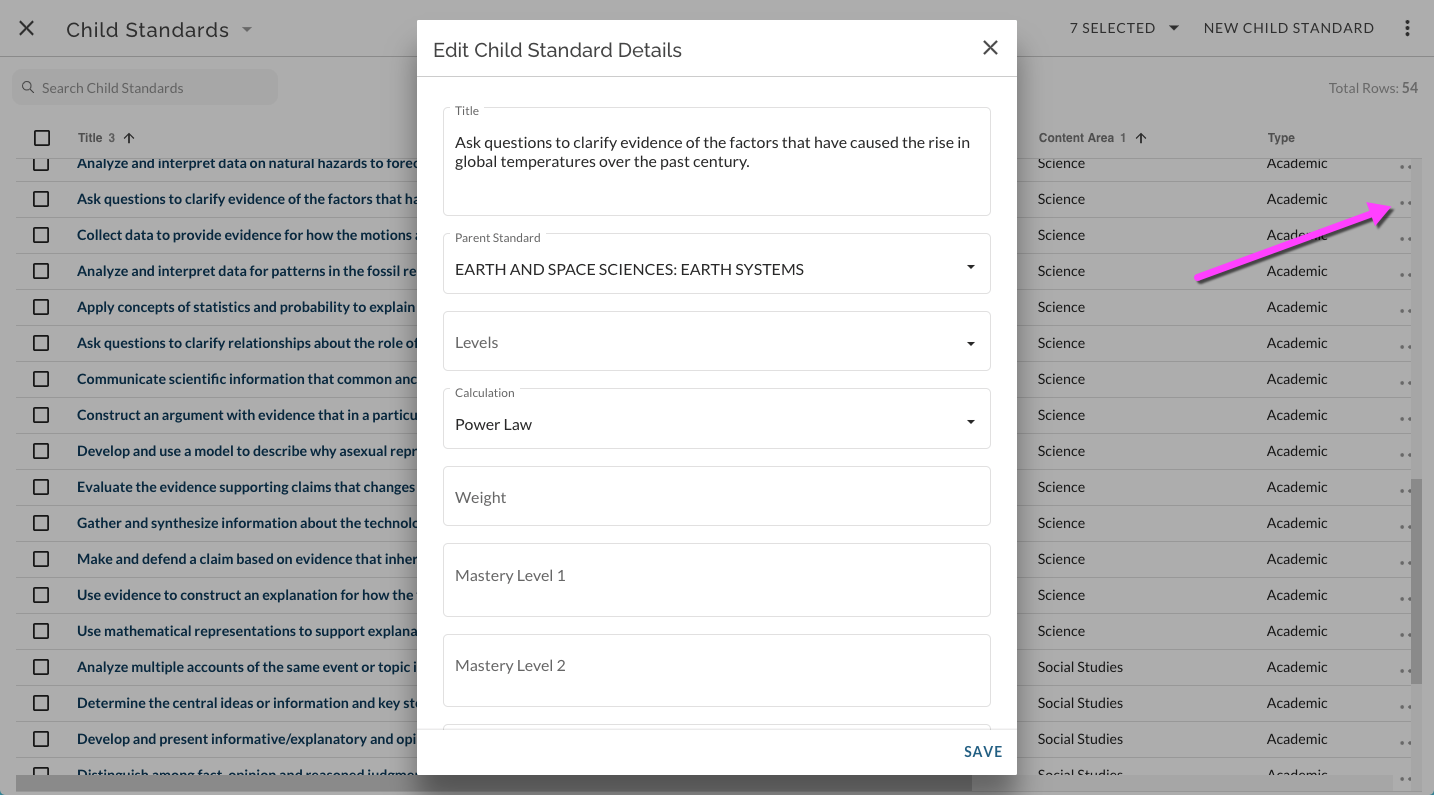
Select the more options ... menu for desired Child Standard and select Edit. In details window that opens, make desired changes and Save.