

By default the list view of staff accounts includes all schools and all active accounts. Filter the view by active status or by school site.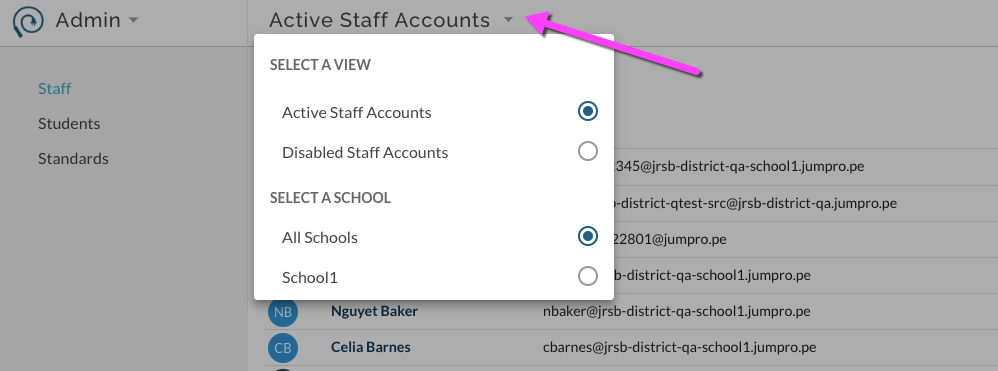
How to edit existing staff accounts
- Go to Admin-> Staff Accounts
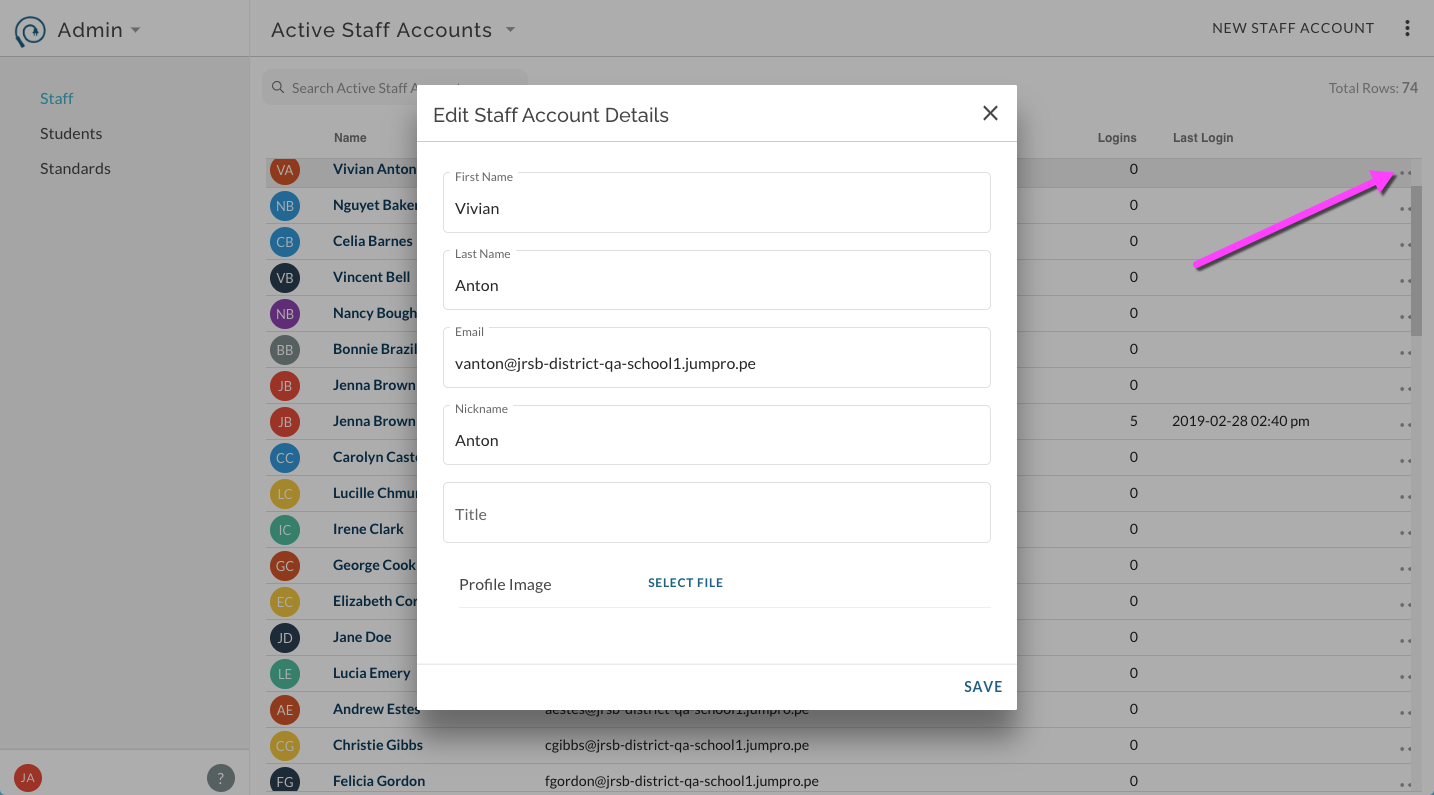
- To edit basic elements of account (name, email, nickname, title, image) select More Options menu ⋯ for the specific account.
- Edit elements as needed in the details window that opens.
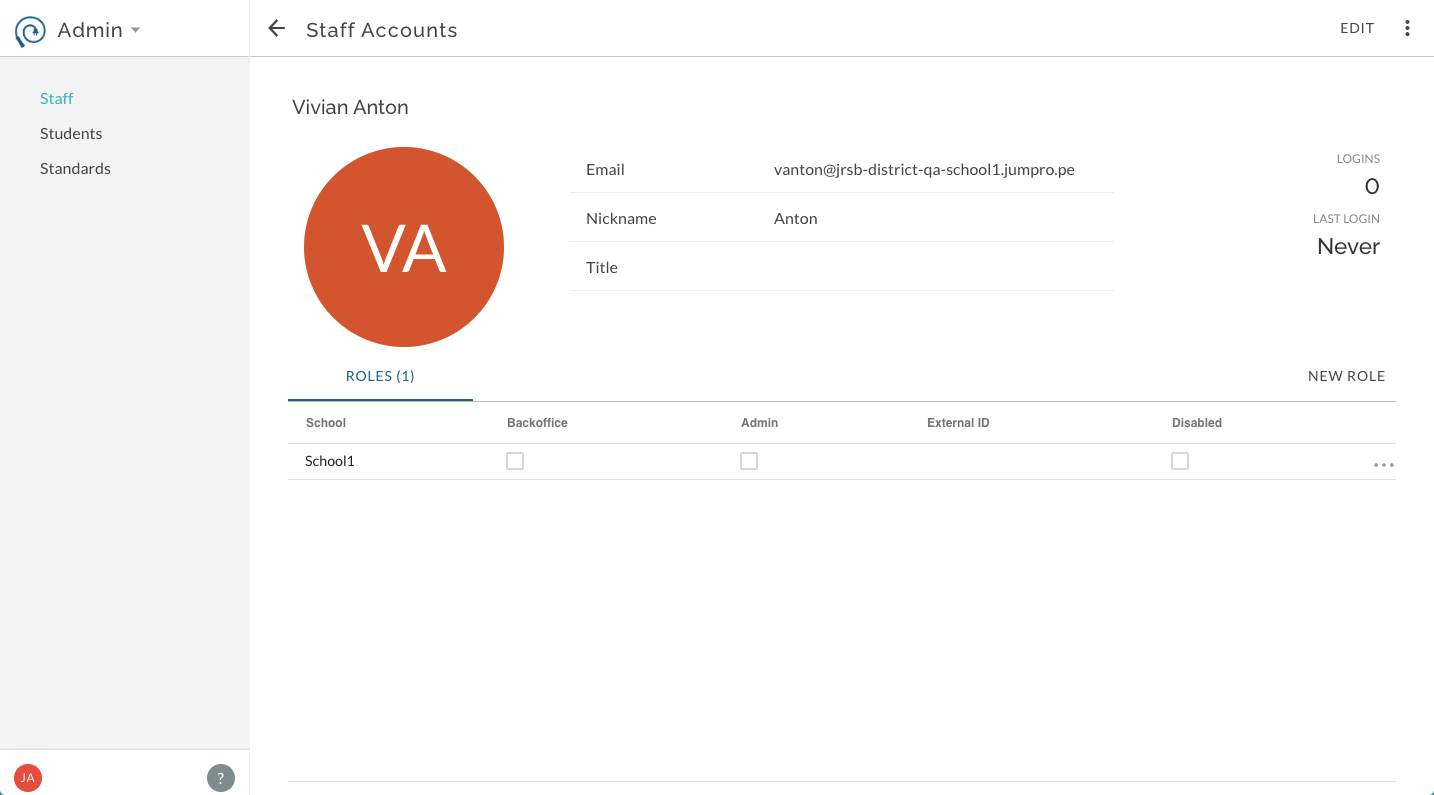
To edit basic and advanced elements of account (above plus schools access, external ID, and permissions) click on user's name to open individual staff page. To edit permissions for existing school access role click on More Options menu ⋯ next to desired school. Select to allow/disallow permissions. Edit external ID as needed. Remove school role by selecting Deactivate.
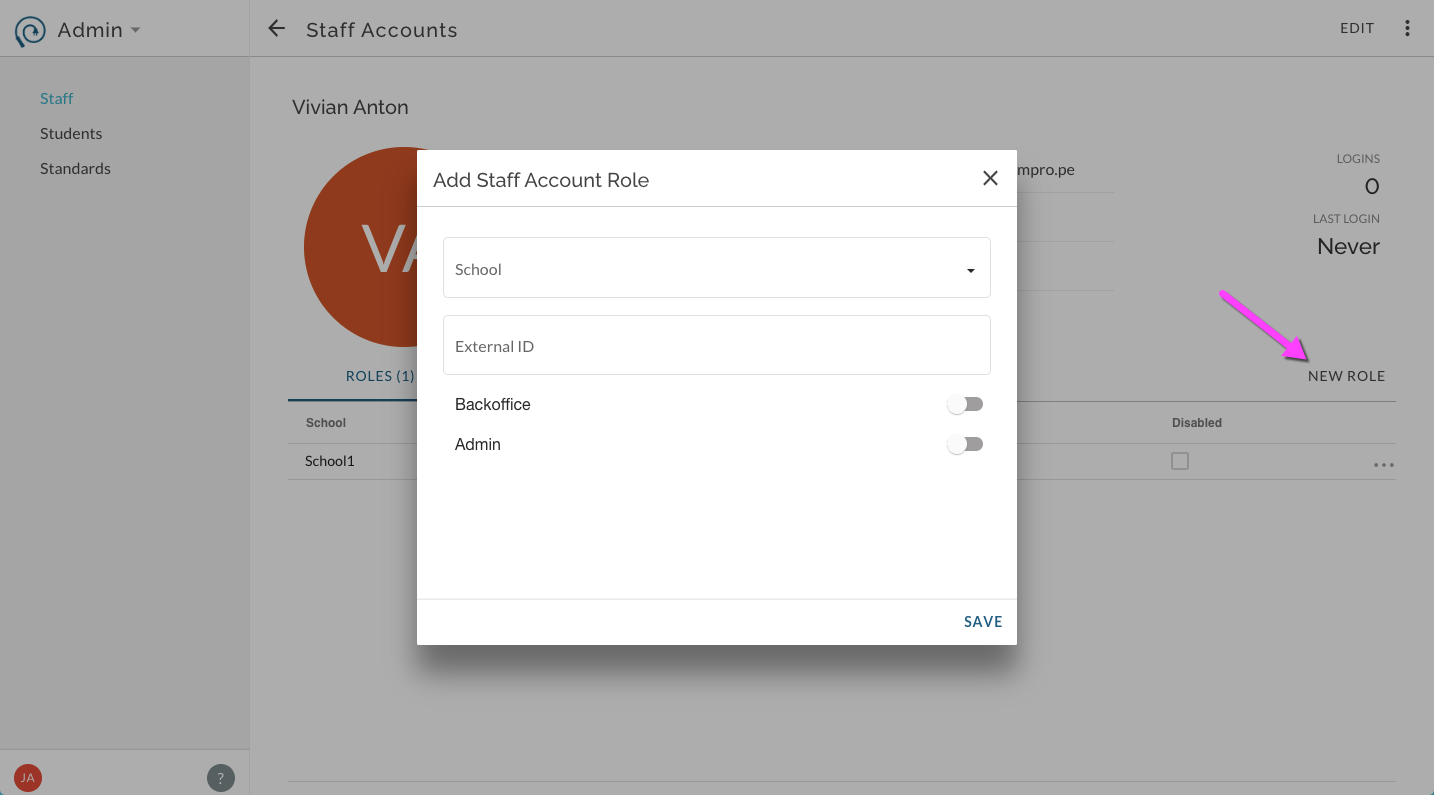
To add new school role select New Role.
Disabling, managing, and re-enabling disabled staff accounts Accounts can be disabled from all access at one time or access to specific school sites can be managed separately. To disable an entire account from all school roles, from the Admin page, select Staff. Select More Options menu ⋯ for the specific account and click on Disable Staff Account. To re-enable an entire account, change the view to Disabled Staff Accounts. Select user by clicking on email field. On staff account specific screen, next to desired school role, select More Options menu ⋯. Select Edit and then remove check for Disable and save.
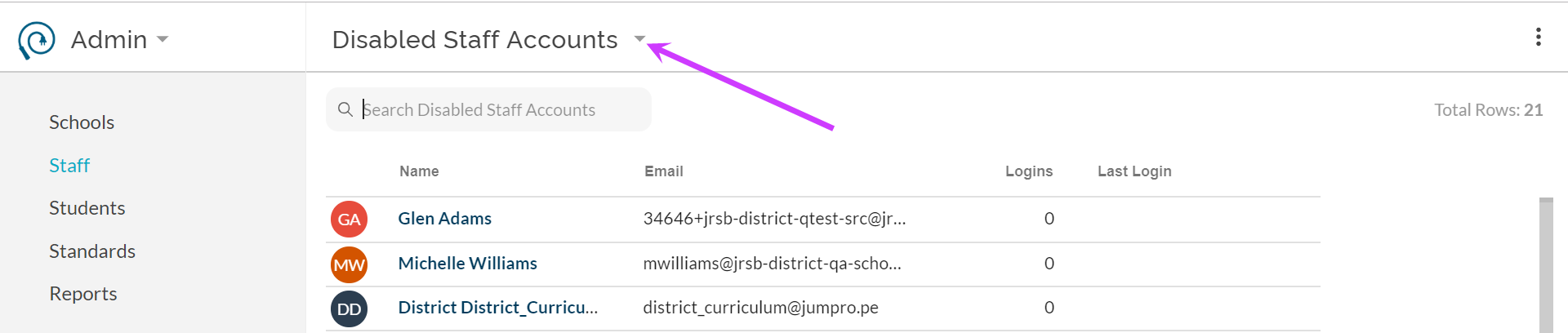
To disable specific school roles from an account (i.e. remove access from one school but maintain access to another), click on staff name. On staff account specific screen, next to desired school role, select More Options menu ⋯. Select Edit and then select the Disabled switch. 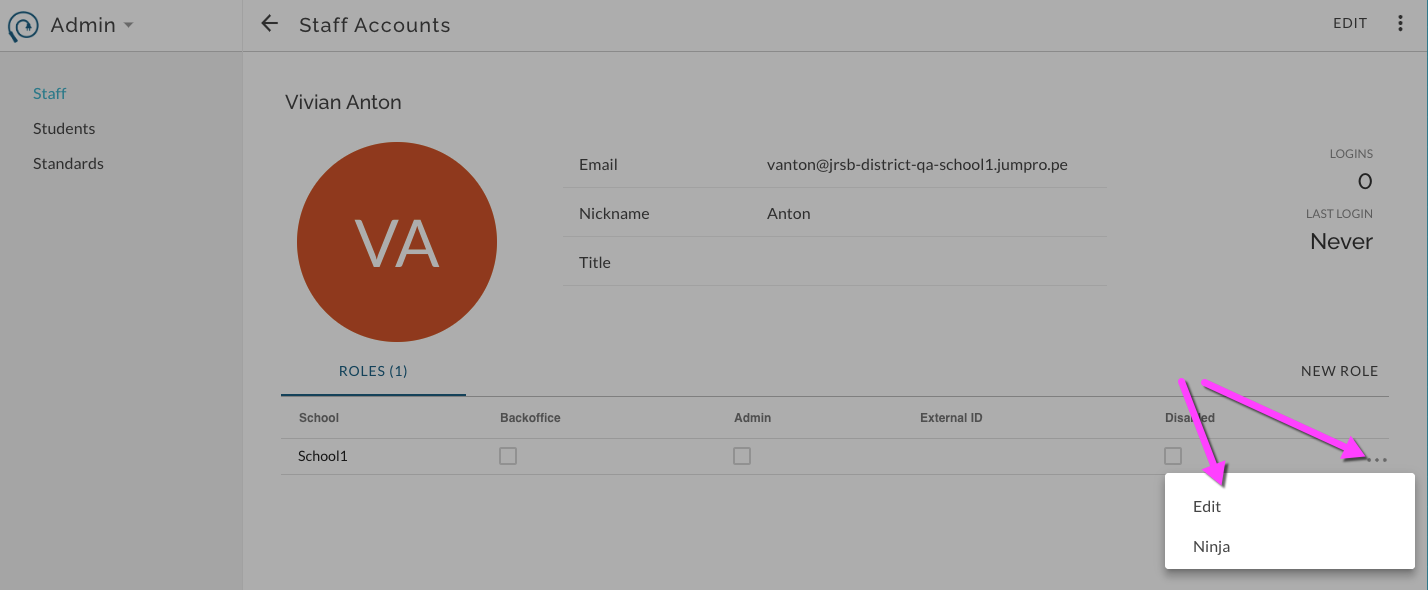
To re-enable specific school roles on an active staff account, click on staff name. On staff account specific screen, next to desired school role, select More Options menu ⋯. Select Edit and then remove check for Disable and save. Adding school access in bulk to a set of staff accounts. Sometimes you may need to add school access to a set of existing staff accounts, this can be completed in bulk using the import feature. Select "Import from CSV" from the upper right menu. 
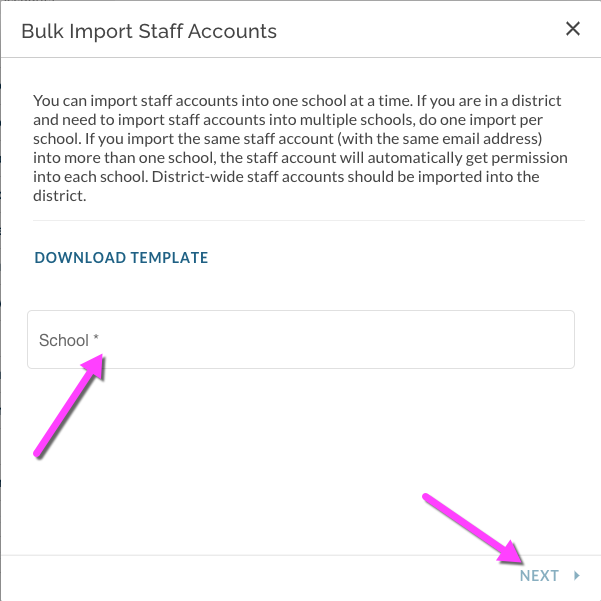
In the import tool that displays, select the desired school(s). Select Next.
Either Copy/Paste from an existing spreadsheet or type directly into the import feature. Select Continue.
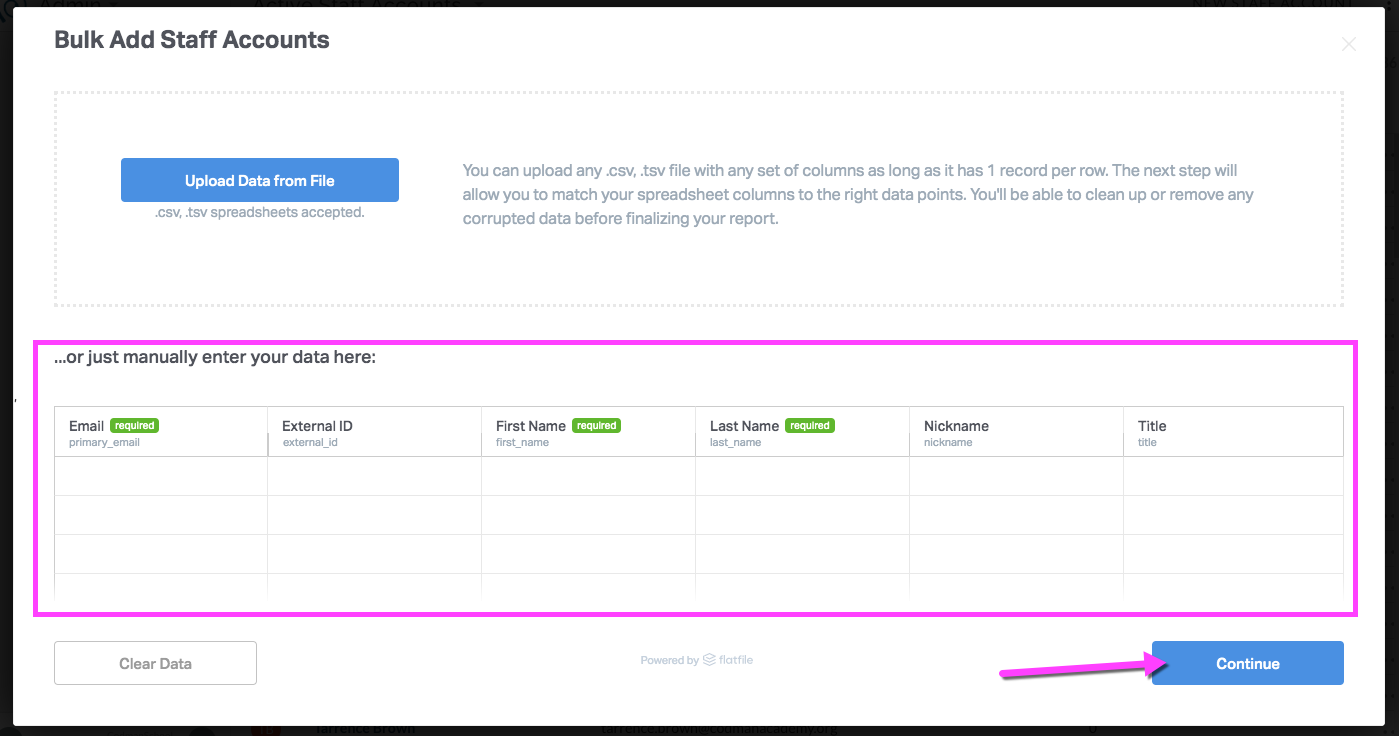
The import feature will validate your entries. Correct any errors and confirm the import.
Note: removing permissions for a school is not an action that can be performed in bulk.