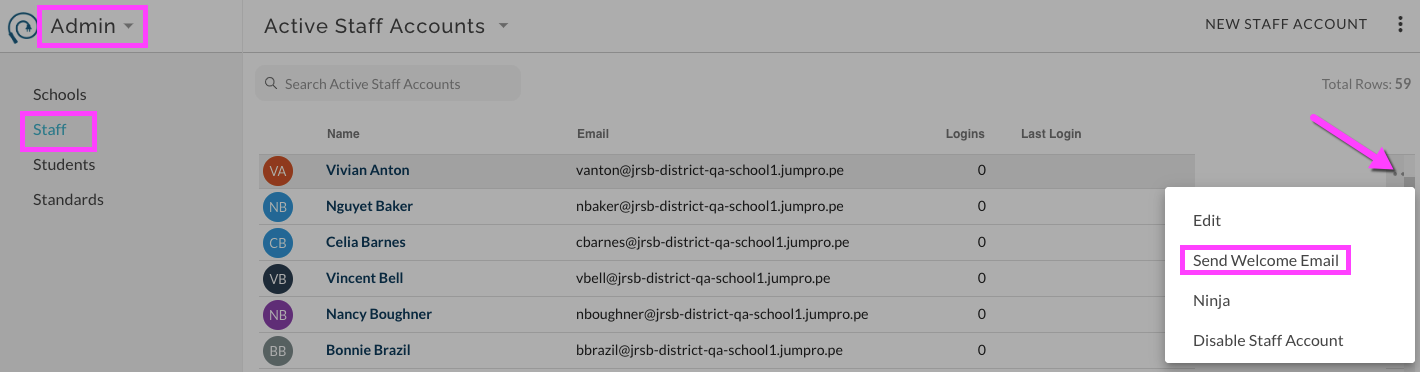
How to create new staff accounts individually
*see bottom of this document for bulk import options
From the Admin Console page, select Staff.
Select New Staff Account

In Add New Staff Account window complete fields
- Select school(s) - One or more including District can be selected. If a staff account has District access they do not necessarily need separate school roles. If they also teach at a specific school(s) they will need a school role for each school.
- First Name
- Last Name
- Email - this will be the login username and contact address
- Nickname - optional name to be used on some reports, example "Ms. Smith"
- Title - optional, example "Guidance Counselor"
- Profile Image - optional, select an image. If a user has a linked Google account, their Google image will display.
Save and initiate Welcome Email
How to create new staff accounts in bulk
From the Admin Console page, select Staff.
From the More Options menu ⋮ select "Import from CSV".

In the Bulk Import Staff Accounts window that opens, select the school into which you are importing. If you are importing district level staff select the 'school' identified as the district level site.
*Note: Once you being the import process your session will not be saved until you have completed all steps to create the accounts. Stopping the process before it's complete will not allow you to start back where you left off.
You can choose to utilize the template for an upload or can select Next and type directly into the import too.
****If using the Template -
Complete template with Staff account information.
- primary_email - must be a valid email address
- external_id - teacher identifier from your SIS, can be unique per school site if staff needs access to more than one school if you use STARS, leave this field blank. JR will automatically assume last name.
- first_name
- last_name
- nickname - optional name to be used on some reports, example "Ms. Smith"
- title - optional, example "Guidance Counselor"
Save file
Back in import window, in Bulk Add Staff Accounts window, select to Upload Data from File. Select this recently saved template file.
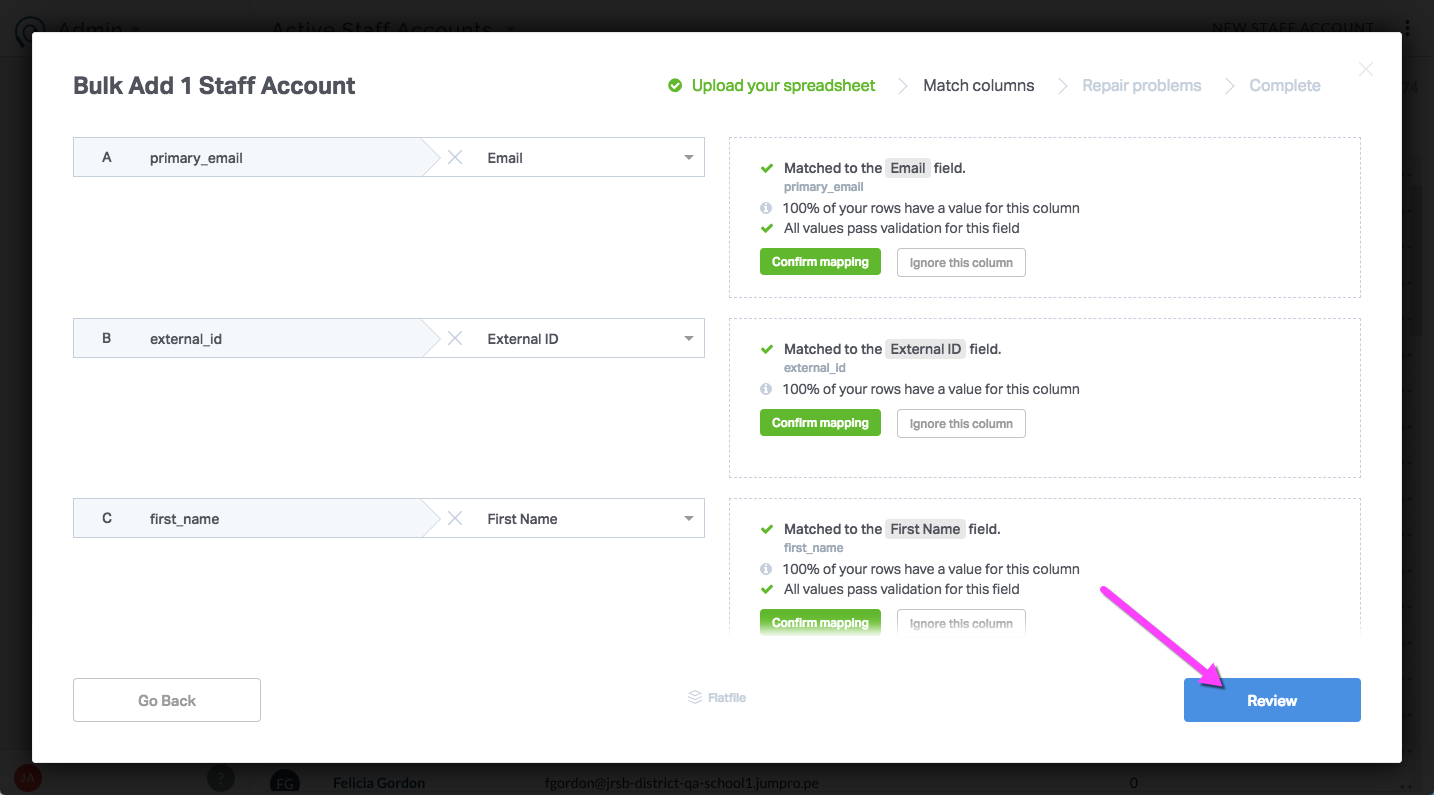
Import will attempt to map fields from file. Select to Review.
In Review you will have the opportunity to repair problems. Make any corrections directly on screen.
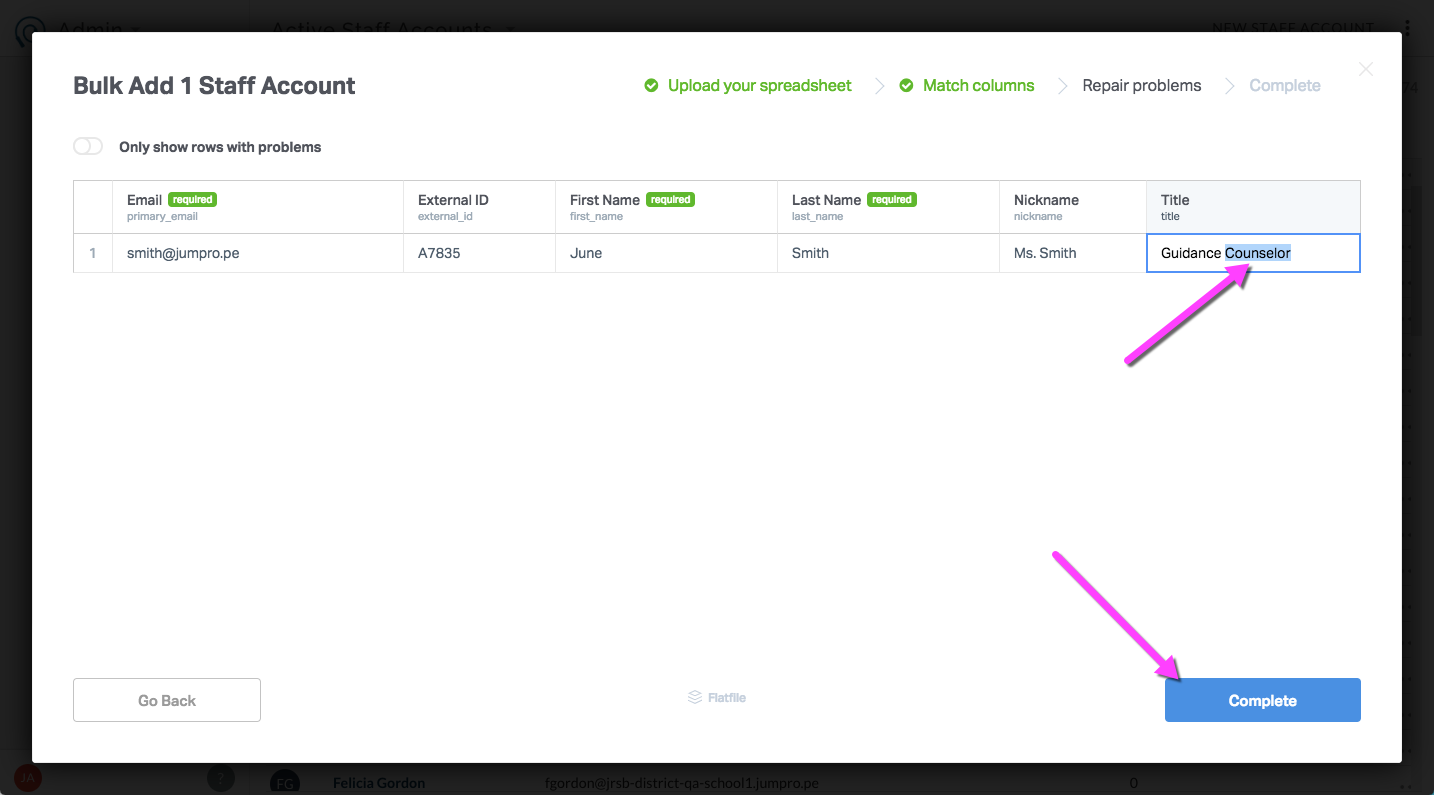
Select Complete and accounts will be created.
Note: if email addresses are Gsuite based staff can immediately login to JumpRope via Google SSO. Otherwise, initiate the Welcome Email from which they will create their password and initial login session.
If not using template -
Type directly into import tool
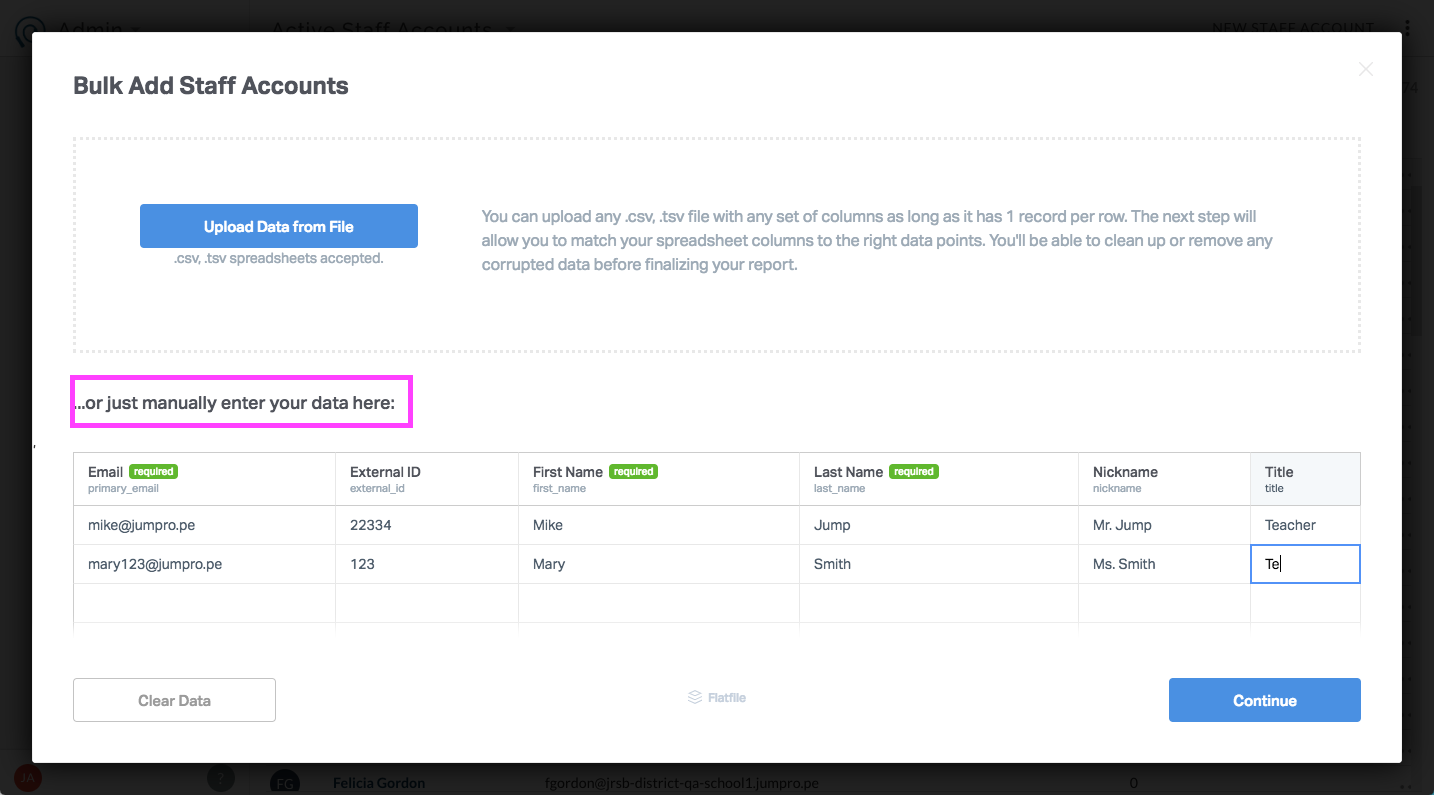
Select Continue, Review, and Complete as above.
Initiate Welcome Email.
Welcome Email
To notify a staff member of their new account, issue them a Welcome Email. This can be done in bulk or individually. The Welcome Email is sent to the email address associated with the staff account. It contains instructions on setting up a password and logging in for the first time.
Send Welcome Email in bulk
From the Admin Console page, select Staff.
From the More Options menu ⋮ select Send Welcome Emails

Select to either send to New Staff Only or to All Staff (includes those that have already signed in at least once).
Send Welcome Email to an individual
Select More Options ⋯ for an individual Staff account.
From menu, select Send Welcome Email