Schedule data can be exported from STARS Custom Reports in CSV format and these files can then be uploaded into JumpRope to import a school's classes and rosters. This can drastically reduce the time that it takes to get JumpRope up and running for your teachers, as it means that you only need to maintain the schedule in one system. If this is your first time accessing these custom reports for JumpRope in preparation for your GetSet meeting, please jump ahead to this section and Export Custom Reports from STARS.
-
Note 1: You will want to complete this process after any change to the schedule, however minor (though you may wish to collect a few and do it once every day or two if things change often at the beginning of a term).
-
Note 2: We recommend that you do not update the schedule during a school day, as many teachers are using the system and modifying data.
-
Note 3: Certain student biographical information, including the address, date of birth, family notes, and primary contact phone number will be overwritten in JumpRope with the latest data from STARS. If you wish to update the data in JumpRope, either update it in STARS first and then synchronize or use our custom biographical fields feature, which will never be overwritten by a synchronization with STARS.
-
Note 4: In order to match teachers' STARS class sections with their JumpRope account, you must set each teacher's "External ID" on their staff account to match exactly with the name you use for the teacher in STARS (the name in the Teacher field of your 4.15 export described below). This is usually the teacher's last name so JumpRope will have a default external ID set for each teacher that matches their last name. Generally you only need to make edits to the external ID if you use something other than the last name in STARS, or if you have more than one teacher with the same last name. In that case, add a first initial to BOTH teacher, i.e. RBROWN and SBROWN, making sure to also make this change in STARS.
-
Note 5: If you have co-taught courses you can either include both teacher names as primary teacher in your STARS export or you can add co-teachers manually in the JumpRope interface AFTER you have uploaded your first set of STARS files. This will only need to be done once per term.
-
Note 6: Changing course codes after grading has begun can impact gradebooks and student reports. If you find that you need to change course codes please reach out to support@jumpro.pe, we have some available tools designed to help mitigate this situation.
The import process has a couple of manual steps. When a schedule is changed/finalized in STARS, you must export four custom reports (3.07, 4.14, 4.15, 4.16) in order to get the data necessary to interpret the schedule for JumpRope. The steps are fairly basic for any seasoned STARS user, and for convenience the names of the necessary files are also listed in the import interface.
Exporting from STARS
The report files can be accessed under Custom Reports in the Desktop Client, or in the Web Client by clicking on the blue "Download" icon in the upper right, near where it says "STARS Admin". On the page that loads, click the red "Custom Reports" icon in the upper right.
- Export the custom reports as CSV files. Please note that the Excel versions, while easy for our system to read, DO NOT contain all of the necessary data (strange, right?). The CSV versions do. The reports are:
- 3.07 - Student Data: see special instructions below if necessary.
- 4.14 - Enrollments
- 4.15 - Courses
- 4.16 - Course Catalog
- When exporting the 4.16 file, you'll want to choose option "1" (STARS courses) if prompted.
- In order for this report to work properly, you must designate MPs in STARS.
Special 3.07 STARS export directions:
Recent changes to STARS may require you to first create a group that encompasses your entire school before exporting the 3.07 file. Here are directions:
- Load STARS web
- Go to Student Programming
- Go to Student Groups
- Create a new group
- Click the radio button for all grade levels
- Name the group "All Students"
- Click Save
- Look in the info box on the top of the page for the file
- Record the number in the ID column
- Put this number into the box for group number next to the 3.07 export report
- Create the 3.07 file
Import STARS report export files into JumpRope
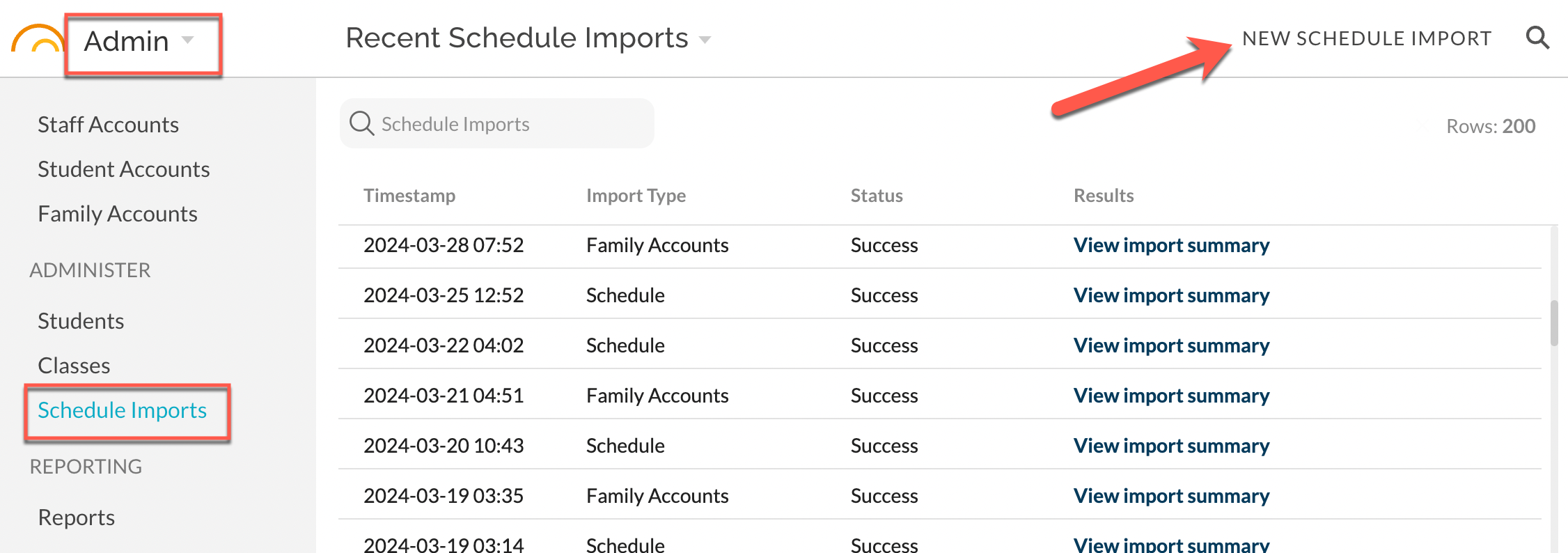
In Admin - Administer - Schedule Imports, select New Schedule Import. Follow upload instructions here:
- How To - Importing a Schedule from NYC STARS/HSST
The Recent Schedule Imports log will include rows for STARS schedule data imports and also rows for Family Account RCON data imports if enabled for your school.