

This specific information is relevant for schools that use the STARS scheduling and course program system. Others can find more information here and here.
If your school schedules classes in STARS within more than one TERM, the JumpRope TERM must align to the STARS TERM you wish to display.
- Set Default TERM
- Import STARS program reports for new TERM
- Update Family Portal Grading Period to desired TERM
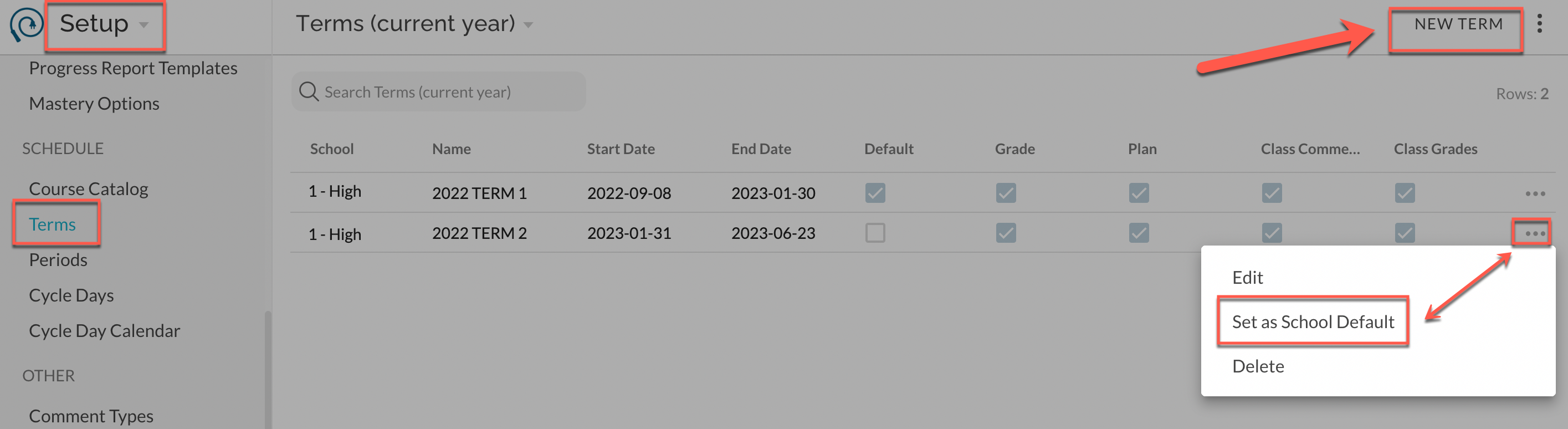
1. Set Default TERM -Navigate to Setup - Terms
 Create a New Term
If additional TERMS do not yet exist for the given school year (depending on settings for the previous school year, TERMS may have already been created automatically) they can be created in Setup as shown above by clicking on New Term. More detail is described here.
Setting up the Default Term (Changing to the new Term)
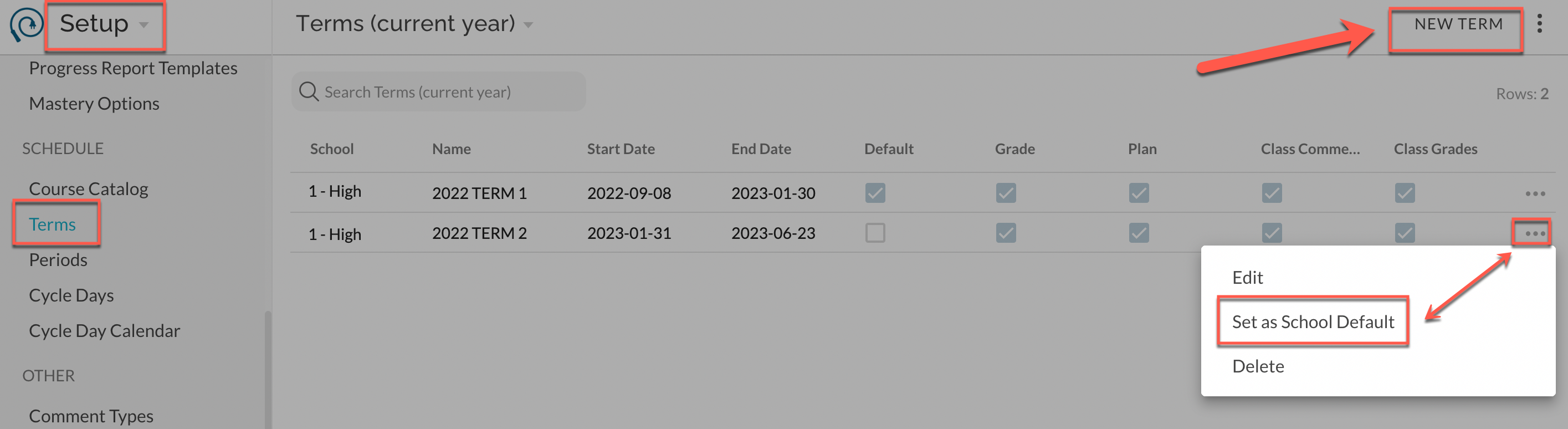 The default TERM will be that which is displayed to teachers upon their login. Depending on settings that have been administratively enabled, teachers may have access to work within previous or upcoming TERMS (i.e. can still go back and change scores for TERM 1). Edit the existing TERM and use Set as School Default as shown above. Setting a new TERM as default is synonymous with changing the TERM.
Default term is also the TERM for which Attendance will be aligned.
2. Import STARS program reports for new TERM
3. Update Family Portal Grading Period to desired TERM
Access to past terms:
For administrators, Here's more on how to set the default and manage accessibility permissions for previous TERMS.
For teachers, here's more on How To - Edit Scores and more from a Previous Term or Year