

Referenced help documentation is accessible within your JumpRope account through the ?Help icon (use the title as a keyword search to quickly find) and/or directly linked within this document.
ADMIN
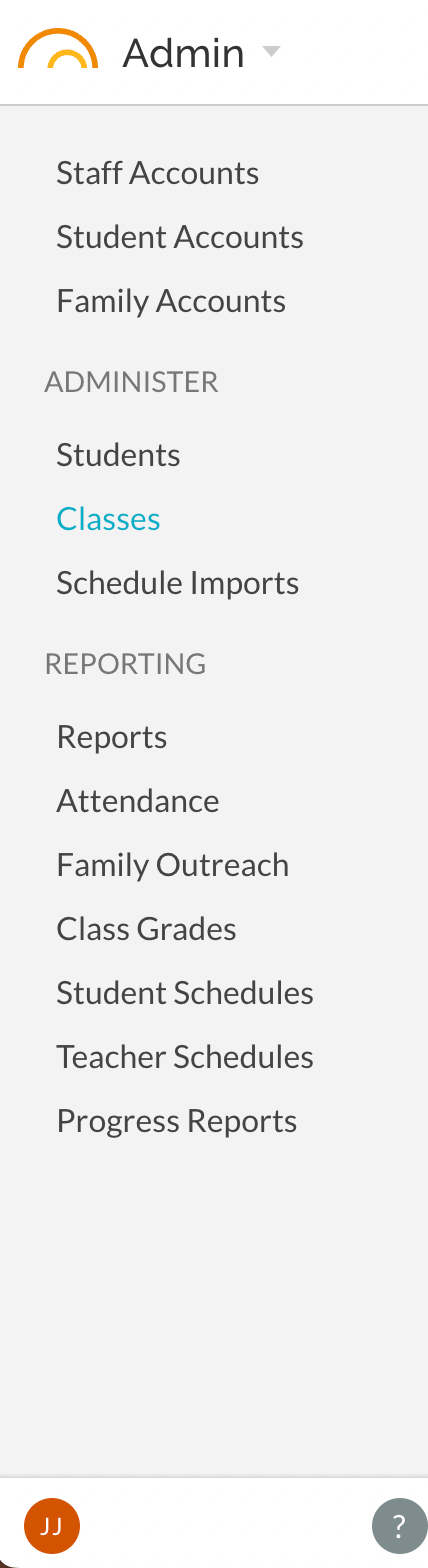
Staff Accounts -
-
Add Admin, Setup, and/or Reporting permissions to users as desired.
-
Reference - Account Permissions
-
Reference - Managing Staff Account Roles
-
Student Accounts & Family Accounts -
-
These are accounts that access the Family Portal. Set up of the Family Portal and accounts is usually tabled until a few weeks into implementation, after teachers have been able to enter some scores and utilize the gradebook a bit.
-
In the interim, searching for the keyword "portal" within the in app ?Help center will provide some resources.
- Please reach out to support@jumpro.pe when you are ready to move forward with Portal set up. We can provide direct resources and are also available to schedule a remote training session on portal set up if needed.
ADMINISTER -
Schedule Imports - Depending on the SIS (PowerSchool, InfiniteCampus, Synergy, etc.) that your school uses to enroll and schedule students, this view may be a list of schedule import time stamps. Otherwise, upload STARS or ASPEN schedule/enrollment data from this location. This can be completed as frequently as is needed to have JR reflect updated schedules and enrollments. Changes are immediately available in teacher Gradebooks after a 3-5 minute upload process.
-
NYC Schools STARS Schedule Import
-
Aspen - Schedule Integration
Students -
Useful as a big picture view of the student body. Can search by student to view reports, contacts, profile.
-
Change view from Active Students in order to access advanced views and tools such as:
-
How To Import and Edit Information in Student Custom Fields
-
How to - Set-up Auto Advisory Alignments
-
Classes -
-
Useful as a big picture view of every class section uploaded from SIS data and to access these features:
-
How To - Add Co-teachers to a Class Manually
-
Fixing Teacher Mappings for STARS imports
-
REPORTING -
Reports -
- These are school-wide data reports in exportable formats. They include grade and score data as well as anecdotal comment data, attendance data (if attendance add-on is included), usage data, etc.
Attendance -
- If Attendance add-on features are enabled for you school, this report is a full student body, visual, daily attendance view.
Family Outreach -
- If Messaging add-on features are enabled for your school, this set of reports show auditable lists of messages sent by teachers and staff.
Class Grades -
If Class Grades add-on features are enabled for your school, this report lists completed and submitted Class Grades by class and teacher.
Student Schedules and Teacher Schedules -
- Only relevant if your school has also subscribed to JumpRope's Attendance add-on. Provides bulk options for generating PDF schedules by student. See also How to - Create a PDF set of individual Teacher Schedules and How To - Print Student Schedules in bulk
Progress Reports -
-
Bulk, school-wide PDF progress reports are generated here. These PDF files can be emailed to Family Contacts and to Student Account email addresses.
- Progress Reports Reference
-
Note: teacher accounts automatically have access to generate their own class-based and individual student Progress Report PDFs too.
* How To - Create Progress Reports for a Class

* How To - Create a Progress Report for a Single Student
SETUP
Schools -
-
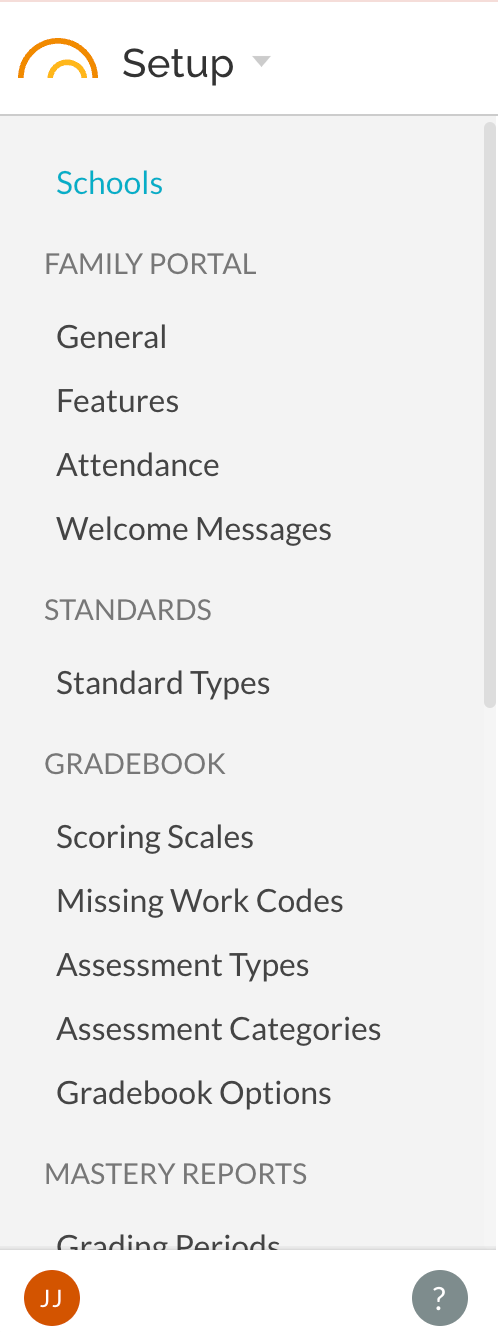
Edit your school name and nickname. Add and edit letterhead information for PDF progress reports.
-
Turn over to the new school year in the Fall. How To - Start the New School Year
FAMILY PORTAL -
-
all management tools for the configuration of the Family Portal. Please reach out to support@jumpro.pe if you need help when you are ready to set up this portion of JumpRope.
STANDARDS -
Standard Types
-
Generally configured by your implementation manager based on consultation during the GetSet meeting.
-
Types are the tag/category/flag that designate a standards' scores to be included in the course grade or not based on the 'weight' value. This 'weight' value portions Standard scores towards the overall course grade.
GRADEBOOK -
Scoring Scales
-
Generally configured by your implementation manager based on consultation during the GetSet meeting.
- Please review the color values and the threshold values to ensure they fit with the scoring model your school uses.
Missing Work
-
codes are configured by your implementation manager based on consultation during the GetSet meeting.
- These Grade book codes can be used by teachers in place of the Scoring Scale values. Those marked 'missing' are codes that flag an assignment for the "Missing Work" reports in the Family Portal and teacher-facing "Missing Work" reports. Any value entered means that the score will be on the report but will also have a value in calculations. No value here means that the code is ignored in all calculations.
Assessment Types
-
Initial Types are configured by your implementation manager based on consultation during GetSet meeting.
-
These types inform the list of types that teachers can choose from in their Grade books when creating Assessments.
-
Types also inform the weight of any particular score.
Assessment Categories
- If configured for your school, Assessment Categories allow various Grading Policies to be applied to classes. For HYBRID configurations only.
Gradebook Options
- Various settings with descriptions included in-app
MASTERY REPORTS -
Grading Periods
-
Used as start and end dates for reports.
-
Automatic Grading Periods are created based on the enrollment TERMS used. Additional Grading Periods for reports can be created, however most schools do not need to add custom Grading Periods.
Mastery Schemes
-
On-screen, Portal, and Progress Report configuration.
-
Configured by your implementation manager based on consultation during the GetSet meeting.
Progress Report Templates
-
Configurations for PDF Progress Reports
-
Configured by your implementation manager based on consultation during the GetSet meeting.
Mastery Options - various settings with descriptions included in-app
SCHEDULE -
Course Catalog
-
A full listing of the course program based off of data from SIS.
-
Useful to identify courses as 'Advisory': How to - Set-up Auto Advisory Alignments
Terms
-
Enrollment base TERMS and their start and end dates.
-
These TERMS must match the number of TERMS that your school uses for enrollments in SIS/STARS/Aspen.
-
Set default TERM view and permissions on access
Periods, Cycle Days, Cycle Day Calendar - relevant for Attendance add-on
OTHER -
Comment Types - Anecdotal comment categories
Attendance Options - various options described in-app
Student Custom Fields - category/fields for Student Profile