

Texas - SPED Video Camera Requests
Overview
The SPED Video Camera Requests page allows Texas district and school users to record and manage SPED video camera request data required for the new TSDS-SPEDS Video Camera submission, first due July 22, 2027 (2026-2027 school year data).
The page is available under School Info, listed after Staff, for administrators logged in at both the district (0) level and the school level.
This is a TX-only feature. The underlying SVC table and page are not available to California districts.
See also:
Permissions ↑
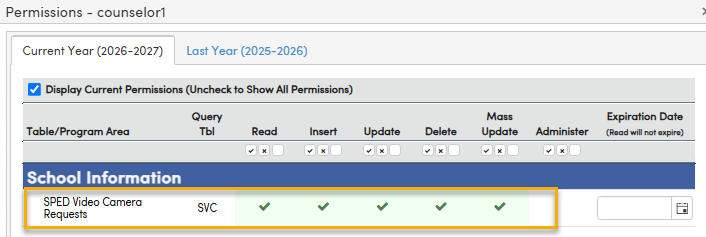
Users will need the following permissions in order to utilize the SPED Video Camera Requests page:
| Page | Table |
|---|---|
| School Info > SPED Video Camera Requests | SPED Video Camera (SVC) |
Steps ↑
Navigate to School Info > SPED Video Camera Requests
- If no records exist, the page displays an empty-state message with no data rows.
Adding a Record
- Click + Add New Record. An inline row is added to the top of the grid with Save and Cancel icons.
- School - (District [0] level only) (SC) A dropdown using the standard Aeries school selector, used to assign the request to the correct school. Not shown when logged in at the school level, since the school is already known.
- Request ID - (ID) Automatically generated as the next sequential number for the selected school. Read-only, following the same numbering pattern used for the Assertive Discipline Incident Number.
- Camera Request Received Date - (Required) (RD) The date the camera request was received. Includes a date-picker control.
- Camera Requestor - (REQ) The person or entity who submitted the request. A dropdown bound to Fixed Codes for TWEDS C374, displayed as a 2-digit code and description (e.g., "01 – Parent/Guardian," "07 – ARD Committee").
- Camera Status - (ST) The current status of the request. A dropdown bound to Fixed Codes for TWEDS C375, displayed as a 2-digit code and description (e.g., "01 – Request Received," "06 – Request Denied").
- Camera Status Determination Date - (SDD) The date the status was determined. Includes a date-picker control.
- Denial Reason - (DR) The reason the request was denied, if applicable. A dropdown bound to Fixed Codes for TWEDS C376, displayed as a 2-digit code and description (e.g., "01 – Does Not Meet Eligibility Requirements," "04 – Privacy Concerns").
- Camera Operational Date - (OD) The date the camera became operational. Includes a date-picker control.
2. Click the Save icon. The record displays in the grid in view mode with a pencil edit icon.
Editing a Record
- Click the pencil icon on an existing record. The row switches to inline edit mode with Save, Cancel, and Delete icons.
At the district (0) level, the School field is also editable, allowing a district user to move a record to a different school. The record is only reassigned once the move is saved successfully.
2. Click the Save icon to save changes, or Cancel to discard them.
Deleting a Record
- While a record is in inline edit mode, click the Delete icon and confirm. The record is soft-deleted (DEL = 1) and no longer appears in the grid.
District (0) Level vs. School Level
- At the district (0) level, the School column is visible in the grid, and the school selector appears on the Add and Edit rows.
- At the school level, the School column is hidden, since all records belong to the logged-in school.
School level

District level
