

The My Students page is your central hub for managing your children's enrollment applications in the Guardian Portal. From this page, you can start new enrollments, track application progress, and view student details all in one place.
From this page, you can:
- Start a new student enrollment
- Track the status of submitted applications
- Respond to requests for additional information from the school
- View and download your submitted enrollment forms
To access this page, sign in to the Guardian Portal and select My Students from the navigation menu.
Table of Contents ↑
Enrolling a Student
Select an Enrollment Form
Completing a Form
Understanding Student Cards
Application Statuses
Viewing Student Details
Enrolling a Student ↑
If you are visiting the My Students page for the first time and have no enrollments yet, you will see a message indicating no students are enrolled. Click Enroll Student at the top of the page to get started.
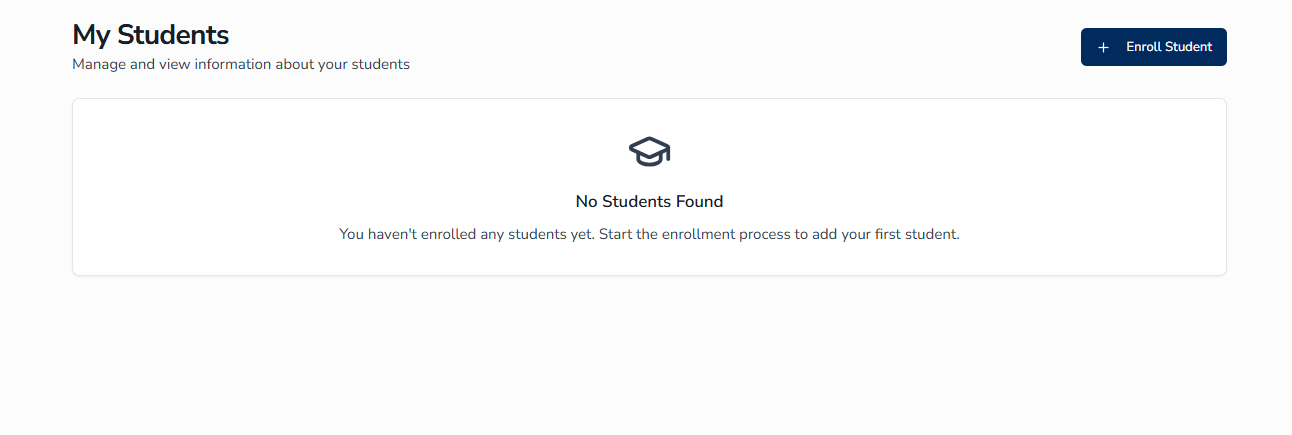
To enroll a student:
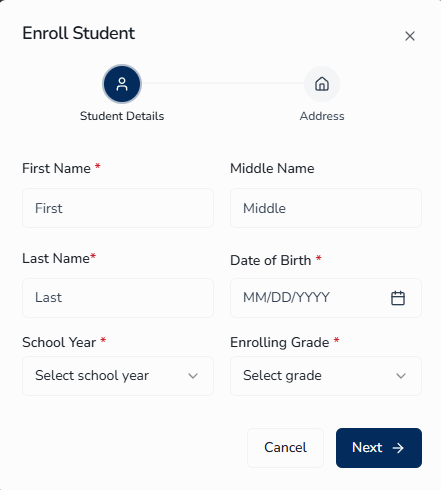
- Click Enroll Student. The enrollment dialog opens.
- Step 1 — Previous Enrollment (shown only if you have existing students): Optionally copy an address from a sibling already in the system to save time.
- Step 2 — Student Details: Enter your child's first and last name, date of birth, and grade level. The system will suggest a grade based on the birthdate you enter.
- Step 3 — Address: Enter the student's home address.
- After completing these steps, you will be taken to Form Selection. Choose the appropriate enrollment form for your student, then proceed to fill it out.
- Click Save at any time to save your progress and return later.
Select an Enrollment Form ↑
The Select an Enrollment Form page will display after completing the Enroll Student steps.
A guardian will then select the enrollment form of their choosing. Forms shown here are filtered based on your student's grade level, date of birth, and the current enrollment period. If your district uses Geographic Boundaries, a School of Residence banner appears above the form list showing which school matches your student's address.
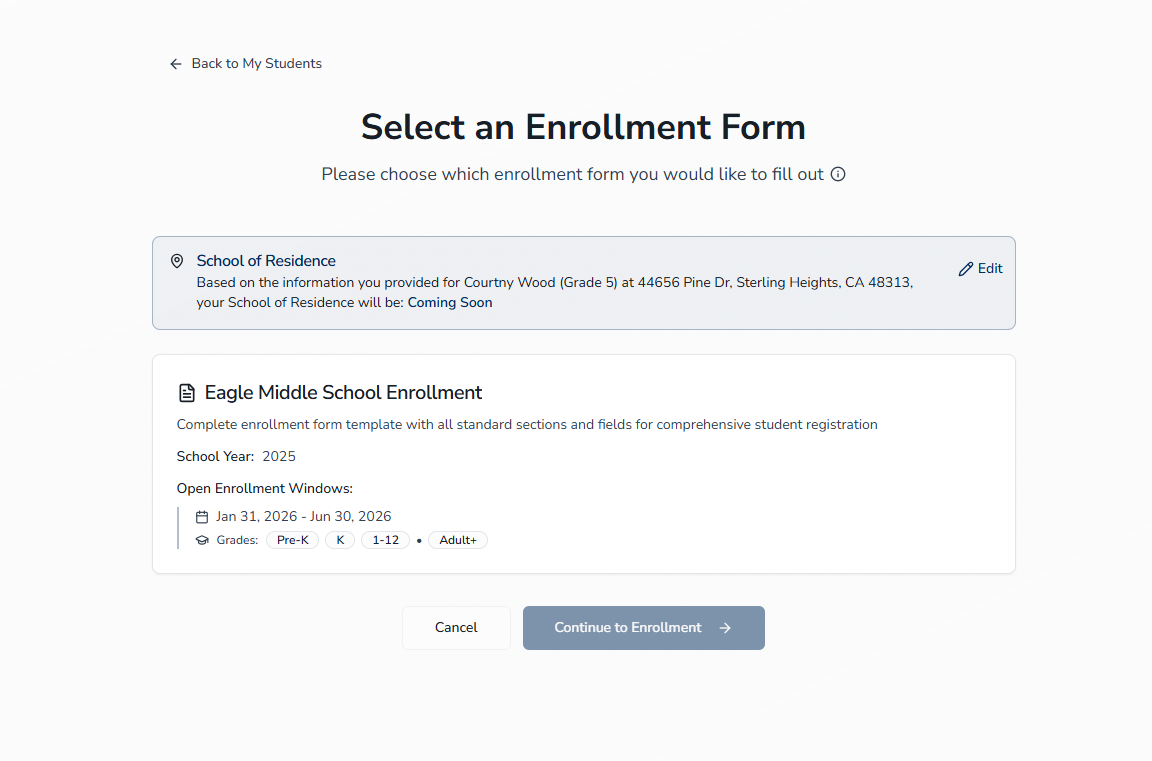
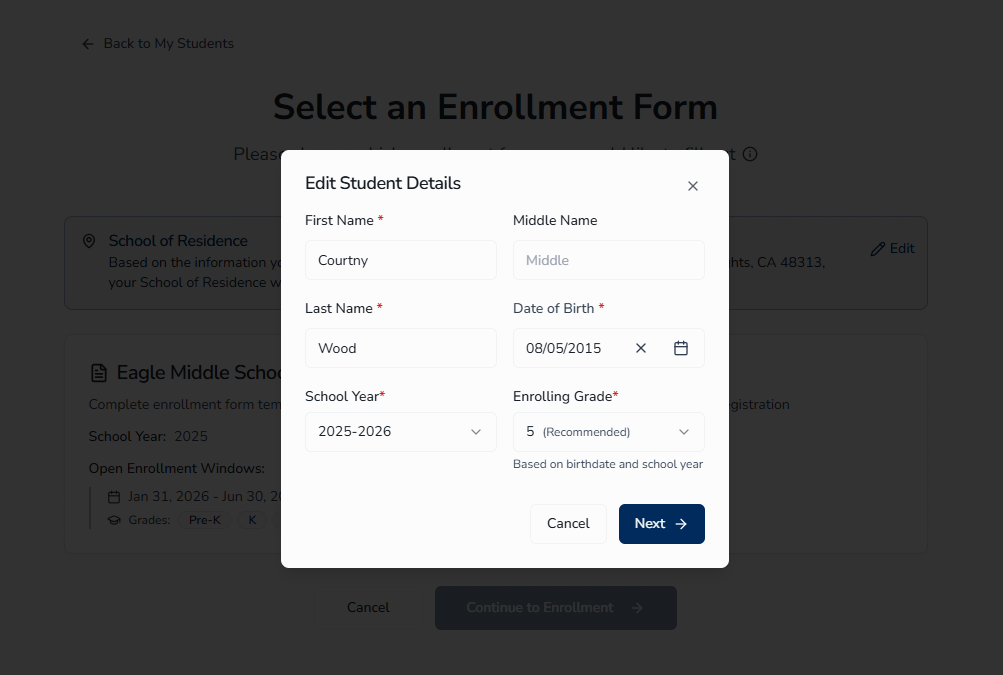
If the School of Residence banner is shown, you can edit your student's information by selecting the edit icon in that banner. Guardians are expected to provide accurate data for their student at all times.
Completing a Form ↑
When a guardian selects a form and continues, they are presented with a Welcome section that includes an introductory message from the district, a list of sections to complete on the left, and navigation buttons to move through the form.
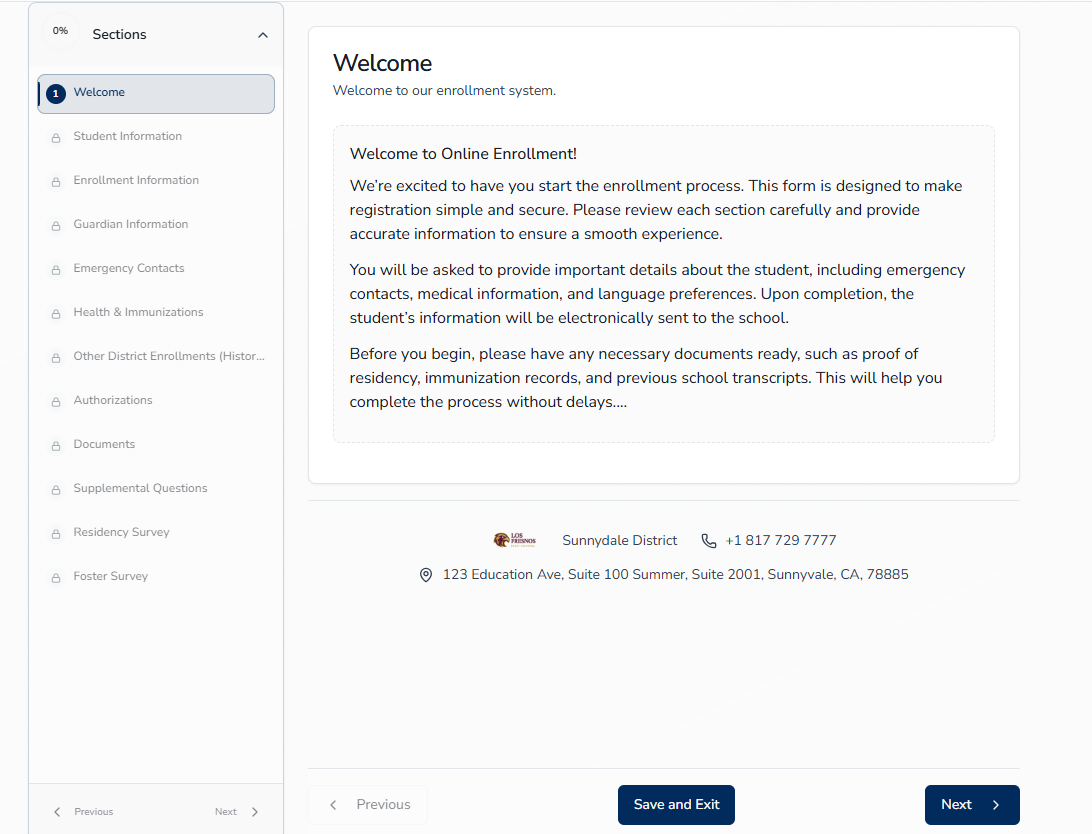
The student's information will be prefilled into the form in the appropriate fields:
- First Name
- Last Name
- Date of Birth
- Grade
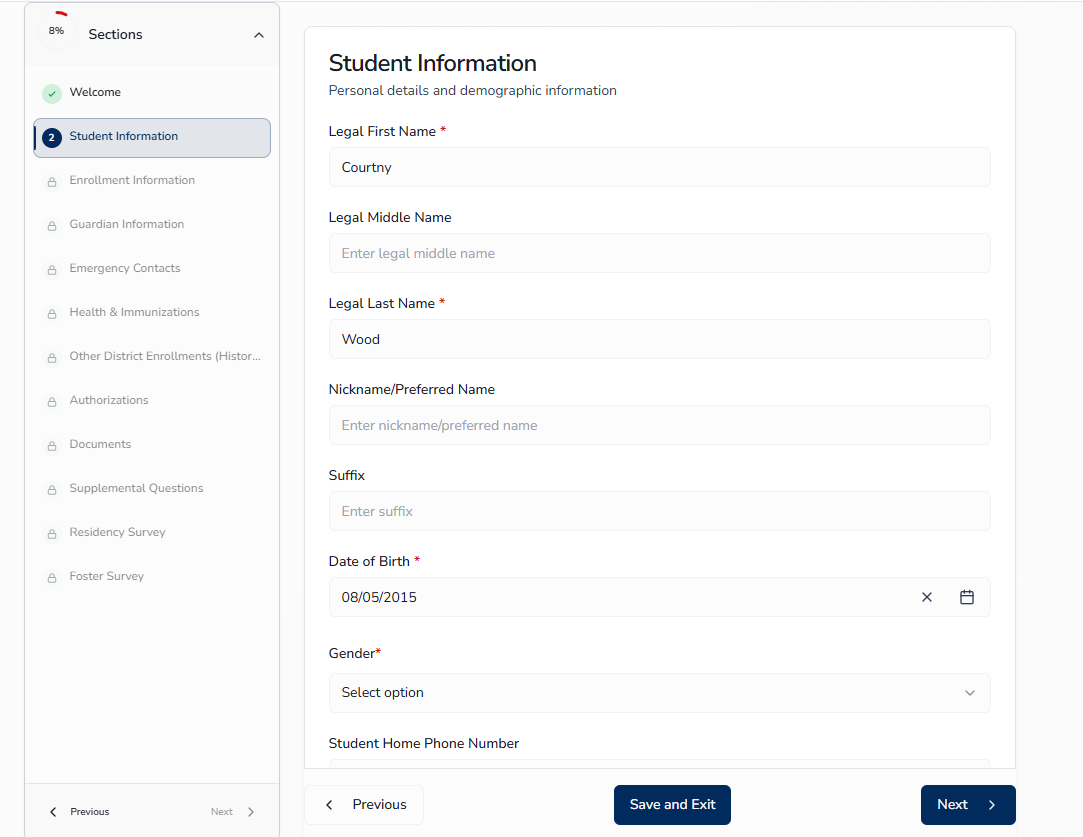
If the guardian selected a previously enrolled student, the shared data will pre-populate some fields.
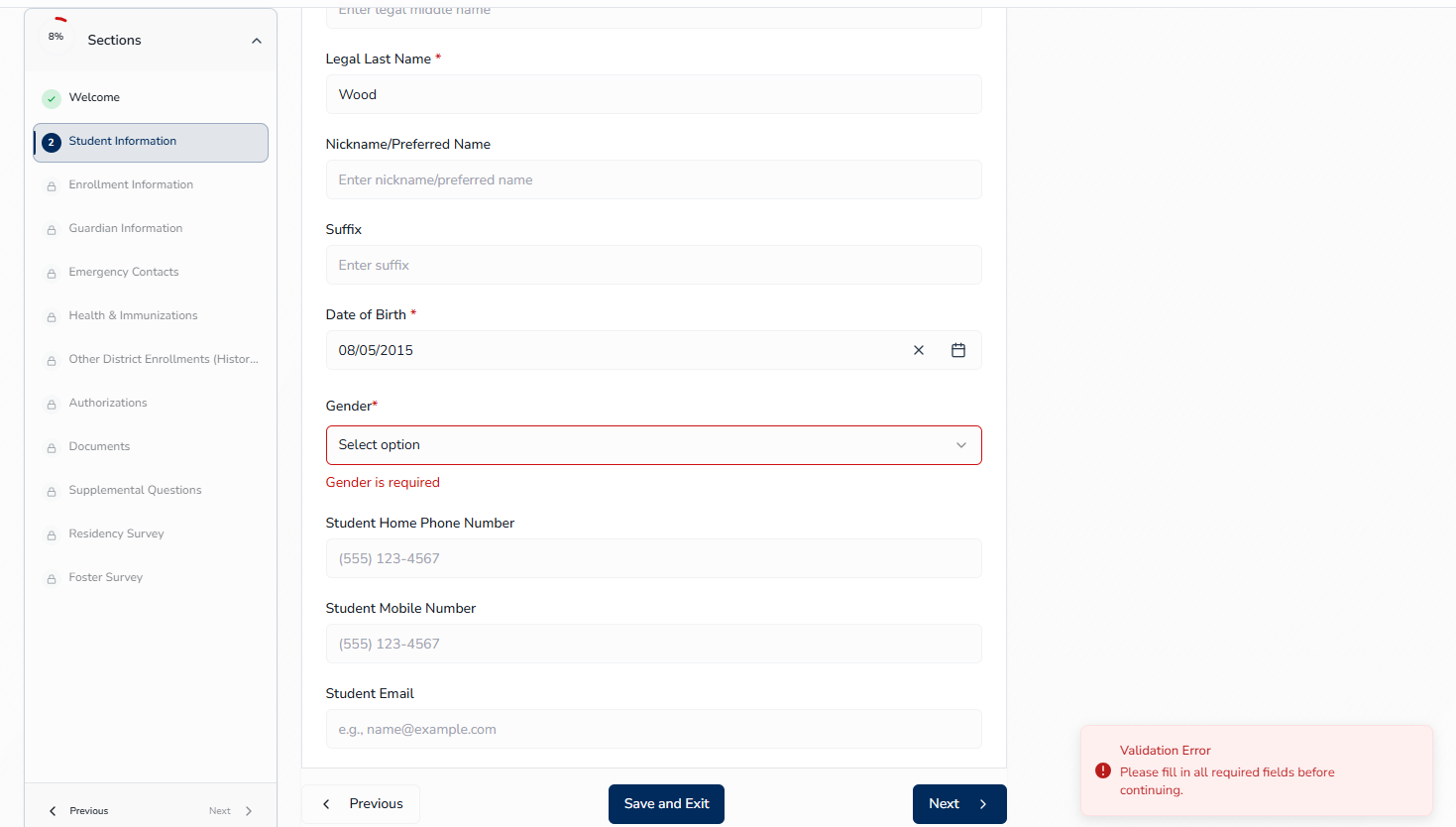
Required fields will be notated with an asterisk. If the guardian tries to go to the next section without filling out a required field, they will receive an error.
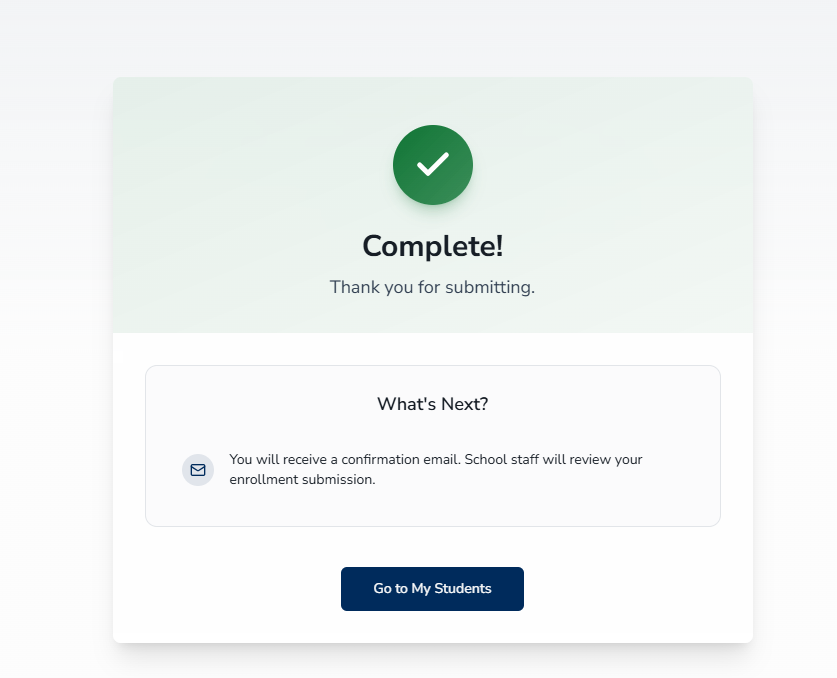
When completing the form, a confirmation message will display. The guardian can select Go to My Students to return to the My Students page. An email confirmation will be sent to the guardian upon completion.
Understanding Student Cards ↑
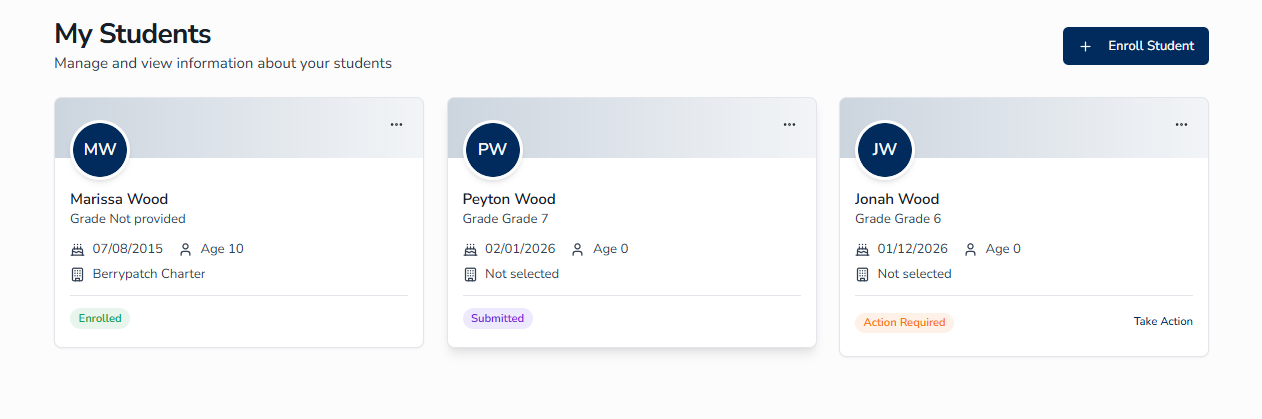
Once you have started or completed an enrollment, each student appears as a card on the My Students page. Each card displays the following information:
- Student name, grade, date of birth, and age
- School the student is enrolling in
- Status badge indicating where the application currently stands
Application Statuses ↑
Each student card displays a status badge that tells you where the application stands and what action, if any, is needed from you.
| Status | What It Means | What You Can Do |
|---|---|---|
| In-Progress | You have started the application but have not submitted it yet. | Click the card or the Resume link to continue filling out the form. |
| Submitted | Your application has been submitted and is under review by the school. | Click the card to view your submitted information. |
| Action Required | The school has reviewed your application and needs additional information or corrections from you. | Click the card or the Take Action link to open the form. Review comments from the school for guidance on what changes are needed. |
| Enrolled | Your child has been accepted and enrolled at the school. | Click the card to view enrollment details and submitted forms. |
Viewing Student Details ↑
Clicking a student card with a Submitted or Enrolled status takes you to the Student Details page. This page provides a full view of your child's enrollment information.
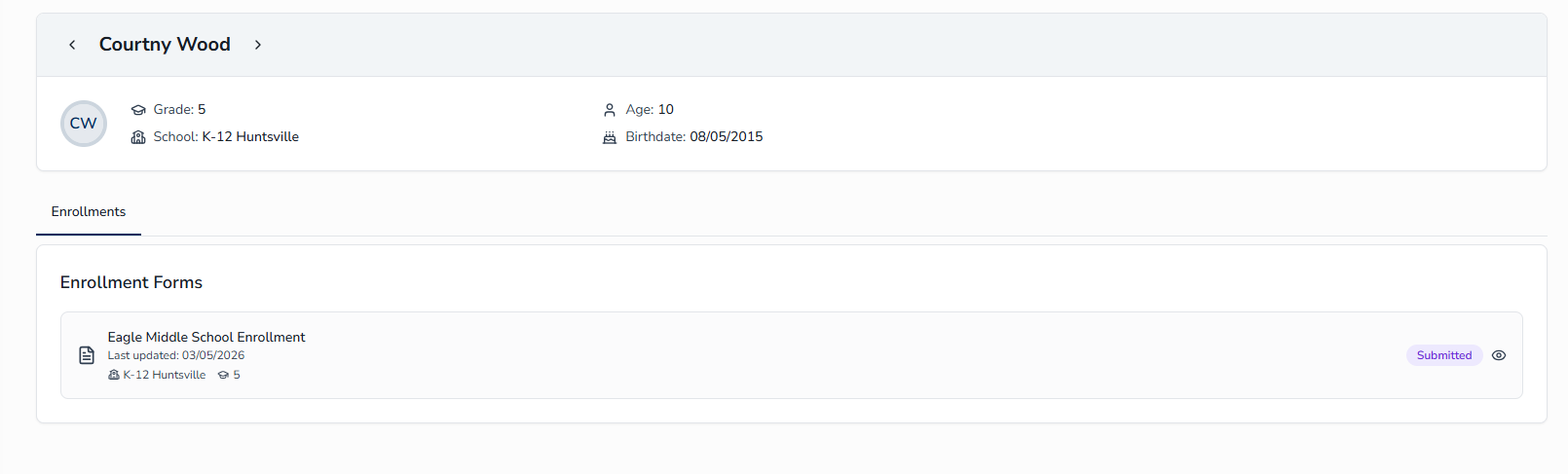
The Student Details page includes:
- Student banner— Displays the student's name, school, grade, and birthdate at the top of the page.
- Navigation arrows — Use these to move between students without returning to the My Students list.
Student Details Tabs
The Student Details page consists of:
| Tab | What It Shows |
|---|---|
| Enrollments | All enrollment forms for this student. Completed forms can be viewed; in-progress forms can be resumed. |