

Overview ↑
The Guardian Portal in Enroll Path allows parents and guardians to manage their accounts, enroll students, and communicate with schools. This guide walks you through creating an account, logging in, navigating the portal, and managing your profile settings.
From this page, you can:
- Create a new guardian account
- Log in to an existing account
- Reset a forgotten password
- Navigate the portal sidebar and header
- Update profile information and security settings
To access the Guardian Portal, visit your school district's Enroll Path website and select Continue as Guardian.
Table of Contents ↑
Creating Your Account
Logging In to the Guardian Portal
Resetting Your Password
Navigating the Guardian Portal
Profile and Account Management
Frequently Asked Questions
Creating Your Account ↑
New users must create a guardian account before accessing the portal.
- Visit your school district's Enroll Path website.
- On the district landing page, click the Guardian Login card and choose Continue as Guardian to reach the Guardian sign-in page.
- Click Sign up here on the login screen.
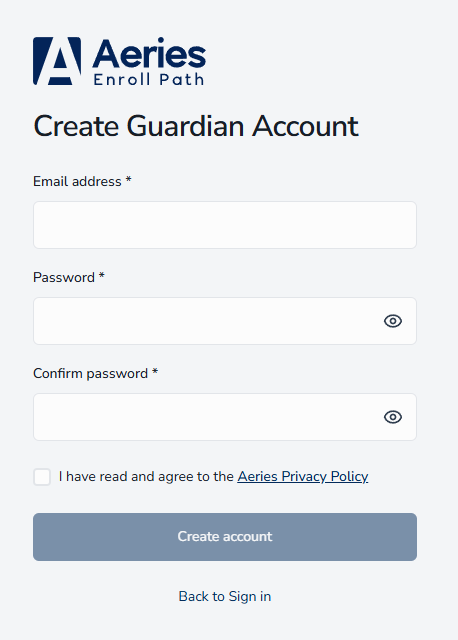
- Complete the Create Guardian Account form:
- Email Address — Use a valid email you check regularly
- Password — Must be at least 8 characters long
- Confirm Password — Re-enter your password to verify
- If your district requires it, review and accept the privacy/data consent notice.
- Click Create account.
- Verify your email:
- Check your email inbox for a verification message
- Enter the 6-digit verification code
- If you don't receive the email, check your spam folder or click Resend code
After verification, you are automatically logged in to your Guardian dashboard. If your district has two-factor authentication turned on, you may be asked to set it up at this point — see Two-Factor Authentication (Optional) under Logging In to the Guardian Portal below.
Logging In to the Guardian Portal ↑
Returning users can sign in using their existing credentials.
- Go to your school district's Enroll Path website.
- On the district landing page, click the Guardian Login card and choose Continue as Guardian to reach the Guardian sign-in page.
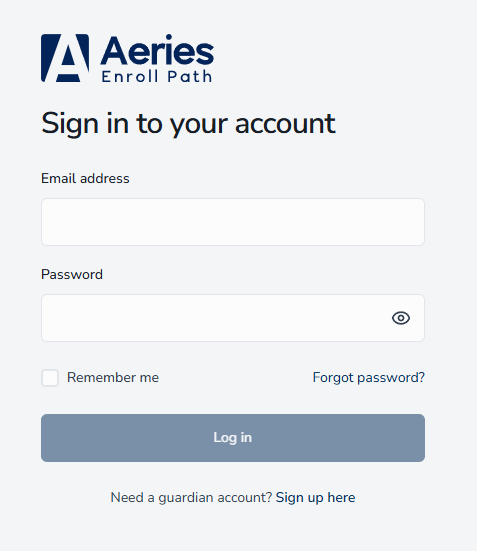
- Enter your Email and Password. Your email address is not case-sensitive — you can type it in any combination of upper and lowercase letters.
- (Optional) Check Remember Me to save your email for future logins.
- Click Log in.
Two-Factor Authentication (Optional)
Your district can opt in to two-factor authentication (2FA) for guardian accounts. When it's turned on, after you enter your password (or right after you verify a brand-new account) you're asked to link an authenticator app, and every sign-in after that requires a 6-digit code from that app in addition to your password.
Setting Up Two-Factor Authentication
The next time you sign in after your district turns on two-factor authentication, a Set Up Two-Factor Authentication dialog opens automatically:
- Install an authenticator app on your phone (Google Authenticator, Authy, or similar).
- Scan the QR code in the dialog with your authenticator app, or select Can't scan? Show secret key to enter the key manually instead.
- Enter the 6-digit code your authenticator app generates into the Verification Code field.
- Click Enable Two-Factor Authentication.
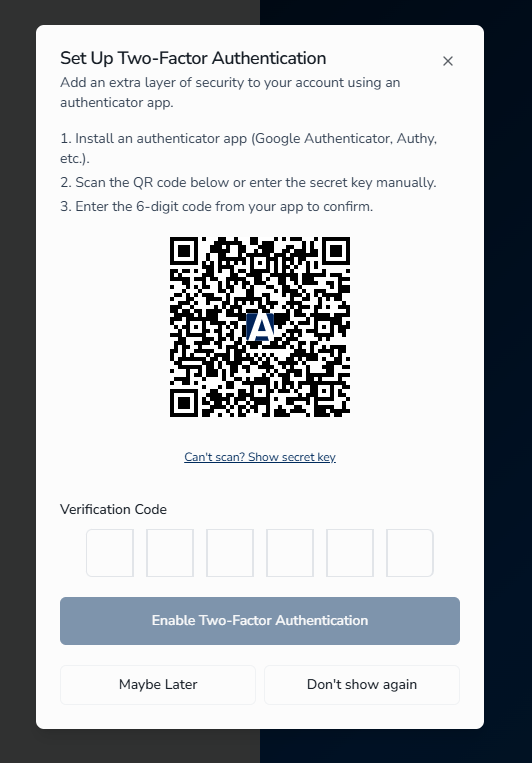
If you're not ready to set it up, select Maybe Later to see the dialog again at your next sign-in, or Don't show again to permanently dismiss it. Once you select Don't show again, the dialog won't reappear on future logins, and there's currently no self-service way to turn it back on.
Signing In With Two-Factor Authentication Enabled
Once you've enabled two-factor authentication, every sign-in shows a Two-Factor Authentication screen after your password is accepted:
- Enter the current 6-digit code from your authenticator app into the Authentication Code field.
- Click Verify.
Sign-in cannot complete without a valid code. Select Back to Sign In to cancel and return to the sign-in screen.
Resetting Your Password ↑
If you forget your password, you can reset it through the login screen.
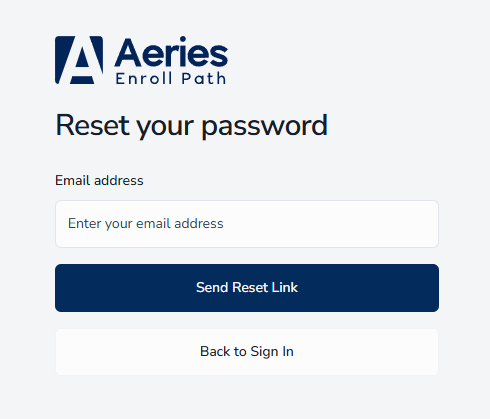
- Click Forgot password? on the login screen.
- Enter your email address.
- Click Send Reset Link.
- Check your email for password reset instructions.
- Follow the link to create a new password.
Navigating the Guardian Portal ↑
The Guardian Portal has navigation in both the Header and the Sidebar.
Product Header
The header at the top of the portal provides quick access to key features:

| Component | Function |
|---|---|
| Aeries Logo | Navigate back to My Students page |
| Notification Bell | Shows unread message count with dropdown preview |
| Language Selector | Change app language |
| View Mode | Cycle between Light, Dark, and System mode |
| User Menu | Access My Profile and Sign Out |
Sidebar Navigation
The Guardian Portal features a collapsible sidebar navigation system and a product header that provide access to all guardian functions.
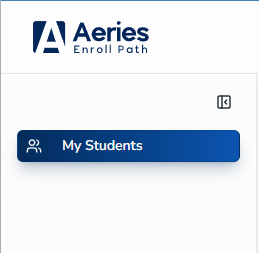
The sidebar provides access to these key sections:
| Section | Description |
|---|---|
| My Students | Manage your children's enrollment submissions |
See Enrolling a Student for details on how to enroll a student.
Sidebar Features
The collapsible sidebar helps you navigate efficiently:
- Expanded View — Shows full navigation labels and icons
- Collapsed View — Displays only icons to maximize screen space
- Toggle Button — Click the collapse/expand arrow at the top of the sidebar
- State Persistence — Depending on your district's configuration, the sidebar either remembers your collapsed or expanded choice or opens expanded by default each time
- Active Page — Current page is highlighted with a blue gradient background
- Tooltips — In collapsed view, hover over icons to see navigation labels
Profile and Account Management ↑
Manage your personal information and security settings from the Profile page.
Accessing Your Profile
- Click your name or avatar in the top-right corner.
- Select My Profile from the dropdown menu.
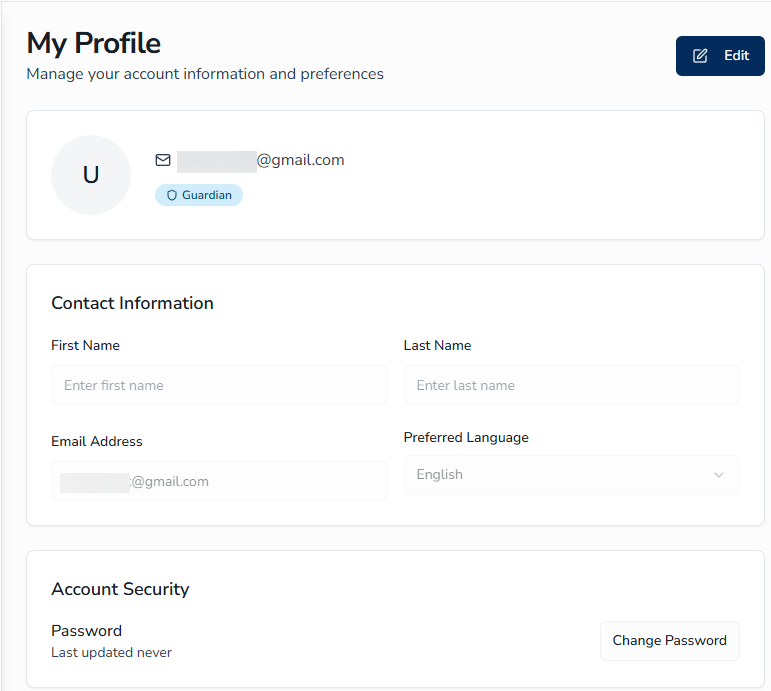
Editing Profile Information
- Click Edit on your profile page.
- Update any of the following fields:
- First Name and Last Name
- Profile Picture (Avatar)
- Language Preference (availability depends on your district's configuration)
- Click Save to apply changes or Cancel to discard.
Avatar Management
To update your profile picture:
- Enter Edit Mode on your profile page.
- Hover over your avatar to see options:
- Edit (pencil icon) — Upload a new image (JPEG, JPG, PNG, or WebP)
- Remove (X) — Delete the current image (reverts to your initials)
- Click Save to apply changes.
Account Security
Your profile displays when your password was last updated. To change your password:
- Access Change Password from the Account Security section on your Profile page.
- Enter your current password.
- Enter your new password (minimum 8 characters; mixing letters, numbers, and symbols makes it stronger but is not required).
- Confirm your new password.
- Click Save.
Frequently Asked Questions ↑
What if I don't receive the verification email?
Check your spam or junk folder first. If you still don't see it, click Resend code on the verification screen. Ensure the email address you entered is correct.
Can I use the same account for multiple children?
Yes. A single guardian account can manage enrollment for multiple students. Navigate to My Students and click Enroll Student to add additional children.
How do I change my email address?
Email addresses cannot be changed directly in the portal. Contact your school administrator to update your email address.
What are the password requirements?
Passwords must be at least 8 characters. Mixing uppercase and lowercase letters, numbers, and symbols makes your password stronger, but only the 8-character minimum is required.
Do I need to set up two-factor authentication?
Only if your district has turned it on. If it's enabled, you'll be prompted to set it up the next time you sign in — see Two-Factor Authentication (Optional) under Logging In to the Guardian Portal. If your district hasn't enabled it, you won't see any prompt.
How do I sign out of the portal?
Click your name or avatar in the top-right corner and select Sign Out from the dropdown menu.