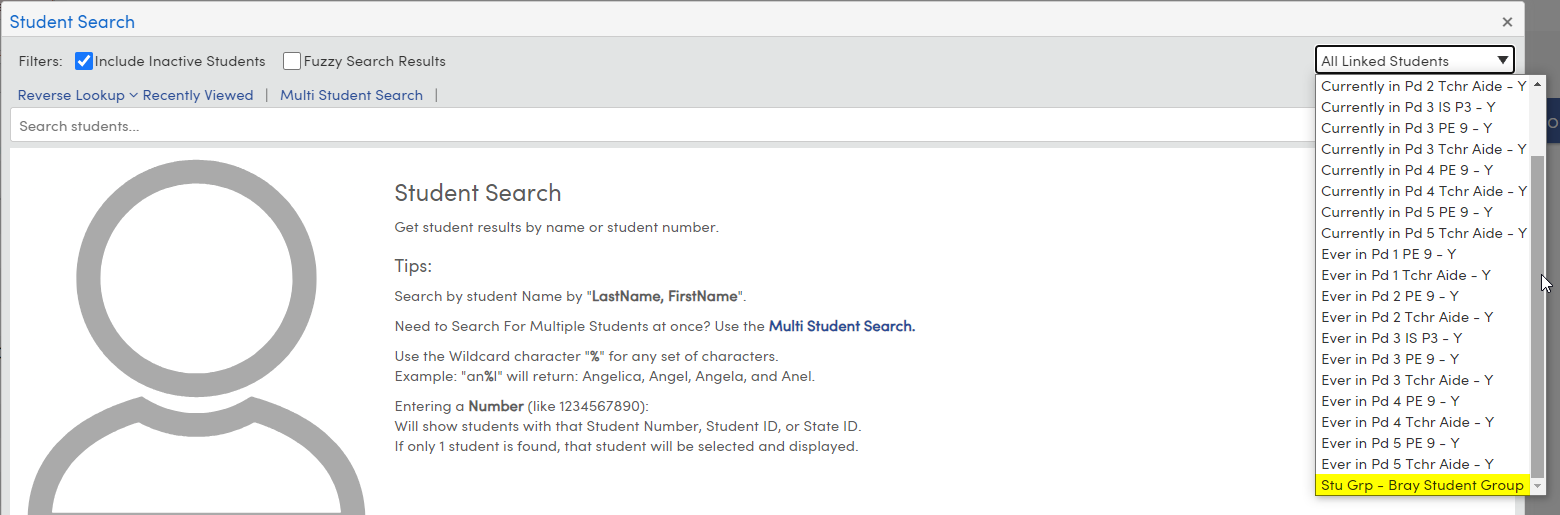
How to grant teacher accounts access to students that are not in any of their current or previous classes using Student Groups
Step 1: Create a Student Group
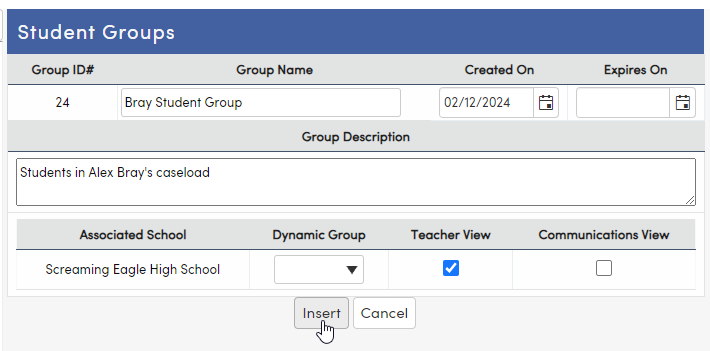
- Navigate to School Info | Student Groups
- Click on the Add button
- Give the Student Group a name (required), a date (required), and a description (optional)
- Check the Teacher View box
- Click on the Insert button
Step 2: Add students to the Student Group
- Select the newly added Student Group and click on the Change button
- Add the desired students to the Student Group
For information on adding students to student groups, visit this article
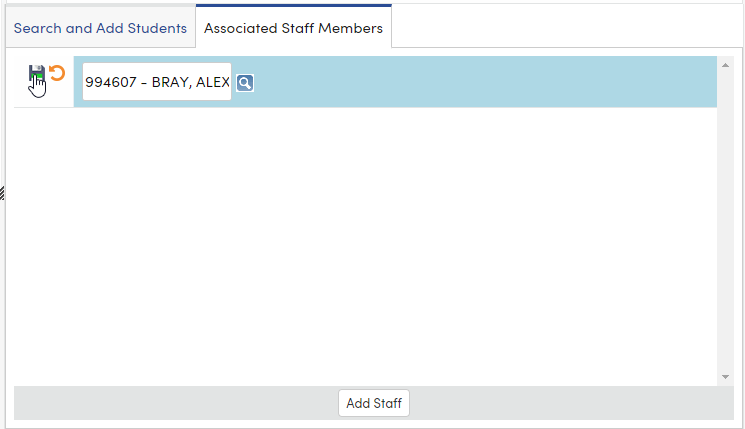
Step 3: Add the teacher under Associated Staff Members
- Click the Add button
- Click on the magnifying glass to search all staff
- Click on the teacher's name to select them
- Click on the save icon to save the staff member
Step 4: Save
- Once all students have been selected and the teacher has been associated with the group, click on the Save button
The teacher now has access to the students in the Student Group: