

Overview ↑
Navigate to School Info > Imports and Exports > Civil Rights Configuration. When the page opens, click the title bar of 1. Schools to open it. Access requires Admin permission on the Civil Rights Data Collection Processing security area. Teachers, parents and students cannot open the page.
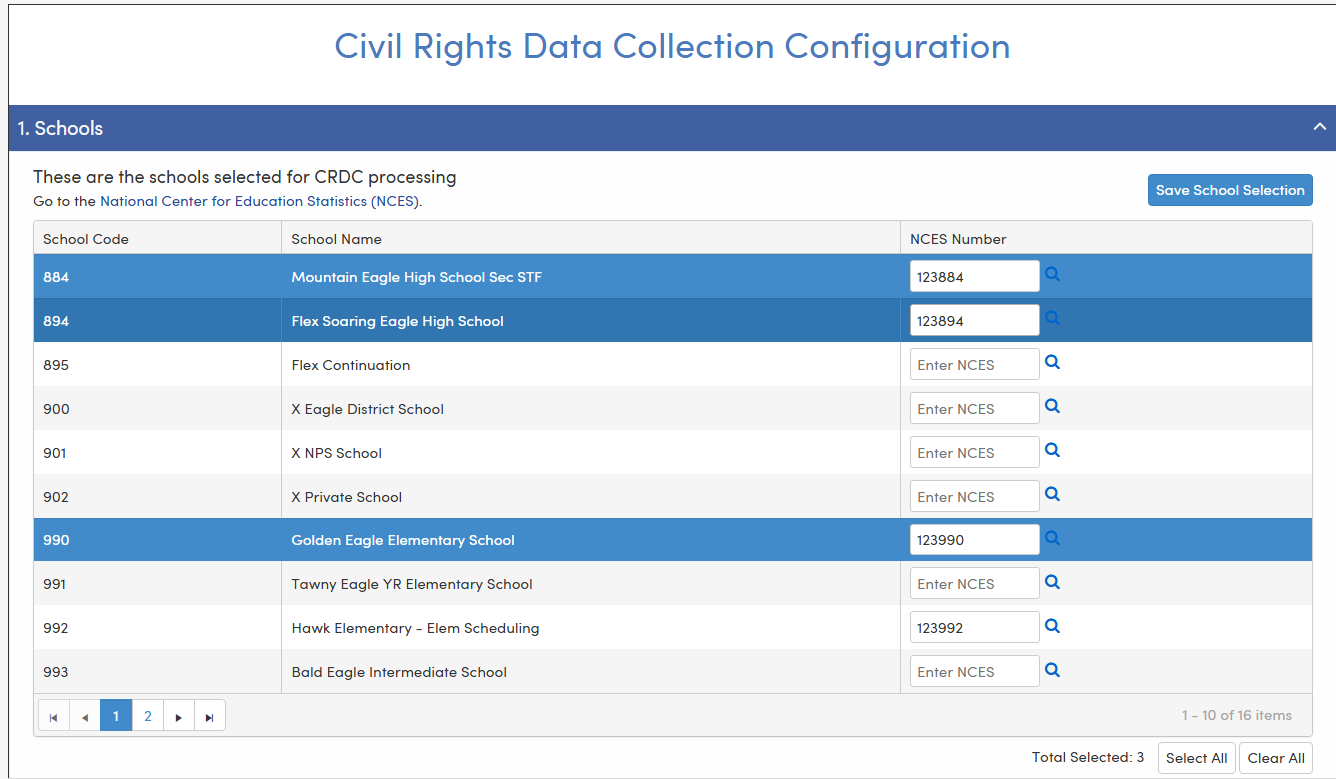
The 1. Schools section is where you choose the schools to include in the Civil Rights calculations and enter the NCES number for each one. It is the first section on the Civil Rights Data Collection Configuration page. Click a section's title bar to open it.
NOTE: Only the schools that are selected here are included in the Civil Rights calculations. Each selected school also needs a correct NCES number to populate correctly in the Civil Rights extract file.
Configurations ↑
Selecting Schools
The heading above the grid reads "These are the schools selected for CRDC processing". The grid lists your schools by School Code and School Name, 10 schools per page. Click a school’s row to select or unselect it. Selected rows are highlighted, and Total Selected below the grid shows how many schools are selected. Click Select All or Clear All below the grid to change every school at once. Click a column heading to sort.
NCES Numbers
Enter the NCES School ID in the NCES Number box next to each school. The ID is 12 characters: the 7 digit LEA ID assigned to the district followed by the 5 digit school ID. The box accepts up to 12 characters, so enter all 12. The number is stored in the School Options table (LOC.NDS). You enter it in School Info > Imports and Exports > Civil Rights Configuration, 1. Schools.
If you do not know a school’s NCES ID, click the magnifying glass icon next to the box. It opens the National Center for Education Statistics school search in a new browser tab with the school name and city filled in and your state selected. Aeries leaves the word "School" out of the name to widen the search. Click the correct school in the results, copy its NCES School ID, and paste it into the NCES Number box. You can also use the National Center for Education Statistics (NCES) link above the grid to search on your own.

Virtual Schools
You do not need to select the virtual school, and it does not need an NCES number. A student whose Reporting Home School is populated on the enrollment record (ENR.HS) with a school is counted in that school’s numbers. That school must be selected here and have an NCES number.
Saving
Click Save School Selection to save your changes. A green message, "School(s) saved successfully.", appears below the grid and fades after a few seconds. Saving with no schools selected is allowed and clears the saved selection. When you have a database for the next school year, the saved selection and NCES numbers are also saved there.
Sections 1 to 4 on the Civil Rights Configuration page each have their own save button. Saving the Schools section does not save changes in another section. The 5. Settings Summary section shows the schools you have saved. There is no Next button. To continue, click the title bar of the next section.
Options ↑
- School Code: The school number. Click the row to select or unselect the school.
- School Name: The school name as it appears in Aeries.
- NCES Number: A box for the 12 character NCES School ID, with a magnifying glass icon that opens the NCES school search.
- Save School Selection: Saves the selected schools and the NCES numbers.
- Total Selected: The number of schools currently selected.
- Select All: Selects every school in the list.
- Clear All: Unselects every school in the list.
NOTE: Schools that are not selected are left out of the calculations and the extract file. If a school is missing from the extract or its data looks wrong, check that it is selected here and that its NCES Number is correct.
The following link opens the NCES School Search page in a new browser tab.

Enter the search criteria. The state and the District or School Name may be sufficient in most cases. Click Search. Click the correct school in the NCES search results. The NCES School ID is listed next to the School Name. The NCES School ID is the 12 digit number that must be entered for each school. Use the browser’s copy and paste to copy it into the NCES Number box, or type it in.