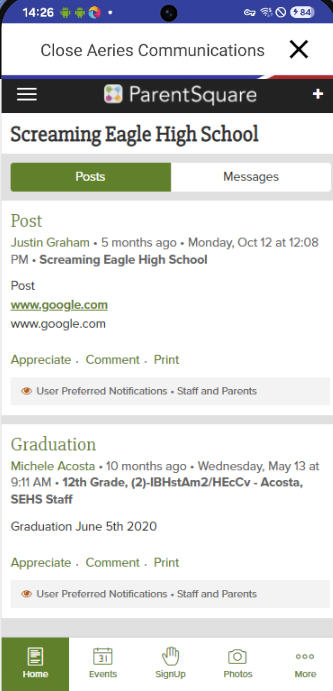
Aeries Communications note:
Communications appears in the app only when your district uses Aeries Communications, has set up its single sign-on, and has given the parent or student Portal Group access to it. Your district can also turn it on for selected schools only, so a parent may see it for one child and not another. When it's available, you'll see Communications in the app: parents usually find it on the bar at the bottom of the screen, and students may find it under More.
If your district uses Aeries Communications (powered by ParentSquare), parents and students can open it from the Mobile Portal app.
Main screen
Communications opens inside the app and looks the same as Aeries Communications in your phone's web browser. To go back to the rest of the app, tap Close Aeries Communications at the top of the screen.
You don't need to log in again; the app signs you in to Aeries Communications automatically. If Communications can't open, the app shows a message to try again later.
Using Aeries Communications
As the full Aeries Communication experience is available in the app, the full feature set is outside the scope of this documentation page. To access instructional content for Aeries Communication, please refer to the documentation below.
Aeries Communications documentation