Overview
After a Referral to Intervention has been completed on a student, a user with Admin permission to the Referrals To Intervention (RFI) security area can approve or deny the referral on the Referrals Approval page. When logged in to a school, the page lists that school's students; at the district level it lists all schools.
Configurations
The Referrals Approval page can be accessed from the Navigation Tree by clicking Student Data | Interventions | Referrals Approval. The page can limit the records to display by Referral Status or by Date Range.
To limit the list to display by Status, select a value from the Limit by Status drop down list:
- Pending – referrals that do not have a Status yet.
- The denied status (for example, Denied) – referrals that were denied.
- The approved status followed by w/o Intervention Meeting – approved referrals that do not have an Intervention record yet. Approved referrals that already have an Intervention record are not listed.
When Approved or Denied is selected, an Approval Date or Denied Date column also displays.

To Include Inactive Students, click on the option.

To limit the list to specific Dates, enter a date range in the Limit by Dates boxes. The list is filtered by Referral Date and refreshes as soon as a date is selected.

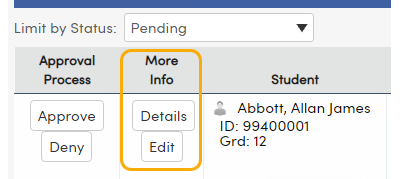
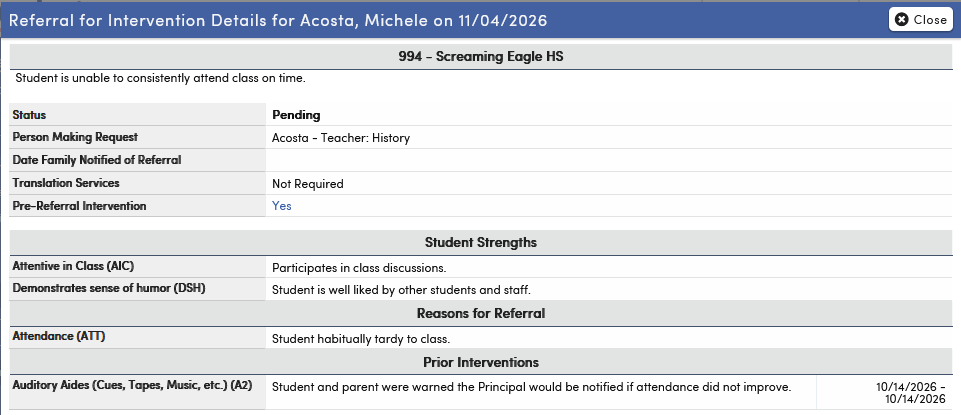
The Details button under the More Info column can be clicked on and will display the Referral information in the Referral for Intervention Details pop up window. Click Close to return to the list.
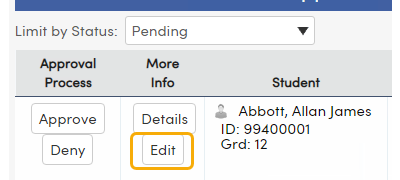
The Edit button under the More Info column opens the student's Referrals to Interventions page with that referral in edit mode, so additional information can be added (requires Update permission to RFI).
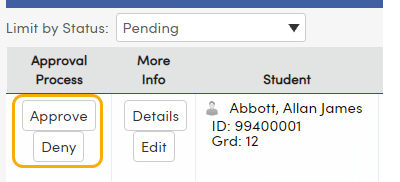
The Approve and Deny buttons under the Approval Process column can be used to approve or deny a referral. Click Approve or Deny for the corresponding record. A decision can be changed later: after a referral is approved, Deny is still available, and after it is denied, Approve is still available.
If Deny is clicked, a text box will display asking for the reason the referral is being denied and how the staff member can resolve the issue. Enter an explanation and then click the OK button. A reason is required. The reason is saved as the referral's status comment, replacing any comment already there, and the staff member who made the referral is emailed that it was denied, with the reason.

The Referral will then display with the word Denied in red under the Approval Process column.

If Approve is clicked, the Approve Referral window asks for the reason the referral is being approved. A reason is required. The reason is saved as the referral's status comment, replacing any comment already there. The staff member who made the referral is emailed that it was approved, and an email is also sent to the approver and to the school's Referral Approval Notification email addresses. See Intervention Email Setup.
Click Schedule the Meeting below the comment area to schedule the intervention meeting at the same time. Select an Intervention Code and enter the Meeting Date, Start and End Times and Location. Add up to 10 Participants / Stakeholders with their Name, Relationship and Acct Type (Aeries.net, Parent/Student or None; None asks for an email address). When both an Intervention Code and a Meeting Date are entered, an Intervention record is created for the student on the Interventions page, linked to the referral. The referral's Student Strengths, Reasons and Prior Interventions are copied to it, the stakeholders are added, and they are emailed a meeting invitation.

When complete the word Approved will display in blue under the Approval Process column.

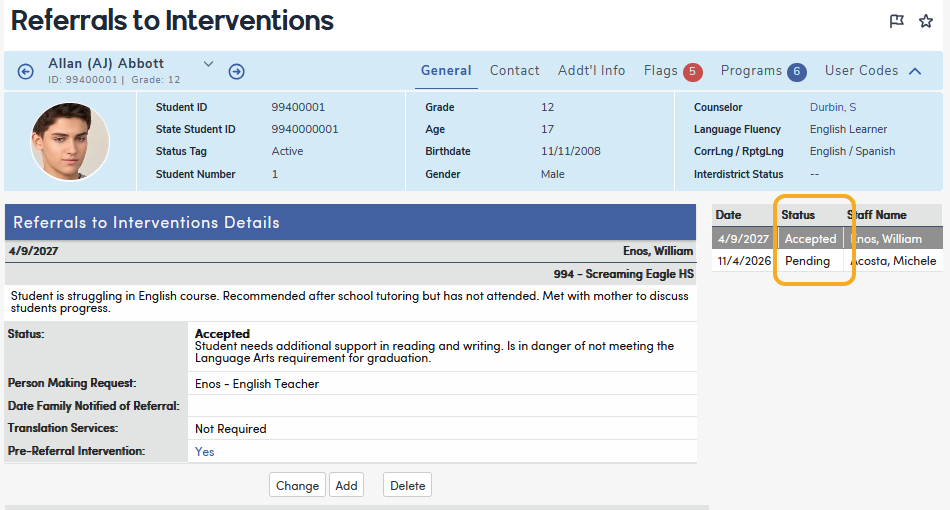
The Referral record’s updated Status will also display on the student's Referrals to Interventions page.