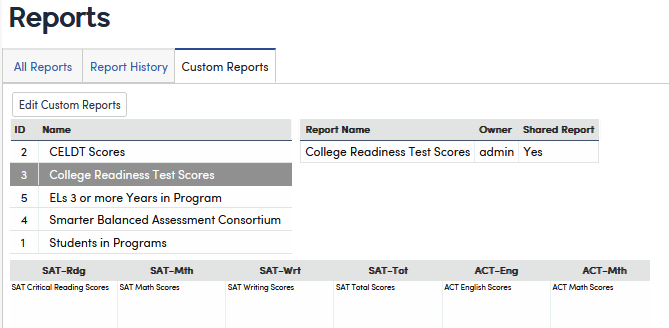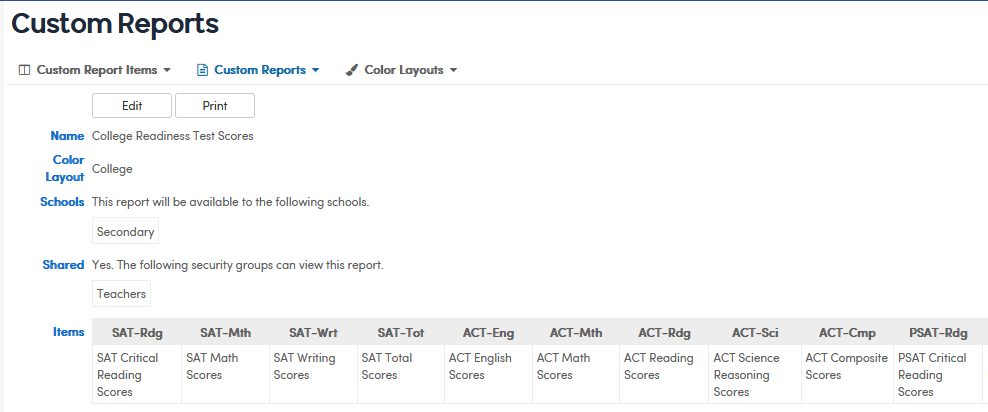

The Custom Report Builder is a versatile tool to display various types of student related information like test scores, programs, and other student related data.
Users with Administer permission to Custom Reports create the pre-configured Custom Report Items. Users with Update or Administer permission can set up Color Layouts and create reports by selecting the pre-configured items to include. See Custom Report Builder - Tables and Security for details on permissions.
Below is general information that will be detailed in the following articles.
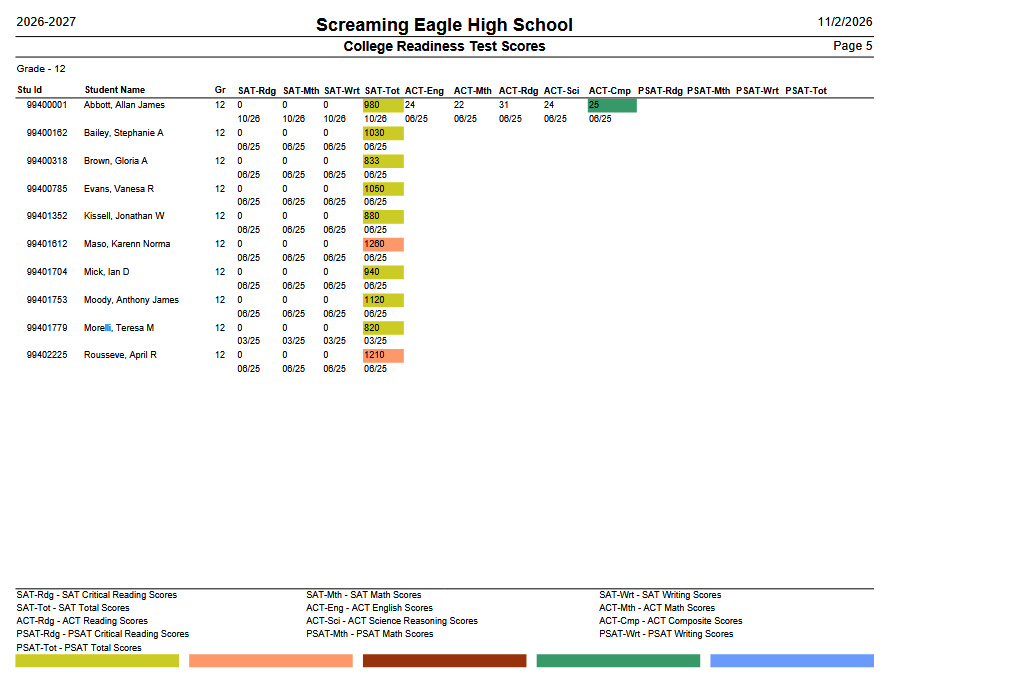
Sample Custom Report
Creating Custom Report Items
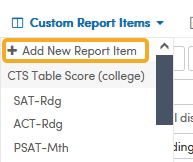
Users with Administer permission to Custom Reports can create a pre-configured item bank. The items will need to be added before users can create a Custom Report. Users can create a custom report item by adding a new item or copying an existing item. There are six item types: Table-Field Value, TST Table Score, CST Table Score (strands), CTS Table Score (college), Program and Intervention.
Users with Update permission to Custom Reports can also create Color Layouts. The report can be associated with a Color Layout to display different colors for the different levels that will be printed on the report.
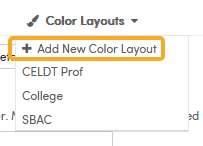
Creating a Custom Report
Creating a Custom Report is as simple as giving the report a name and selecting which pre-configured report items to be included. Users with Administer permission to Custom Reports can share a report with other security groups.
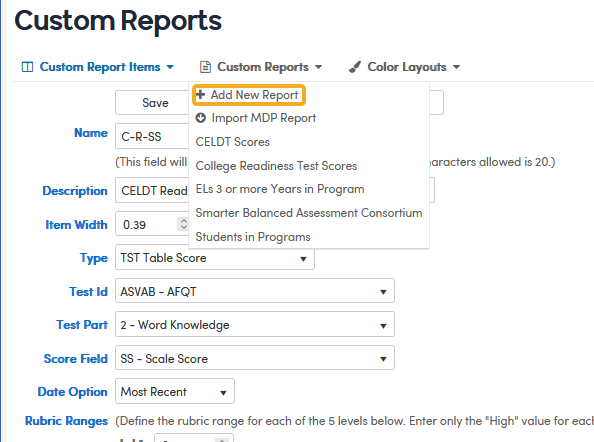
Importing Existing Custom Reports
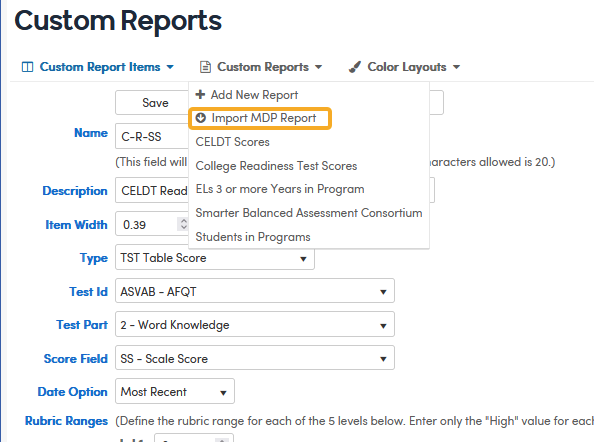
If your district created Custom Reports (Multi Data Profiles) in Aeries Client, users with Administer permission to Custom Reports see an Import MDP Report option in the Custom Reports drop-down. Import MDP Report lists the existing reports from the MDP – Multi Data Profile tables. Select a school, then click Import next to the report.
Accessing Custom Reports
The Custom Reports page can be opened in two ways: click Edit Custom Reports on the Custom Reports tab of View All Reports, or go to School Info > Configurations > Custom Reports. Both require Update or Administer permission to Custom Reports.
To run a report, log in to a school (not the district office) and go to the Custom Reports tab of View All Reports. Reports shared with your security group are listed there too, even without Custom Reports permission.