

Default Date and Testing Administration
This article covers how to import CAASPP Student Test Results into Aeries and how Achievement Level Descriptors display for 2025-26 and later results.
Navigate to School Info > Imports and Exports > Import Test Results
File Requirements ↑
NOTE: The data file must be in the format defined in the CAASPP Student Data File Layout found on the CAASPP Test Administration Score Reporting website. Only the LEA CAASPP Coordinator has the necessary permissions in the TOMS site to download the Student Score Data Extract. Please note that the score reports available from the CAASPP Online Reporting system are not in the correct format, the correct file (Student Score Data Extract) can only be downloaded by the LEA CAASPP Coordinator from within TOMS. For more information on finding the correct CAASPP Student Score data file please see the Finding the CAASPP Caret Delimited File article.
Selecting a File Layout ↑
Select the file layout that matches the school year of the file. For 2025-26 CAASPP files select CAASPP Test Results - SY: 2025/26. For 2024-25 files use CAASPP Test Results - SY: 2024/25, and for 2021-22 through 2023-24 files use CAASPP Test Results - SY: 2021/22 - 2023/24. Of the CAASPP Test Results layouts, only 2025/26 is listed by default. To see the 2024/25, 2021/22 - 2023/24 and older layouts, clear the Only Show Current Layouts check box. For the 2021/22 - 2023/24, 2024/25 and 2025/26 layouts, Aeries does not check that the file matches the layout you select, so select the layout that matches the file before you upload it. In the example below, the CAASPP Test Results - SY: 2025/26 layout is selected.

Importing the File ↑
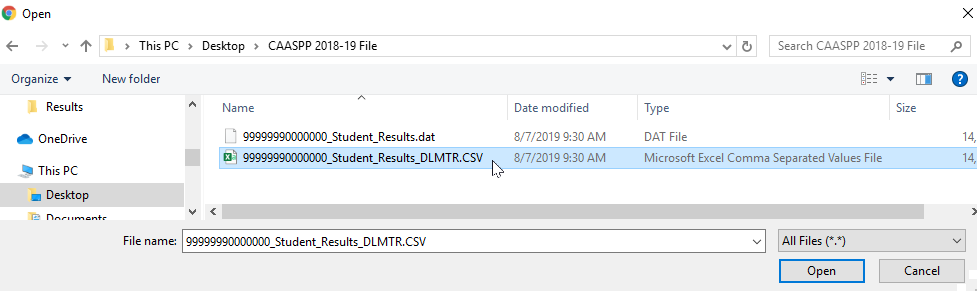
Districts can download both a text (.dat) file and a caret-delimited (.csv) file from the testing vendor. Select the caret-delimited (.csv) file. Click Select File(s) to Load, select the file with the .csv extension, and click Open in the file dialog. Then click Upload file(s) and create temp data. Aeries loads the records into temporary storage so you can match the students.
The 2024/25 and 2025/26 layouts read the file by its column headers. The first row must be the header row, and the header names must not be changed.
Default Date and Testing Administration ↑
The Default Date is used for any record that has no Test Start Date. For the 2024/25 and 2025/26 layouts it is the earliest Test Start Date in the file that falls on or after July 1 of the school year you are working in (July 1, 2025 when you are signed in to the 2025-26 database). If no record qualifies, Aeries uses the same rule for the previous school year, and then today’s date. For the 2021/22 - 2023/24 layout it is the earliest Test Start Date in the file. For the 2021/22 - 2023/24, 2024/25 and 2025/26 layouts, every record that has a Test Start Date is saved with its own Testing Administration: SPRG plus a two digit year taken from that date. A date in January through July gives that year, and a date in August through December gives the next year. For example, a test started in April 2026 is saved as SPRG26.
NOTE: The Default Date and Testing Administration boxes are read-only and cannot be changed on this page.

Match Options ↑
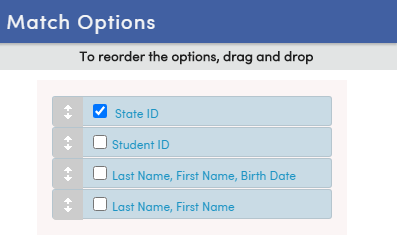
The State ID is the primary identification in the CAASPP Student Results data files. It should be the first method used for matching students.
Tables Updated ↑
The CAASPP Student Results import will add/update records to the Test Scores (TST), Content Standards Scores (CST), Testing Exclusions (TEX), and Authorizations (AUT) tables.
If a test record is flagged as Invalid in the Score Status field of the data file, then a Testing Exclusions (TEX) record will be added with a Special Conditions code of I - Test was Invalidated, and no Test Scores (TST) or Content Standards Scores (CST) records will be created for that test record.

Email Summary ↑
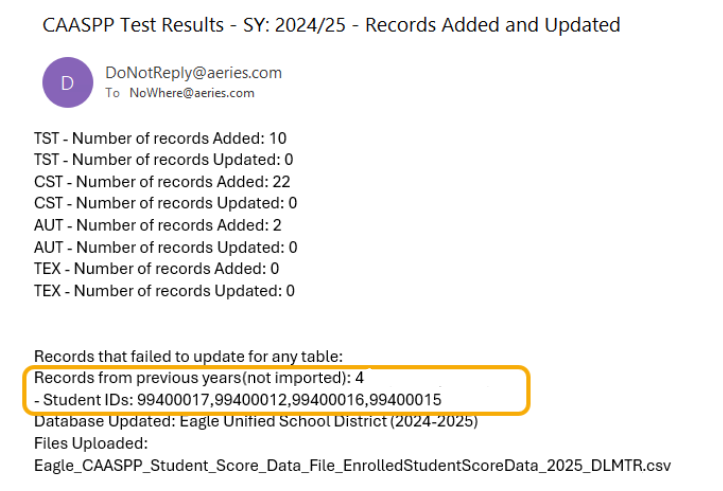
After the import process has completed an email with summary information will be sent to the user that initiated the import.
Prior Year CAST Records ↑
Beginning with the 2021-22 CAASPP Test Results, TOMS includes prior year 9th–11th grade Science (CAST) results for 12th grade students. With the 2024/25 and 2025/26 layouts, these prior year records are not imported into Aeries — the student's ID will appear under "Records from previous years (not imported):" in the import summary email (see screenshot above). With these layouts, the Default Date ignores any Test Start Date before July 1 of the school year you are working in, so prior year CAST dates normally do not affect it.
NOTE: The CAASPP 2018-19 Student Data File Layout (dated August 5, 2019) states that the California Science (CAST) test results and the California Spanish Assessment (CSA) test results will not be available until December 2019. The data files do contain records for these test results, but the score fields are blank and the Attemptedness and Include Indicator fields in the data file are set to 'N'. Test Scores (TST) and Content Standards Scores (CST) records will not be created for these tests until scores are provided. If any of these records happen to have Condition Codes, then that information will be added to Testing Exclusions (TEX).
NOTE: 2018-19 CAST, CAA and CSA scores are available from TOMS and can be imported into Aeries using the CAASPP Test Results - SY:2018/19 file layout. See the File Requirements section above for instructions on downloading the data file from TOMS.
Achievement Level Descriptors ↑
Beginning with the 2025-26 administration, CAASPP Achievement Level Descriptors for ELA, Math, and Science (CAST) have been updated to align with current California Department of Education (CDE) guidance. The updated descriptors display in Test Details.
2025-26 and later:
- Level 4: Advanced
- Level 3: Proficient
- Level 2: Developing
- Level 1: Minimal
Prior to 2025-26:
- Level 4: Standard Exceeded
- Level 3: Standard Met
- Level 2: Standard Nearly Met
- Level 1: Standard Not Met
Results from prior administrations continue to display the original descriptors used at the time of testing. A student with records from multiple years will show each result with the correct wording for its administration year.