

Table of Contents
Overview
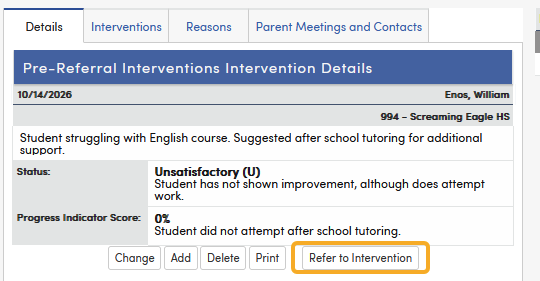
After a record for Pre-Referral Intervention information has been entered, a Refer to Intervention button will display in the Details area for users with Insert permission to Referrals To Intervention (RFI). For teachers, the button displays only on their own pre-referrals that have at least one Parent Meetings and Contacts entry.
Security
Table | Permission | Description |
|---|---|---|
| Referrals To Intervention (RFI) | Read Insert Update Delete Admin | View page Add new records Update records Delete records (also requires Update) Set the Status and status comment, and approve or deny referrals on the Referrals Approval page |
NOTE: A Teacher needs at least Read and Insert permissions to the Referrals to Intervention (RFI) security area in order to be able to Refer to Intervention.
Configurations
Clicking on the Refer to Intervention button opens the Referrals to Interventions page, where the referral information is entered in the Referrals to Interventions Details area.
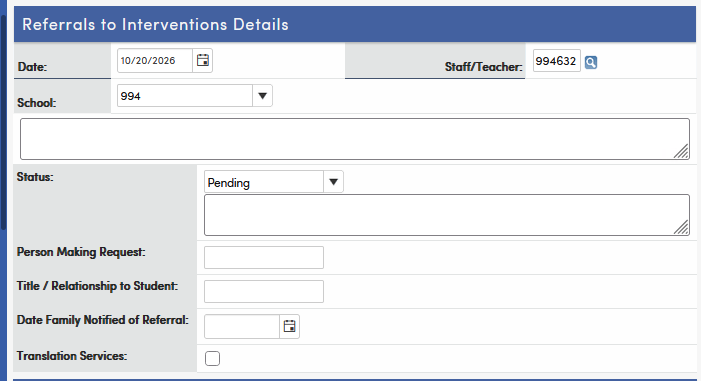
A referral can also be added directly on the Student Data | Interventions | Referrals to Interventions page without a pre-referral. Click Add New Record (shown when the student has no referrals) or Add. The new referral is dated today for the student's school and the logged-in staff member, and opens in edit mode.
Enter information in the Referrals to Interventions Details area and then click the Save button.
Date – Enter a Date for the Referral
Staff/Teacher – If not already populated, search or enter a staff ID. For teachers, this field is filled in with their own name and can't be changed.
School - Defaults to the student's school. This value can be changed by selecting a different school from the dropdown list.
*Status – Select a Status for the Referral, and enter a status comment in the box below it if needed. Only users with Admin permission to Referrals To Intervention (RFI) can change the Status and status comment; other users see them as read-only. Leave Status blank for new referrals (see the note below).
Person Making Request – Enter name of person requesting the Referral
Title / Relationship to Student – Enter a title or relationship
Date Family Notified of Referral – Add date of notification
Translation Services – If translation services are needed, check the checkbox and then select a language from the drop down list (Home Language codes).
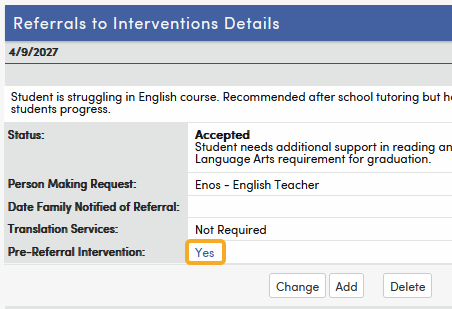
If a Pre-Referral record existed, after entering Referral information, a Pre-Referral Intervention Yes will display on the record. Clicking on the Yes link will take you to the Pre-Referral record associated with the referral. This can be used to quick reference information from the Pre-Referral record.
Below the Referrals to Interventions Details information are lists of Student Strengths, Reasons for Referral and Prior Interventions. On a new referral, check the Strengths, Reasons for Referral, and Prior Interventions that are applicable for the student and enter Comments as applicable. If the referral came from a pre-referral, that pre-referral's interventions are already checked in the Prior Interventions list. Click the Save button when all selections have been made. After the referral is saved, use Add New Student Strength, Add New Reason and Add New Prior Intervention to add more.
When a teacher saves a new referral, the following are required. A message displays for each item that is missing:
- Date
- Person Making Request
- Title / Relationship to Student
- Date Family Notified of Referral
- At least one Student Strength
- At least one Reason for Referral
- At least one Prior Intervention
When a new referral is saved, an email is sent to the submitter and to the school's Referral Submission Notification Email Address(s). See Intervention Email Setup.
Teachers can change or delete only the referrals they created.

*NOTE: When creating a Referral to Intervention, leave the Status (RFI.ST) field blank if the referral is intended to appear on the Referrals for Intervention Approval page. If the Status is manually set to 'Pending' (or any other value), it is no longer treated as an empty status.
The Referrals Approval page shows only referrals with a blank Status, which indicates they’re awaiting approval. Any Status that is manually selected—even 'Pending'—excludes the Referral, because 'Pending' in this view refers only to records with a blank Status.
To ensure the referral appears for approval, do not select a Status during initial entry. This applies only to users with Admin permission to RFI; other users can't set a Status, so their referrals always start blank.