

The Lottery page is where district administrators run the school draws that decide the order of applicants when there are more applicants than seats. After you draw and commit the results, you send seat offers from the ranked lottery waitlist on the Apply page. This page is designed for district administrators who manage transfers with the lottery waitlist method.
From this page, you can:
- See which schools and pools are waiting for a draw
- Run a draw for a school, one pool at a time or all pools together
- Watch the draw reveal each applicant's Lottery ID, one at a time, on a full-screen display
- Commit a draw to make the results final
- Review and print the record of every committed draw
- Send seat offers from the ranked lottery waitlist
Lottery is an add-on that your district must purchase. This article also covers the lottery settings on the Apply page and on transfer forms. Where a step is the same as in Aeries Apply for Administrators-Enroll Path, this article repeats it briefly and refers you to that article for the details. To open the Lottery page, click Lottery in the left sidebar.
Table of Contents ↑
Prerequisites
Getting Started
How the Lottery Works
Setting Up the Lottery
Running a Draw
Draw History
Lottery Waitlist
Tips for Efficiency
Prerequisites ↑
To use the Lottery, you must have the following:
| Requirement | Details |
|---|---|
| Role | Administrator. Only administrators can open the Lottery page, run a draw, or view the draw history. |
| Lottery add-on | Your district must have purchased Lottery. |
Getting Started ↑
To run a lottery from start to finish, complete these steps in order:
- Decide whether you want one pool or separate pools. See Pools and Programs in Aeries Apply for Administrators-Enroll Path.
- On the Schools & Seats tab of the Apply page, add your schools and reserve seats for the lottery. See Reserving Seats for the Lottery below.
- Set up the priorities that rank applicants. See Aeries Apply for Administrators-Enroll Path.
- Create a transfer form and add its transfer window. See Forms Page for Administrators-Enroll Path.
- In your transfer form's settings, set the Waitlist method to Lottery and set Days to accept offer. Do this before you send any offers, because you can't change the waitlist method after an offer is sent or accepted. See Choosing the Lottery Waitlist Method below.
- Publish the form and let families apply.
- On the Applications page, review and approve every application you want in the draw, and check the priority claims. Reject any claim that doesn't qualify. See Aeries Apply Transfer Applications for Administrators-Enroll Path.
- On the Draws tab of the Lottery page, check that each pool shows the number of applicants and seats you expect. The draw uses those numbers when you click Start Now, so approve any missing applications and correct any seats first. See Running a Draw below.
- Run the draw, then commit the results.
- On the Lottery view of the Waitlist tab of the Apply page, send seat offers to the applicants who are ready. See Lottery Waitlist below.
How the Lottery Works ↑
The lottery draws each pool separately. A pool is one grade, or All Grades, in one program at one school, such as Grade 12 · General or All Grades · General. Each pool has its own applicants and its own lottery seats. With one pool, one draw covers the whole school, and every grade competes for the same seats. With separate pools, each grade or program has its own draw. See Pools and Programs in Aeries Apply for Administrators-Enroll Path.
Who Is in a Draw
An application is in a school's pool only when all of these are true:
- The application's form uses the Lottery waitlist method.
- The school is one of the schools the family ranked.
- An administrator approved the application.
- The application's status is Submitted, Offer sent, Offer declined, or Offer expired. An accepted offer at another school removes the application from the draw.
- If your district requires releases, the application's release isn't pending or denied.
The lottery draws an application at every school the family ranked, so the same student can appear in several schools' pools.
How Applicants Are Ranked
Every pool has its own ranked list, numbered 1, 2, 3, and so on. A position in one pool is never compared with a position in another pool. With one pool, the whole school has a single list. Administrators see these positions. Guardians see only their Lottery ID.
The draw fills each list one priority tier at a time. It draws every applicant in the highest-ranked tier first, in random order, then the next tier, and so on. An applicant is in only one tier, the one for their highest-ranked priority claim that hasn't been rejected. Applicants with no such claim are in the last tier. For example, a pool has 8 applicants and 4 seats:
| Position | Priority tier | How the order is set |
|---|---|---|
| 1-2 | Staff | The 2 Staff applicants are drawn in random order |
| 3-5 | Sibling | The 3 Sibling applicants are drawn in random order |
| 6-8 | No priority | The 3 other applicants are drawn in random order |
Positions 1 to 4 are Ready to Offer because the pool has 4 seats. Positions 5 to 8 are Waitlisted. The next two sections show how this works with one pool and with multiple pools.
In more detail, the draw ranks the applicants of a pool in two steps: priority tier first, then a random draw inside each tier.
- Priority tier - An applicant with a priority claim that hasn't been rejected ranks ahead of an applicant without one. When the pool has applicants with different priorities, the applicant whose highest-ranked priority is higher on the school's Priorities tab ranks first. For example, if Staff is the highest-ranked priority at a school, every applicant with a Staff claim ranks ahead of the applicants without one.
- Random draw - Inside each tier, names are drawn at random, like pulling names from a hat. Every applicant in the tier has the same chance of being drawn first, and no one chooses the order.
Applicants with no priority claim that counts form the last tier. A school's overrides on the Priorities tab apply, so two schools can rank the same applicant into different tiers.
After the draw ranks the pool, the applicants in the first positions are ready for the lottery seats:
- Ready to Offer - The applicant ranks within the seats that don't have an offer yet. Each offer you send uses one seat, so fewer applicants are Ready to Offer as you send offers. When a pool has no seat limit, every applicant is Ready to Offer.
- Waitlisted - The applicant ranks below the seat cut line, so there is no seat for this applicant yet. Waitlisted applicants wait in rank order, and the next one becomes Ready to Offer when a seat opens, for example when a guardian declines an offer. When a pool has no lottery seats, every applicant is Waitlisted.
An applicant who holds an offer at another school still takes part in the draw. On the lottery waitlist on the Apply page, that applicant's row shows an Offer sent tag, and you can't use Send offer until the guardian declines the other offer or it expires. An applicant above the seat cut line shows Held elsewhere as the status.
Single Pool
With one pool, every grade at the school is in the same pool, so one draw ranks everyone in a single list. An All Grades seat row in the General program makes a single pool. For example, a school has one pool with 4 seats and 8 applicants from three grades. This is one possible result of the draw:
| Position | Applicant | Priority tier | Outcome |
|---|---|---|---|
| 1 | Grade 7 | Staff | Ready to Offer |
| 2 | Grade 5 | Staff | Ready to Offer |
| 3 | Grade 6 | Sibling | Ready to Offer |
| 4 | Grade 5 | Sibling | Ready to Offer |
| 5 | Grade 7 | Sibling | Waitlisted |
| 6 | Grade 5 | No priority | Waitlisted |
| 7 | Grade 6 | No priority | Waitlisted |
| 8 | Grade 7 | No priority | Waitlisted |
The list is numbered 1 to 8. The 2 Staff applicants are drawn first, in random order, then the 3 Sibling applicants, then the 3 applicants with no priority. The applicant's grade doesn't affect the ranking. A Grade 7 applicant with a Staff claim ranks ahead of a Grade 5 applicant with no priority, because every grade competes for the same 4 seats.
Multiple Pools
With multiple pools, each pool has its own draw, its own seats, and its own list, numbered from 1. A pool can be a grade, a program, or both. For example, the same 8 applicants and 4 seats are divided into three pools: Grade 5 · General with 1 seat, Grade 6 · General with 1 seat, and Grade 7 · General with 2 seats. This is one possible result of the draws:
| Pool | Position | Priority tier | Outcome |
|---|---|---|---|
| Grade 5 · General (1 seat) | 1 | Staff | Ready to Offer |
| Grade 5 · General (1 seat) | 2 | Sibling | Waitlisted |
| Grade 5 · General (1 seat) | 3 | No priority | Waitlisted |
| Grade 6 · General (1 seat) | 1 | Sibling | Ready to Offer |
| Grade 6 · General (1 seat) | 2 | No priority | Waitlisted |
| Grade 7 · General (2 seats) | 1 | Staff | Ready to Offer |
| Grade 7 · General (2 seats) | 2 | Sibling | Ready to Offer |
| Grade 7 · General (2 seats) | 3 | No priority | Waitlisted |
Each pool is numbered from 1, and a position in one pool is never compared with a position in another. The Grade 5 Sibling applicant is Waitlisted, even though the Grade 7 Sibling applicant has a seat, because each grade has its own seats. Seats never move from one pool to another. Pools made from programs work the same way. For example, a Staff Priority pool and a Sibling Priority pool each have their own list and their own seats.
Lottery IDs and Positions
The lottery gives each applicant a unique Lottery ID for each school, such as LOT-0001. The ID is created when the draw runs, and it isn't the applicant's position. A student who ranked more than one school has a different Lottery ID at each school.
Who sees what:
| Sees the Lottery ID | Sees the position | |
|---|---|---|
| Guardian | Yes. The guardian opens the application from the card under Transfer Forms on the My Students page. | No. Guardians never see the position. |
| Administrator | Yes. It appears on the draw screen, on the lottery waitlist, and in the run record, where it is the Lottery number. | Yes. It appears on the lottery waitlist and in the run record. |
One Pool or Separate Pools
How the lottery works depends on how you divide your seats:
| One pool | Separate pools | |
|---|---|---|
| What a pool is | One All Grades row in the General program. Every grade competes for the same seats. | More than one row: a row for each grade, a program for each group, or both. Each row has its own seats. |
| How many draws | One draw for the school. Every grade is in it. | One draw for each pool. You run them one at a time, in any order, on different days. |
| Positions | One list for the whole school, numbered from 1. Every applicant in the Staff tier is ahead of every applicant in the Sibling tier. | A separate list in each pool, each numbered from 1. A position in one pool isn't ahead of a position in another. |
| Seats | One set of lottery seats goes to the first positions on the list, so Staff applicants in any grade fill seats first. | Each pool has its own seats, such as 10 Staff seats and 20 Sibling seats. Each draw fills its own seats. |
Choose one pool when you want applicants in every grade to compete for the same seats, with a higher priority going first. Choose separate pools when you want to set aside a number of seats for each group. See Running More Than One Lottery below for how to draw separate pools, and Pools and Programs in Aeries Apply for Administrators-Enroll Path for how to set them up.
What Counts as a Seat
The seats in a draw are the pool's open lottery seats:
- If you split the seats for a pool, the seats are the lottery number you reserved.
- If you didn't split the seats, the seats are the total minus the offers already sent or accepted for that pool.
- If the pool has no limit, there is no seat limit.
The draw fixes the number of seats when you click Start Now.
Setting Up the Lottery ↑
Reserving Seats for the Lottery
You reserve lottery seats on the Schools & Seats tab of the Apply page. Open the school's seats, choose the school year, and select the Grade, or All Grades, and the Program, as described in Aeries Apply for Administrators-Enroll Path. Then split the seats:
- In Total seats, enter the number of seats.
- In Reserve · Lottery, enter the number of seats for the lottery. The Reserve · FCFS (first come, first serve) box fills in with the remaining seats. The two numbers must add up to the total.
- Click Add seats.
Each pool needs a seat row, and an application that matches no seat row isn't in any pool. See Pools and Programs in Aeries Apply for Administrators-Enroll Path for the rules about grades, All Grades, and programs.
Choosing the Lottery Waitlist Method
Each transfer form uses one waitlist method. To use the lottery for a form:
- Open Form Settings for the transfer form. See Forms Page for Administrators-Enroll Path.
- In the Waitlist & Offers card, select Lottery in the Waitlist method dropdown.
- Enter the number of days in Days to accept offer.
- Click Save.
Submitted applications and committed draws don't lock the setting. A district can use both methods at the same time on different forms. The lottery draws only the applications on forms that use the Lottery method.
Running a Draw ↑
Every school runs its own draw. Every draw starts as a cancellable preview. The server draws the order for each pool when you click Start Now and stores the result as a draft. The full-screen display reveals that stored order one applicant at a time. The draft doesn't change any application, waitlist, or history record until you commit it.
Opening the Draws Tab
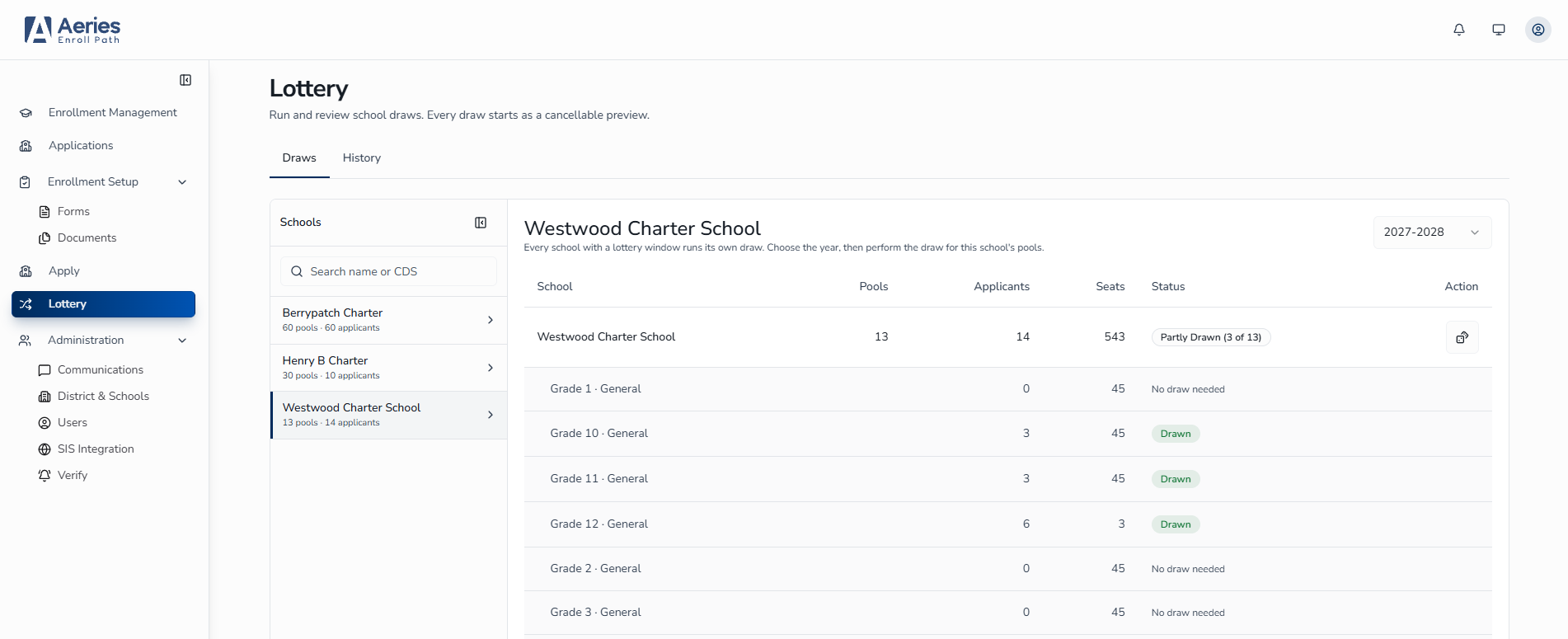
The Draws tab opens when you open the Lottery page. To see the pools that are ready for a draw:
- In the School year dropdown, choose the current school year or the next one.
- In the school list on the left, click a school. To find a school, search by school name or school code. The list shows only schools that have approved lottery applicants.
The table shows the school and, beneath it, one row for every pool. It has these columns: School, Pools, Applicants, Seats, Status, and Action. The Applicants column counts every approved application in the pool, including any approved after the pool was committed, so it can be higher than the number of applicants the draw ranked. The Seats column shows the open lottery seats, or No limit. The school row adds up the open seats of the pools that have a limit. It shows No limit only when no pool has a limit.
The counts come from a search index and can lag a few seconds behind, so wait a moment after you approve applications before you start a draw. If My School View is on, the Draws and History tabs show only your school. See Aeries Apply for Administrators-Enroll Path.
The Status column shows one of these values:
| Status | Meaning |
|---|---|
| Draw Awaiting | The pool has at least one applicant and no committed draw. A pool with fewer applicants than seats still shows Draw Awaiting, and you still run its draw. |
| No draw needed | The pool has no applicants. |
| Drawn | A committed draw exists for the pool. |
| Partly Drawn | Shown on the school row when some pools are drawn and others still await a draw. The badge adds the number of drawn pools out of all pools, including pools with no applicants. |
| Draw held | Shown on the school row when every pool that has applicants is drawn. |
If you approve applications into a pool that hasn't been drawn after a school shows Draw held, the school row returns to Partly Drawn until you draw the new pool.
Starting a Draw
To start a draw for a school:
- On the Draws tab, click the school.
- Click the dice icon (Perform draw for followed by the school name) in the school row. The icon is unavailable when no pool is waiting for a draw.
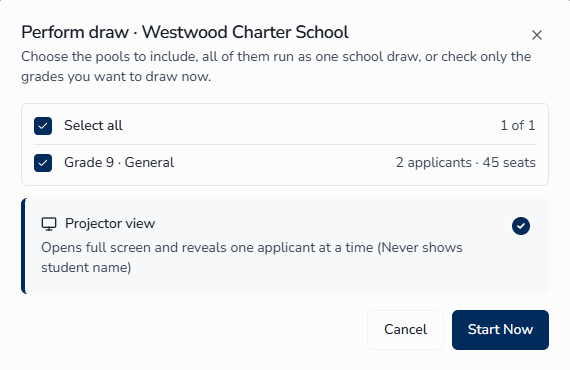
- In the Perform draw dialog, select the pools to include. The dialog selects every pool that awaits a draw by default. Click Select all to include them all, or clear the pools you don't want to draw now.
- When you select two or more pools, the Run all switch appears, followed by the number of pools and back to back. It is on by default. With it on, the draw screen offers a Run all button in addition to Start pool. With it off, the draw screen offers only Start pool.
- Click Start Now.
The dialog says that Projector view opens full screen and reveals one applicant at a time, and that it never shows a student name. Projector view is always on, so you can't turn it off.
A pool can have up to 2,000 applicants, and the page can't draw a pool that has more. One draw can include up to 96 pools. If you select more pools, or the draw is too large, the page asks you to select fewer pools.
If another administrator already has an open draw for the school, a dialog tells you:
- A lottery draw is running for this school right now. Try again later. - The other administrator's draw screen was active in the last 2 minutes. You can only click Cancel.
- A lottery draw is already in progress for this school - A draw with progress exists. Click Cancel to leave it, or click Discard it and start a new draw to lose that draw and start yours.
If another administrator takes over your draw after it has been idle for more than 2 minutes, your screen closes and a message tells you that another administrator took over. If the draw changed in another window, the This draw changed elsewhere dialog appears. Click Reload draw to continue from the latest saved progress.
Drawing the Numbers
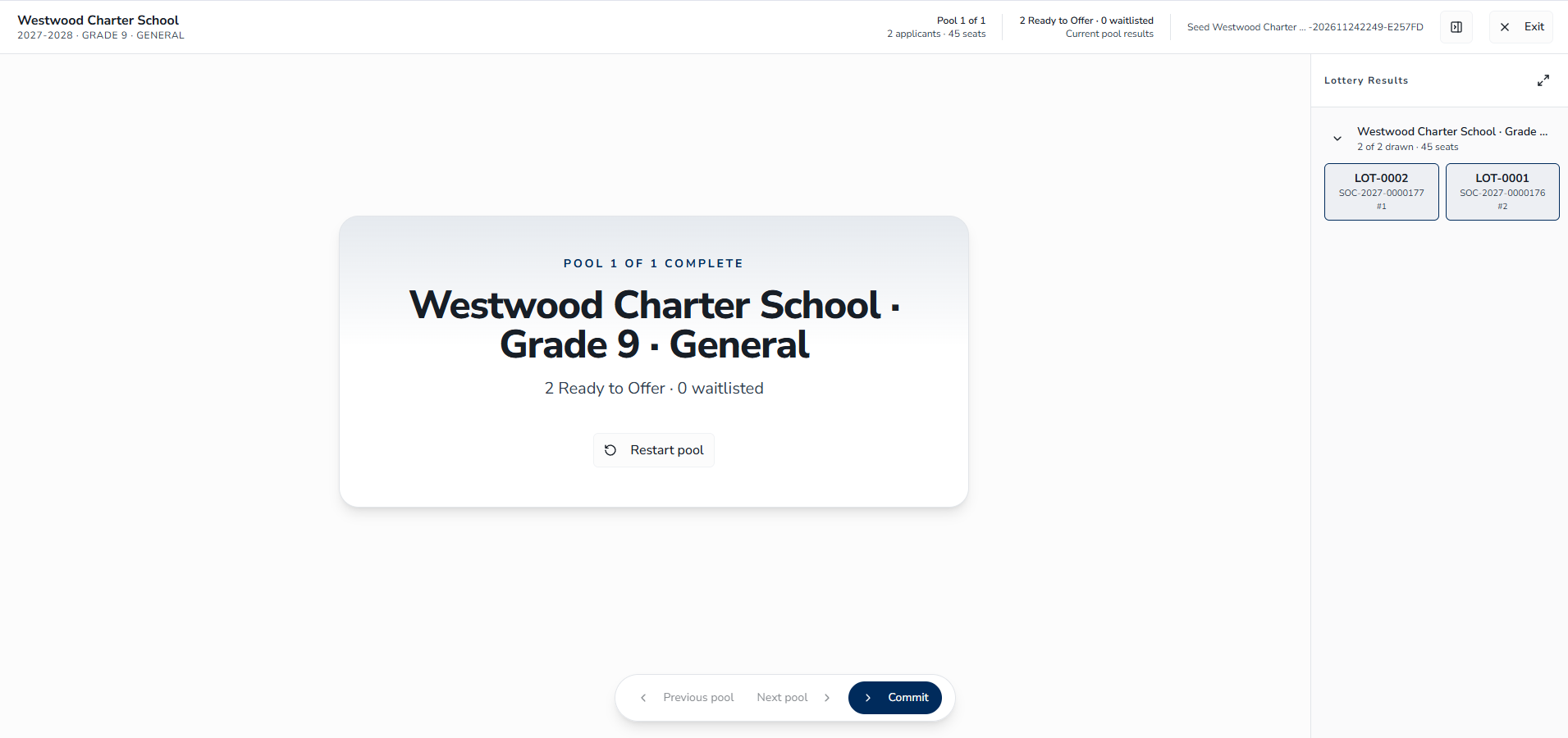
After you click Start Now, the draw opens on a full-screen display. The header shows the school, the school year, the pool, the number of applicants and seats, the number ready to offer and waitlisted so far, and the draw's Seed. The display never shows a student's name.
To draw a pool:
- On the Up next card, click Start pool to draw this pool and commit it on its own. When the card offers Run all, you can click it instead to draw every selected pool in order and commit once at the end. Run all starts drawing right away.
- If you clicked Start pool, click the play button (Start draw) in the control bar at the bottom of the screen. The display reveals one applicant every 1.2 seconds. Each reveal shows the applicant's Lottery ID in large type with the application's reference number beneath it.
- Watch the count of Ready to Offer and waitlisted applicants. A green line shows Within the seats available while the revealed numbers are within the pool's seats.
- When the pool finishes, the Pool complete card shows the outcome counts. In Run all mode, the draw waits about 2.5 seconds on the next pool's Ready card and then continues on its own.
The Lottery Results panel on the right lists every number drawn so far with its rank. Click Hide results panel to hide it. The seed is only a label for the draw. It doesn't let you repeat the draw.
Pausing a Draw
To pause a draw:
- Click the pause button (Pause) in the control bar. It is the same button as the play button (Start draw).
- Click the play button again to continue.
The draw also pauses on its own whenever the browser tab or window is hidden, and it doesn't resume by itself. In Run all mode, the draw moves on to the next pool by itself again after you continue.
Restarting a Pool
To draw a pool again before you commit it:
- While the pool is drawing or paused, click Restart in the control bar. After the pool finishes drawing, click Restart pool on the Pool complete card instead.
Restart draws the current pool again. The applicants stay in their priority tiers, and the order inside each tier changes. The pool keeps its applicants, its progress goes back to zero, and the new draw gives out new Lottery IDs. You can't restart a pool after you commit it.
Moving Between Pools
When you draw one pool at a time, you can move between pools:
- Click Previous pool or Next pool in the control bar.
You can't move while a number is being drawn, and you can't move away from a pool that has finished drawing but isn't committed. Commit it first. When you use Run all, the draw goes strictly in order and the buttons are unavailable.
Running More Than One Lottery
You don't have to draw every pool at once. A pool is one grade, or All Grades, in one program at one school, and each pool has its own draw. You can draw some pools now and others later, on different days. For example, if Staff Priority and Sibling Priority are separate programs, you can draw the Staff Priority pools first and the Sibling Priority pools later.
Separate pools come from programs. See Pools and Programs in Aeries Apply for Administrators-Enroll Path for how to set up programs and seats, and One Pool or Separate Pools for how each choice works with the lottery.
To draw one pool at a time:
- Approve every application that must be in the pool, and reject any priority claim that doesn't qualify.
- On the Draws tab, click the school, then click the dice icon.
- In the Perform draw dialog, select only the pool you want to draw, and clear the others. Click Start Now.
- On the Up next card, click Start pool, click the play button (Start draw), and when the pool finishes, click Commit.
- Send seat offers to the applicants who are Ready to Offer.
- Repeat these steps for the next pool.
What to expect:
- The school row shows Partly Drawn until every pool is drawn, and then it shows Draw held.
- Each pool has its own seats. A seat left in one pool isn't used by another.
- You can't draw a committed pool again.
- A family appears in only one pool at each school it ranked, the pool for the program it chose.
With one pool, you draw the whole school at once. If you set seats for each grade instead, each grade has one General pool. You draw it the same way, and the draw still ranks applicants by priority.
Committing a Draw
To make a draw final:
- Draw every number in the pool. If you used Run all, draw every pool.
- Click Commit in the control bar.
A Committed badge appears when the commit succeeds. The commit saves the results as a run record, including each applicant's position and Lottery ID. A committed pool shows Drawn on the Draws tab, and its ranked waitlist appears on the Apply page.
The commit doesn't check the applicants again. An applicant who withdrew or changed after you clicked Start Now keeps the rank that the draw gave them.
If a commit fails, the page tells you why. If the page tells you some applicants were already drawn in another lottery, restart the pool, draw it again, and commit. If the page tells you a pool isn't fully drawn on the server yet, wait for the progress to save and commit again.
Exiting a Draw
To leave the draw screen:
- Click Exit in the header.
- If you drew any numbers that you didn't commit, the Exit draw? dialog warns that exiting discards the results you haven't committed. Click Exit and discard to leave, or click Cancel to stay.
If nothing was drawn, the page discards the draft and closes the screen without a prompt. When every pool is committed, Exit just closes the screen. The browser's Back button opens the Exit draw? dialog. Clicking another menu item, closing the page, or logging out also discards an uncommitted draft, and your browser may ask you to confirm. When you commit some pools one at a time and then exit, the pools you didn't draw go back to Draw Awaiting. Discarding a draft doesn't change any application or waitlist.
Draw History ↑
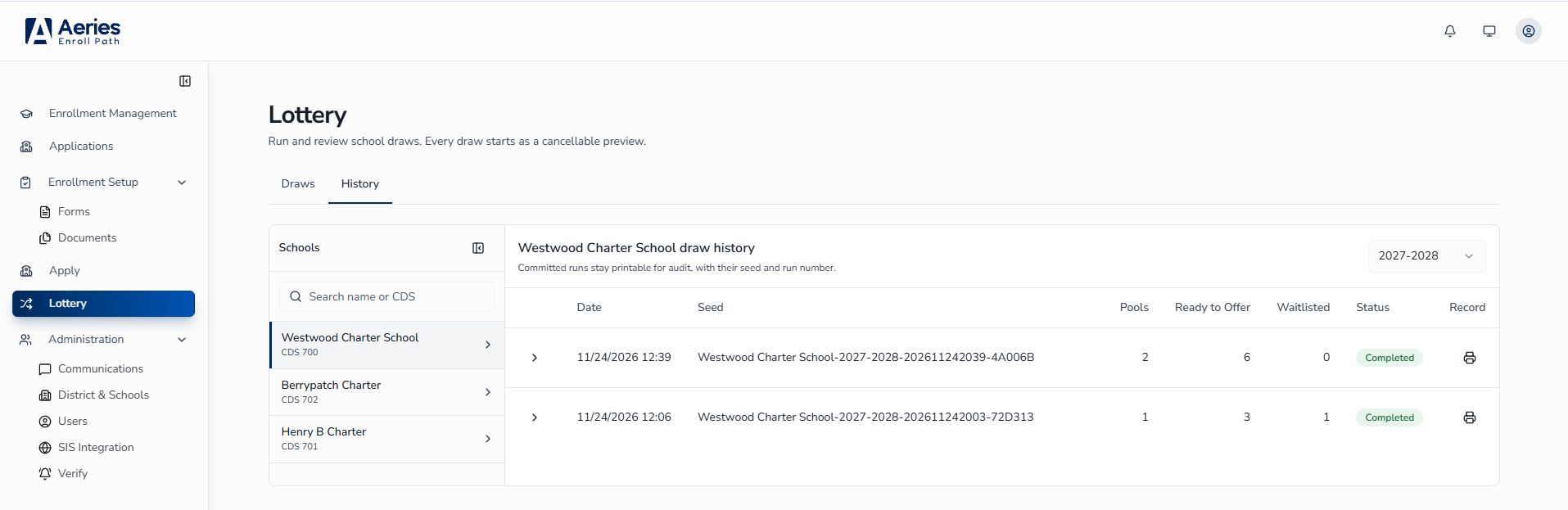
The History tab lists every committed draw for a school and school year. Only committed draws appear. Previews, restarts, and discarded drafts leave no record.
Viewing the Draw History
To review a school's committed draws:
- Click the History tab.
- In the School year dropdown, choose the current school year or the next one.
- In the school list on the left, click a school. The list shows only schools that have a committed draw for that school year.
- Review the table. It shows the Date, Seed, Pools, Ready to Offer, Waitlisted, Status, and Record for each draw. The status is always Completed.
- To see the pools in a draw, expand its row. The Pools in this run table shows each pool's seats, applicants, ready to offer, and waitlisted counts.
Each row is one commit. When you draw and commit one pool at a time, each pool gets its own row. A Run all draw creates one row.
Printing a Run Record
To print the record of a committed draw, click the printer icon on the draw's row on the History tab.
The record shows the Seed, the School year, when the draw was Drawn, the number of Pools on this copy, when it was Printed, the Total records, and the Ready to Offer / Waitlisted counts. For each pool, it shows the number of applicants and seats and how many are Ready to Offer and Waitlisted. It then lists every applicant in the order they were drawn, with the Order, Rank, Lottery number, Application ID, and Outcome. The Lottery number is the same value as the Lottery ID. The Application ID is the application's reference number. The record never shows student names.
You can also print from the draw screen after you commit. Click Print on the Committed card. When you committed several pools together, the Print dialog asks What to print:
- Everything - One report that covers every committed pool.
- By pool - A report for only the pools you pick.
Make your choice, then click Print.
The committed run record is your audit trail. The seed is only a label, and you can't repeat a draw from it.
Lottery Waitlist ↑
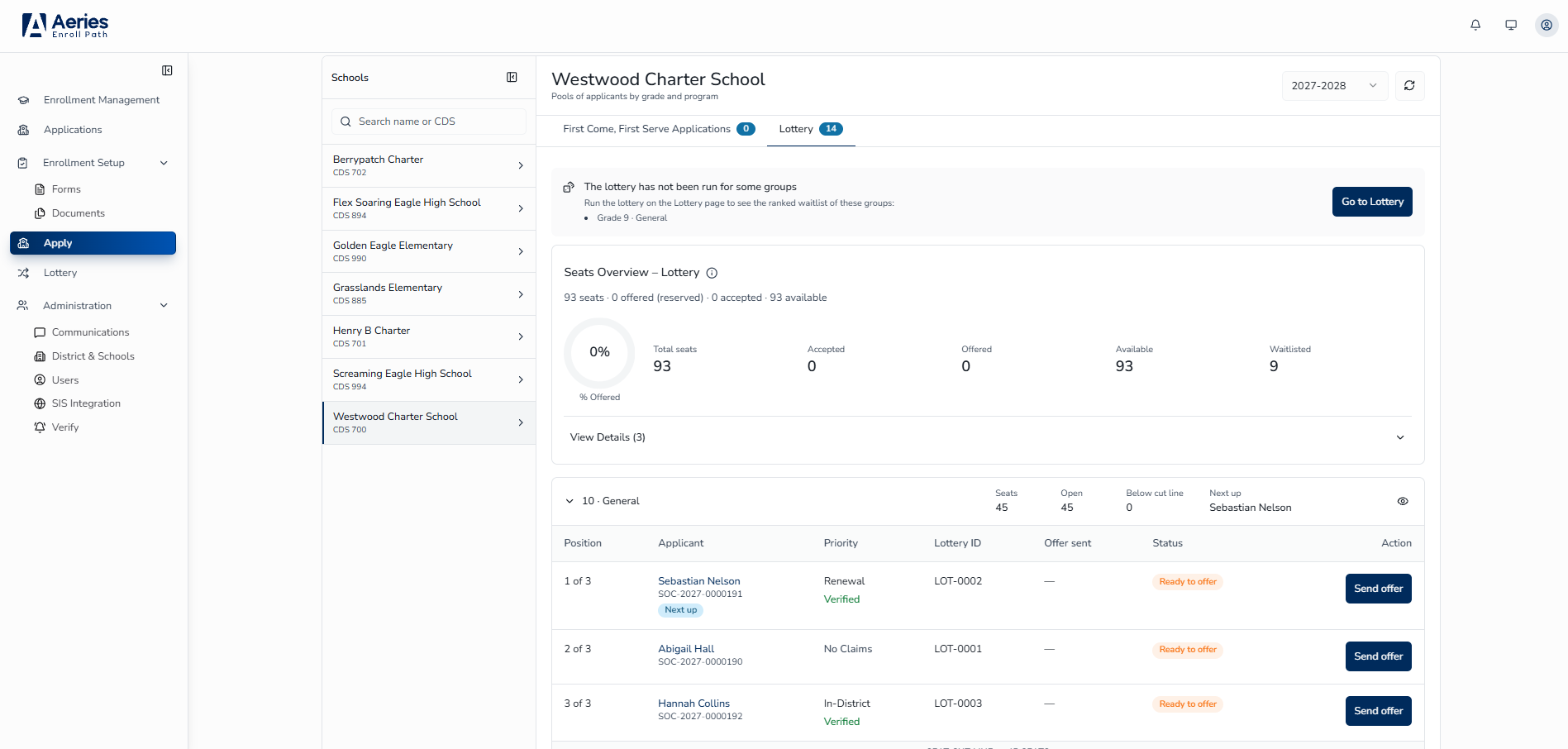
The Lottery view on the Waitlist tab of the Apply page shows each school's lottery pools. Before a draw, a pool shows Lottery not run yet and how many applicants are waiting. Expand the pool to see its applicants, who have no position or Lottery ID yet. After you commit a draw, the pool shows the ranked waitlist, and you send seat offers from there.
Opening the Lottery Waitlist
To open a school's lottery waitlist:
- Click Apply in the left sidebar, then click the Waitlist tab.
- In the Schools panel on the left, click a school, and choose the school year.
- Click the Lottery tab. The number on the tab is the number of lottery applicants.
Each pool that hasn't been drawn shows Lottery not run yet. When no pool is drawn, a Lottery has not been run banner appears. When some pools are drawn, the banner shows The lottery has not been run for some groups and lists the pools that still need a draw. Click Go to Lottery to open the Lottery page for that school. Before the draw, Position shows dashes and Lottery ID shows Not assigned.
Reading the Ranked List
A pool appears with its ranked list only after you commit its draw. The Seats Overview – Lottery card summarizes the drawn pools. It shows Total seats, Accepted, Offered, Available, Waitlisted, and % Offered, and it counts only drawn pools. Click View Details to see each pool's numbers.
To see the applicants in a pool:
- Click a pool row to expand it.
- Review the ranked list. It shows Position, Applicant, Priority, Lottery ID, Offer sent, Status, and Action for each applicant. The Priority column shows each applicant's claims and whether each claim is verified.
Each applicant has one of these statuses:
| Status | Meaning |
|---|---|
| Offer accepted | The guardian accepted the offer |
| Offered | You sent an offer, and the guardian hasn't responded |
| Ready to offer | The applicant is above the seat cut line, and you can send an offer |
| Waitlisted | The applicant is below the seat cut line and waits for a seat to open |
| Held elsewhere | The applicant is above the seat cut line but has an active offer from another school, so you can't send an offer here yet. An Offer sent tag shows the other offer. |
The SEAT CUT LINE separates the applicants who are within reach of an open seat from the applicants who wait. The line moves as you send offers and as guardians decline offers or let them expire, so applicants move up the list as seats open. The applicant in the first position shows a Next up badge. A Declined & Expired section lists the offers that guardians declined or that expired.
Sending a Seat Offer
The lottery never sends offers on its own. To send an offer, expand the pool, find an applicant with the status Ready to offer, and click Send offer. The dialogs, the warning for unverified claims, and what happens after an offer work the same way as on the First Come, First Serve waitlist. See Sending a Seat Offer in Aeries Apply for Administrators-Enroll Path.
The guardian receives the Offer Sent email if you turned that email on. See Communications for Administrators-Enroll Path.
Sending an Offer from an Application
You can also send an offer from the application itself, instead of from the lottery waitlist. The application must be approved. To send an offer this way:
- On the Applications page, click Review next to the application.
- Change the application's status to Offer Sent.
Tips for Efficiency ↑
- Decide How to Divide Seats First - Choose one pool or separate pools before you reserve seats. With separate pools, you run one draw for each program. See Pools and Programs in Aeries Apply for Administrators-Enroll Path.
- Approve Before You Draw - Approve every application that must be included in the pool before you click Start Now. An application you approve after the draw is not in it.
- Reject Invalid Claims First - Check priority claims before you click Start Now. A claim counts until you reject it, so reject any claim that doesn't qualify.
- Check Seats First - Confirm each pool's seats on the Draws tab before you start. The draw fixes the seats when it starts.
- Run All for a Full School - Click Run all on the Up next card to draw every pool and commit once. Click Start pool when you want to commit one pool at a time.
- Print the Record Right Away - Print the run record from the History tab after you commit. It is your audit trail.
- Keep the Tab Visible - Keep the draw screen visible while it runs. The draw pauses whenever the browser tab or window is hidden.