

The New Year Setup Wizard is the one place where you roll a school over to the next school year. It walks you step-by-step through every choice for term dates, grading periods, Family Portal.
Once a school's last term has ended, a blue Start YYYY-YY button appears next to its year on Setup - > Schools. Click it to open the wizard. Schools whose terms are still in session don't show the button - the wizard is gated to ended-year schools only.
Anything the wizard sets can still be edited later in the usual Setup pages. The wizard exists to make the rollover predictable, not to lock anything in.
Navigate to Setup - Schools. Click to "Start" new year. This option will be available given that the end date to the current school year has passed.
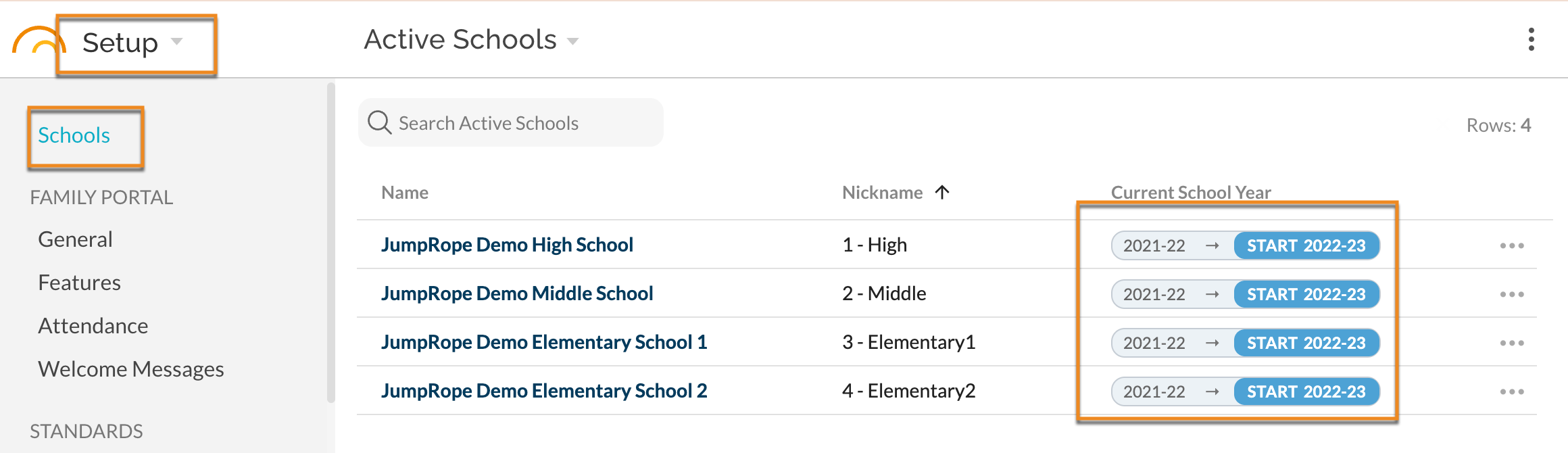
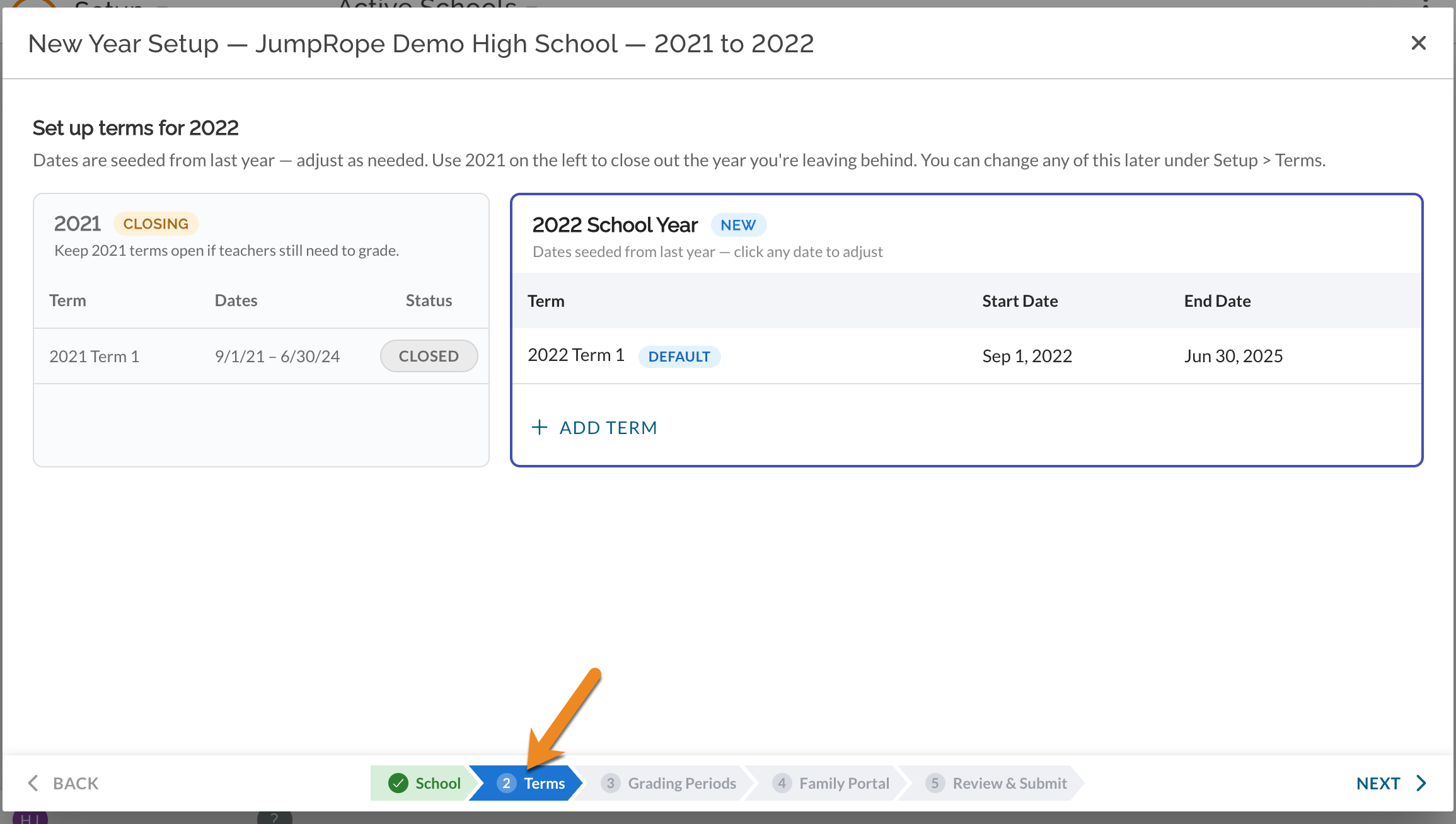
-If you have more than one school and this is the first school that you are moving to the new year, the wizard will begin on step 2. Terms.
-If you have more than one school and you've already moved another school to the new year you will begin on step 1. School.
-If you have only one school, you will begin on step 2. Terms
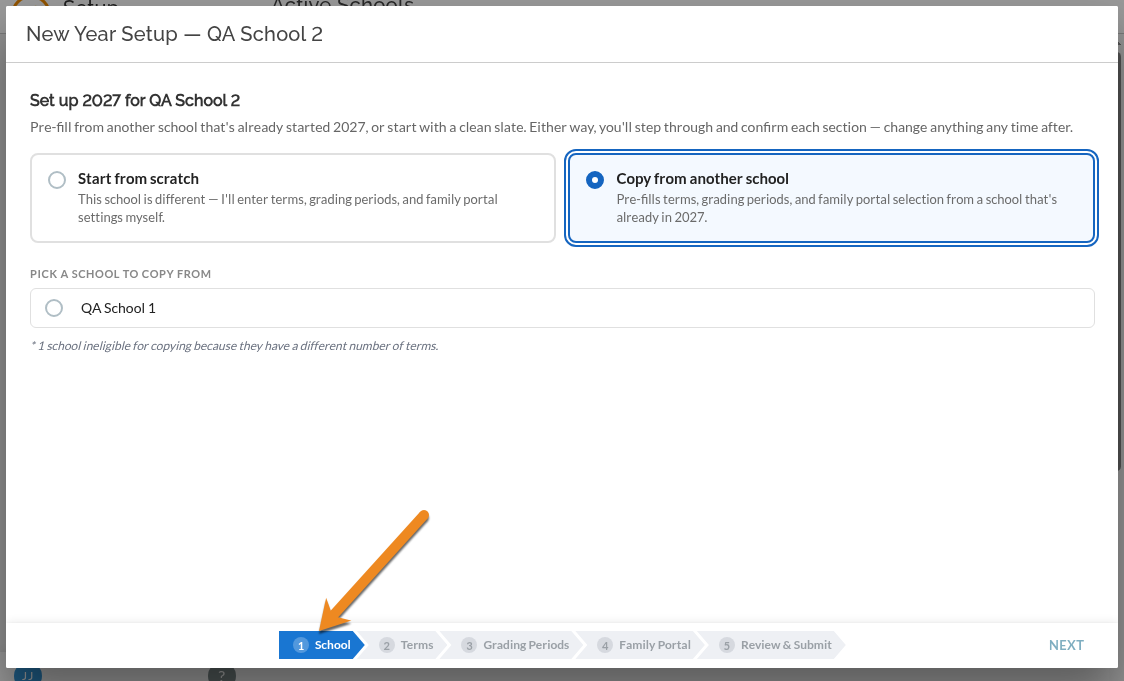
If you are started on step 1. School , choose to start the new year from scratch, or copy from another school in your district that has already rolled over.
-
Start from scratch -- terms, grading periods, and Family Portal seed from this school's own last-year setup, dates shifted +1 year.
-
Copy from another school -- pre-fills the same fields from a sibling school (Pick a School to Copy From) already in the new year. The list is filtered by matching term count, so a 3-term school will not be offered a 2-term sibling as a source.
If you are the first school in the district to roll over, Step 1 skips automatically -- there is nothing to copy from yet, so the wizard takes you straight to Step 2. Once any school in the district rolls over, every later school sees Step 1 with that sibling listed as a copy source.
Terms
-
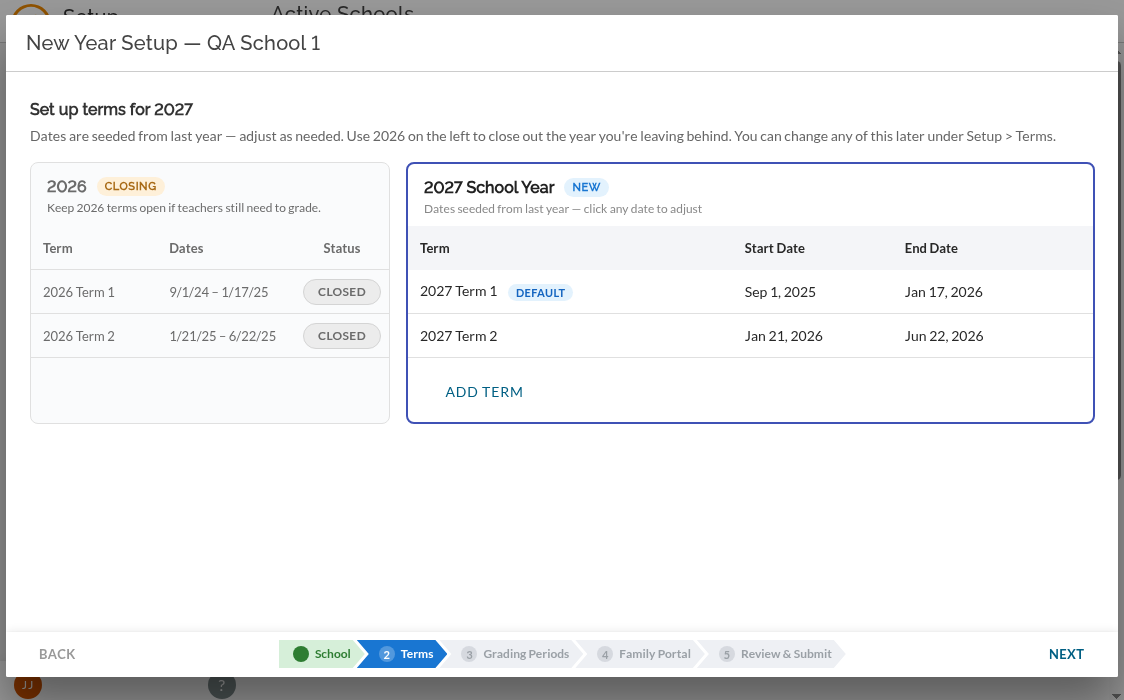
Left -- last year's terms with Open/Closed status. Closed is the default once the year ends. If you need to reopen a closed term for grading, click the Closed icon. The wizard asks for confirmation to reopen. Reopening allows teachers to edit past scores.
-
Right -- next year's terms , seeded from this year's dates +1 year. Click any date to edit. The default Term 1 can never be deleted; later terms have a trash icon.
Dates are required at this step, but they can always be adjusted later.
Grading Periods
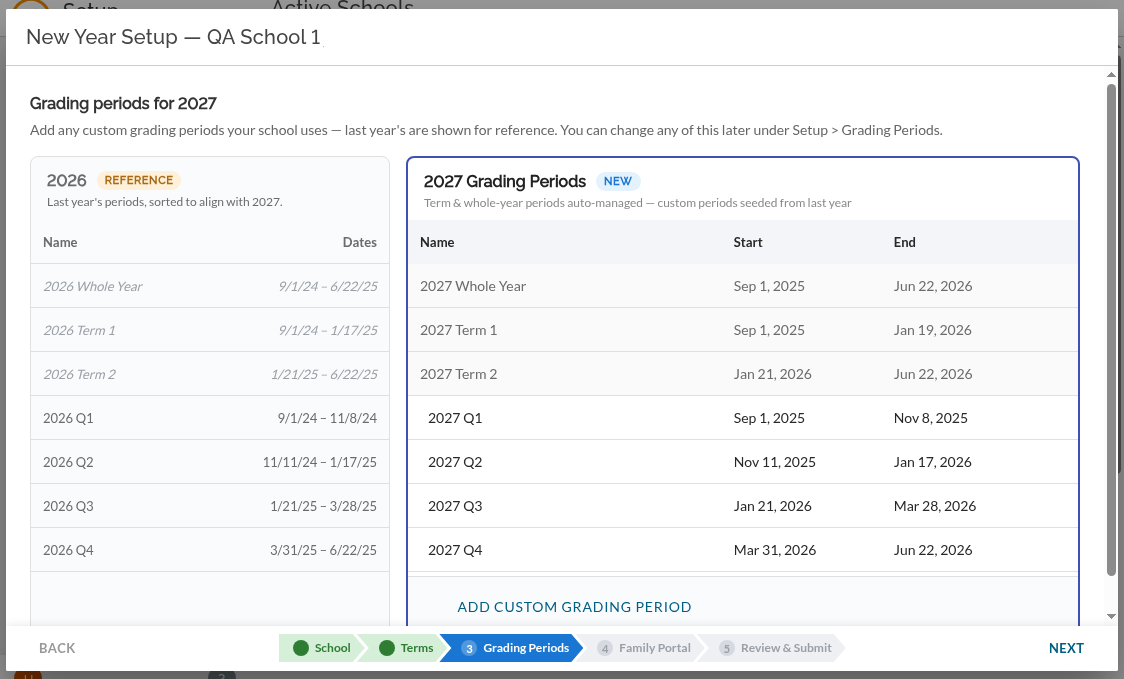
The wizard auto-creates the built-in grading periods -- a Whole Year row plus one row per term -- and locks them with a padlock icon. They always mirror the term dates from Step 1.
Custom periods from last year carry over as editable rows below. You can add brand-new periods (such as Quarter X), edit existing ones, or delete unwanted carryovers.
Each custom period's dates must fall inside the term span you set in Step 2.
As with terms, these dates are required but can easily be adjusted later.
Family Portal
-
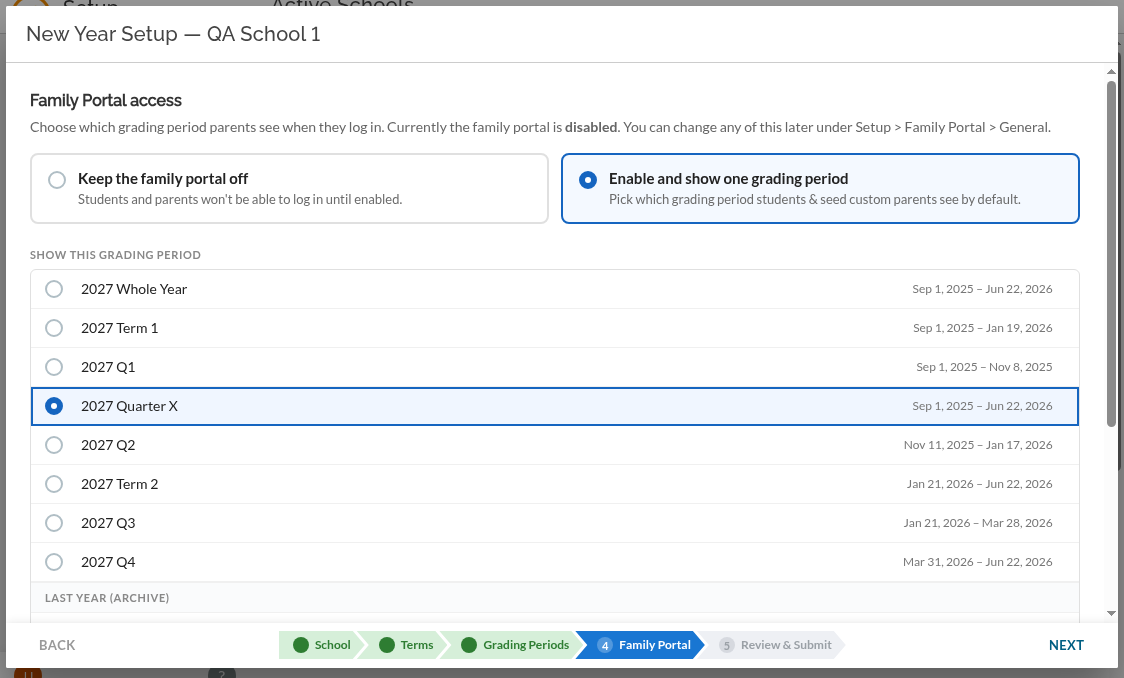
Keep the family portal off -- students and families will not be able to log in to the school's portal until you are ready. It can be enabled at any time in Setup > Family Portal.
-
Enable and show one grading period -- students and families see data from your chosen grading period. You can roll the portal over to the new year, or choose to have it continue to show last year for now. This can be changed at any time in Setup > Family Portal.
Review & Submit
Every choice summarized on one screen: closing terms with their final Open/Closed status, new-year terms, all grading periods, and the Family Portal setting. Each card has an Edit link that jumps you back to the matching step.
Clicking Submit saves everything in one transaction and reloads to Setup - > Schools showing the school in its new year. The Start Year button on that row disappears .
Rolling over a whole district
The first school is the slowest -- you are entering terms, grading periods, and Family Portal from scratch (or +1y from last year). Once it is complete, every other school in the district can use Copy from another school on Step 1 and have everything pre-filled in one click. Walk through the rest just to confirm dates and submit.
Discarding an in-progress run
Closing the wizard after any edit gives a Discard wizard progress? option. Nothing is saved until the final step of the wizard.
See also: Create a New Year FAQ