

Scroll to bottom for short video.
In JumpRope -> Gradebook select the desired Class to Plan for by clicking Plan.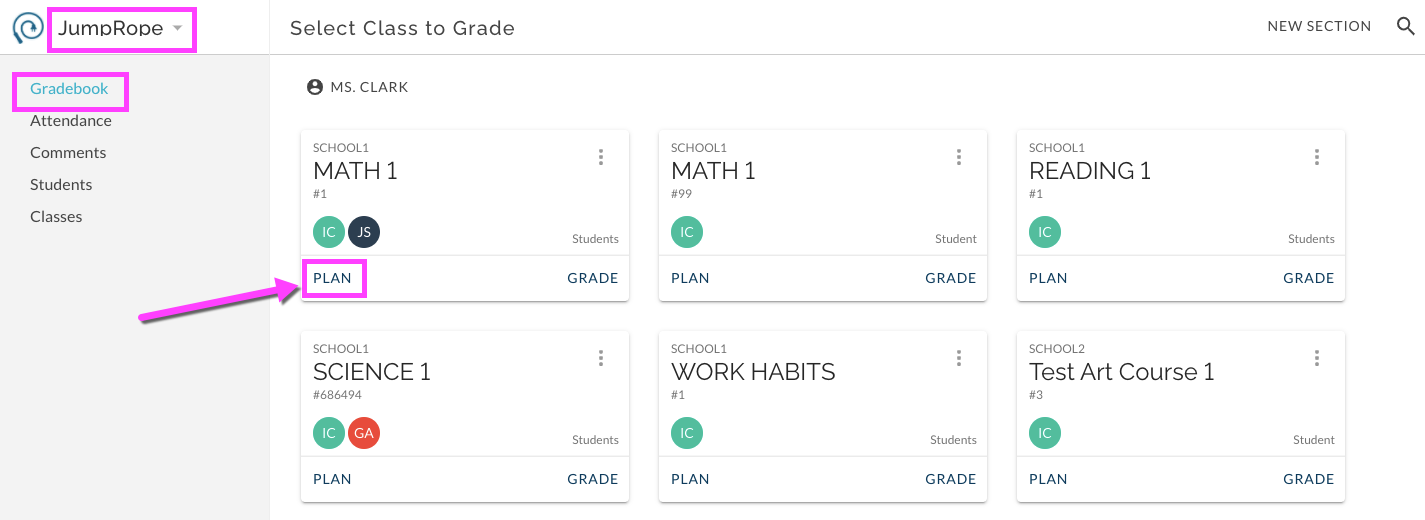
This navigates you to Plan features. Select Create and then New Assessment.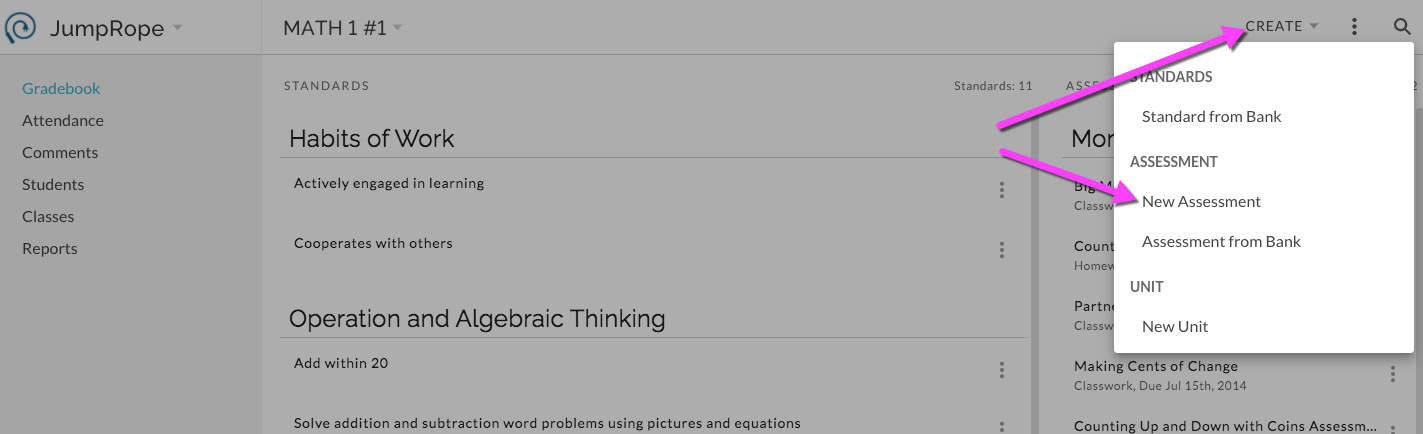
In the fields that open enter details for your assessment.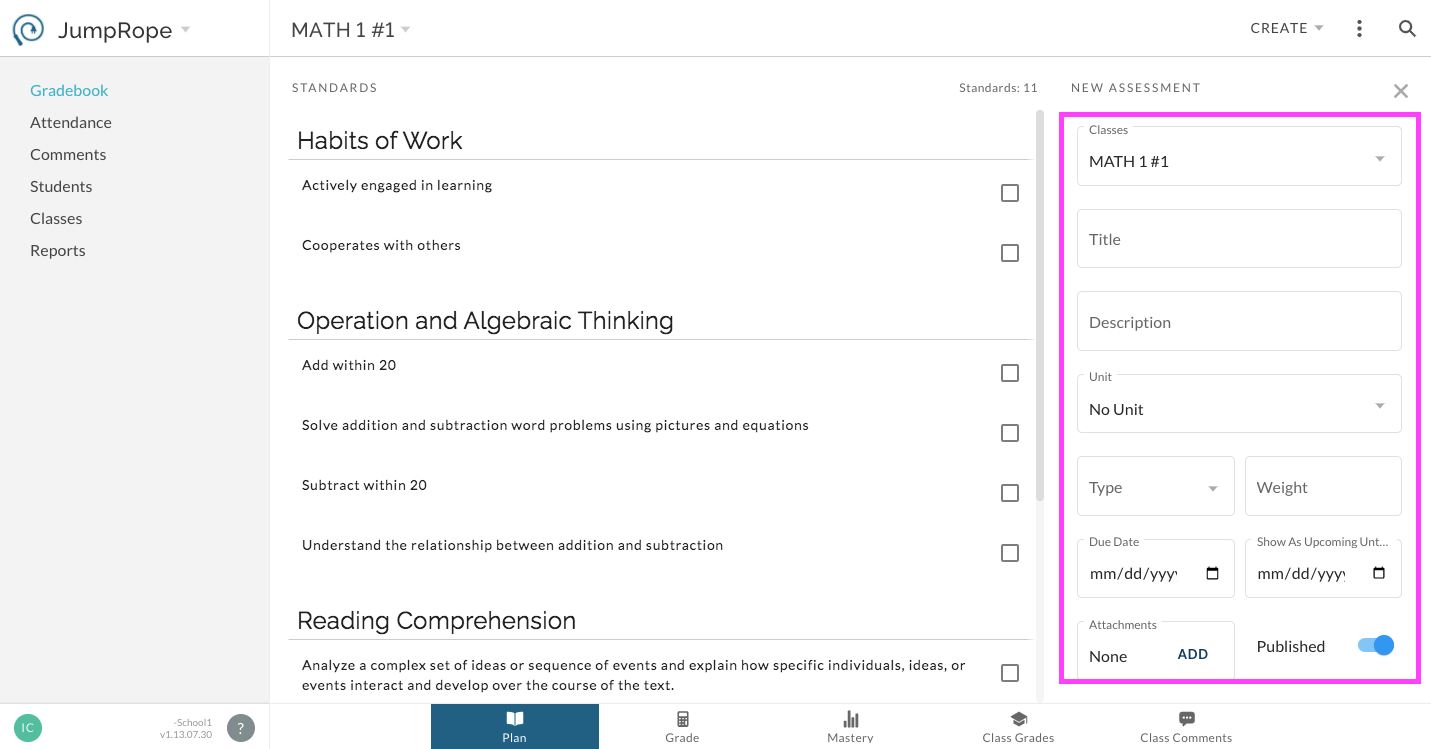
Classes -
(Required) The current class is automatically selected. If desired, open the drop-down menu to copy this assessment to other classes. Check the box next to any of your classes that you wish to copy this assessment into. 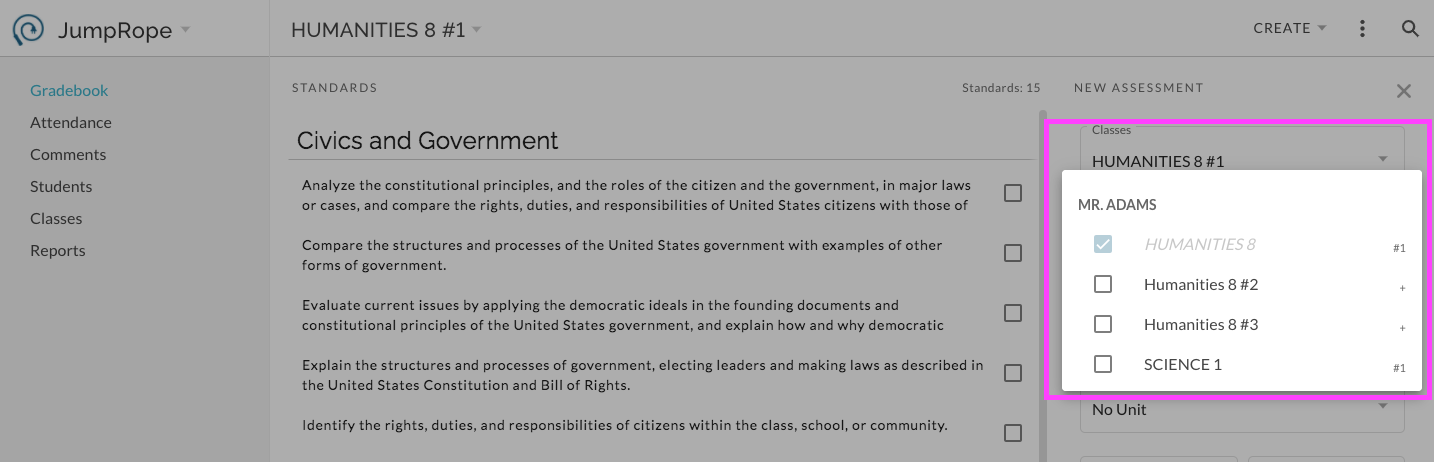
Title - (Required) Give your assessment a unique title.
Description - (Optional) Teacher-facing descriptive text.
Unit - (Optional) If desired, select an existing unit from the dropdown or begin typing to create a new unit directly from this form. If no unit is selected or created, the assessment will be created and accessible outside of units. Units in JR 2.0 function as organizational folders for your assessments. You do not need to create a unit in order to be able to create an assessment.
Type - (Required) Select an assessment type from the dropdown. Generally, these types are managed by your school. Each type has a corresponding weight.
Weight - (Required) This field will auto-populate based on your Type selection. If enabled by your school, you can edit the weight value.
Due Date - (Required) The date entered here will be used by JumpRope for time based score calculations, ordering assessments on the Grade sheet, and filtering on certain reports.
Show as Upcoming Until - (Optional) Setting a date here will add this assessment to the Upcoming Work section of the Family Portal if enabled. This feature can be used in conjunction with Attachments in order to allow students on the given roster access to any attachments.
Expires From Alerts - (Optional) Setting a date here will remove this assessment from the Missing Work report on the Family Portal given that a student has a Missing score entered for it.
Attachments - (Optional) Included attachments can be accessed from the Family Portal Upcoming Work and Missing pages. Use this feature in conjunction with Show as Upcoming Until to give access to attachment to all students on roster for the given class.
Published - On - Assessment and scores are included on all reports. Off - Assessment and scores are not included on any reports; they are only accessible and visible in a teachers' Grade and Plan.
Select Standards
Select the standards that you would like to align to the assessment. Check the box next to the desired child standards. You can add and remove standards from the assessment even after the assessment is created.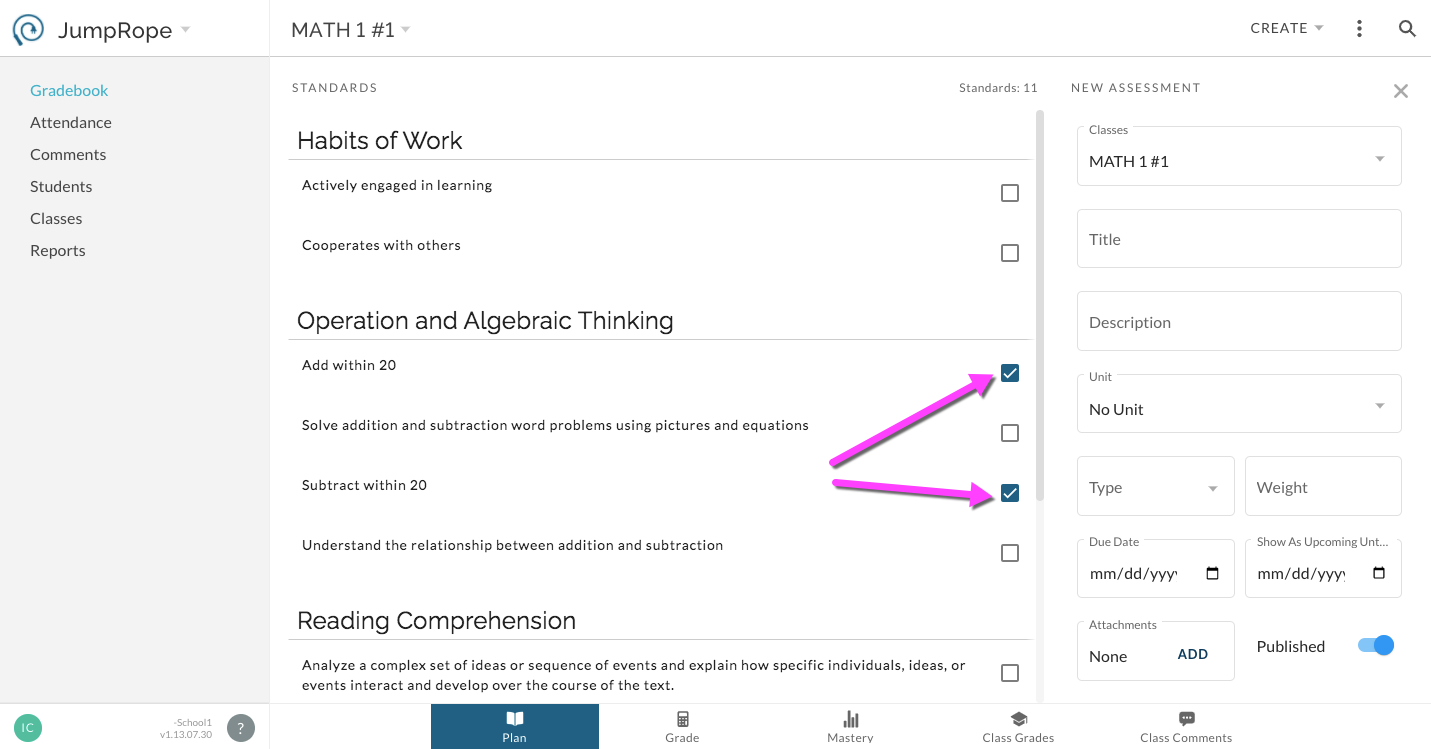
How To - Create a New Assessment in PLAN
Your browser does not support HTML5 video.