

Class Grades Access
In order to enter Class Grades, an administrator will create a grading window date range aligned to the grading period (marking period). Grading windows will display with a "Class Grades Due" date. After this date has passed, the grading window will automatically close; you will no longer be able to enter Class Grades.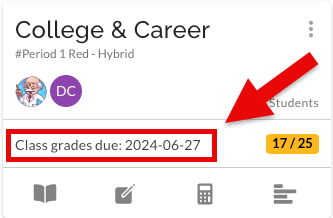
Entering Marks
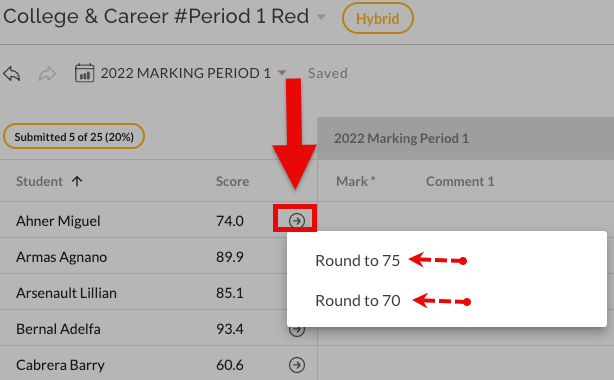
Click on the "Class Grades Due" bar to enter the Class Grades view. You can also access this view from the Class Grades tab at the bottom of your gradebook. This view displays the grading period, a list of your students, and the overall score from your gradebook. The arrow available next to the score will provide a suggestion for the Mark. The score will round up or down to the next available valid grade. Please note, using the suggestion is not mandatory. A Mark grade can be typed in the field corresponding to the student's name.
Entering Data in Other Fields
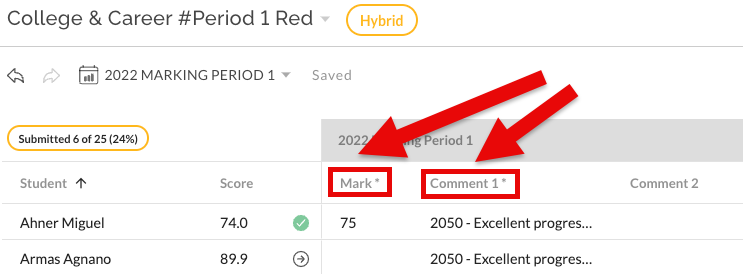
Class Grades will display various fields above and beyond "Mark". It may also include "comment", "exam", "conduct", "level", "narrative" or "final". Required fields are noted with an asterisk (*). Once the required fields are populated, the counter in 'Submitted' and the "Class Grades Due" bar will update. This information is available to Admin.
Class Grades Complete
Class Grades are considered completed when all required fields have data. Navigating to the "Class Grades Due" bar will display your progress. There is not any additional button or 'finalization' that has to be completed. 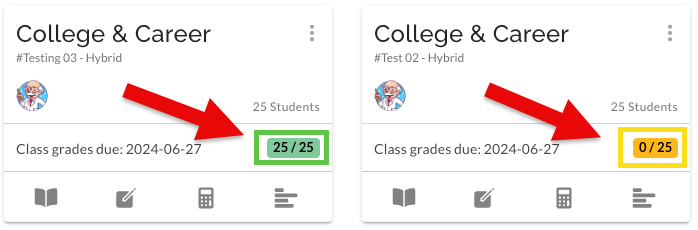
See also:
- Exporting the EGG File from STARS (NYC)
- Class Grades for Administrators - Training Documents
- Class Grades for Teachers - Training Documents