This process allows an Admin user to generate a set of reports based on the full student body. For Teachers, see Create Progress Reports for a Class and Create a Progress Report for a Single Student for other configuration options. See also How To - Email Progress Reports.
In Admin -> Progress Reports, select Generate New Report. 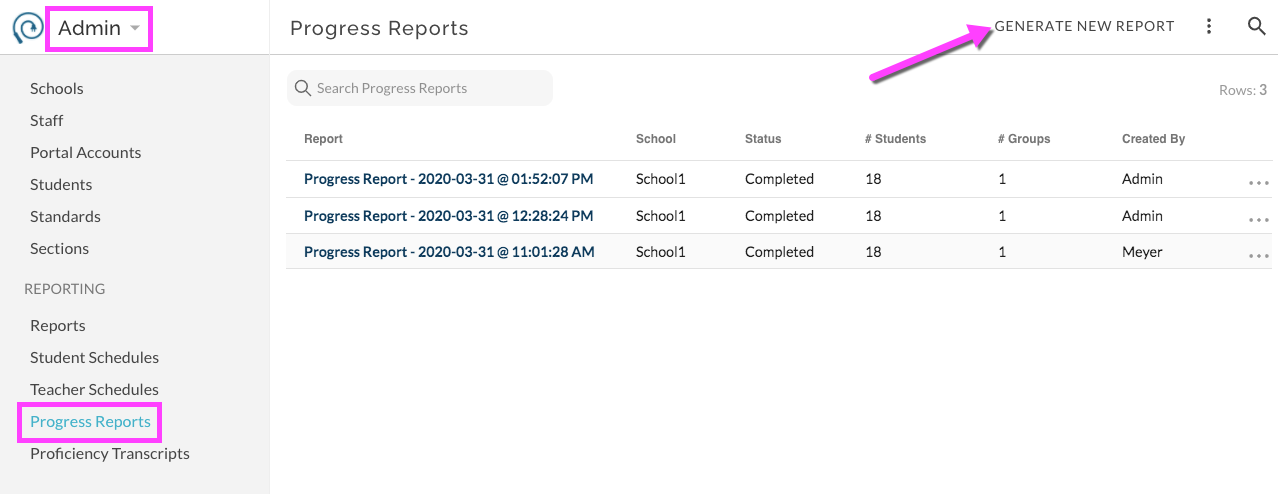
Bulk Report Wizard opens.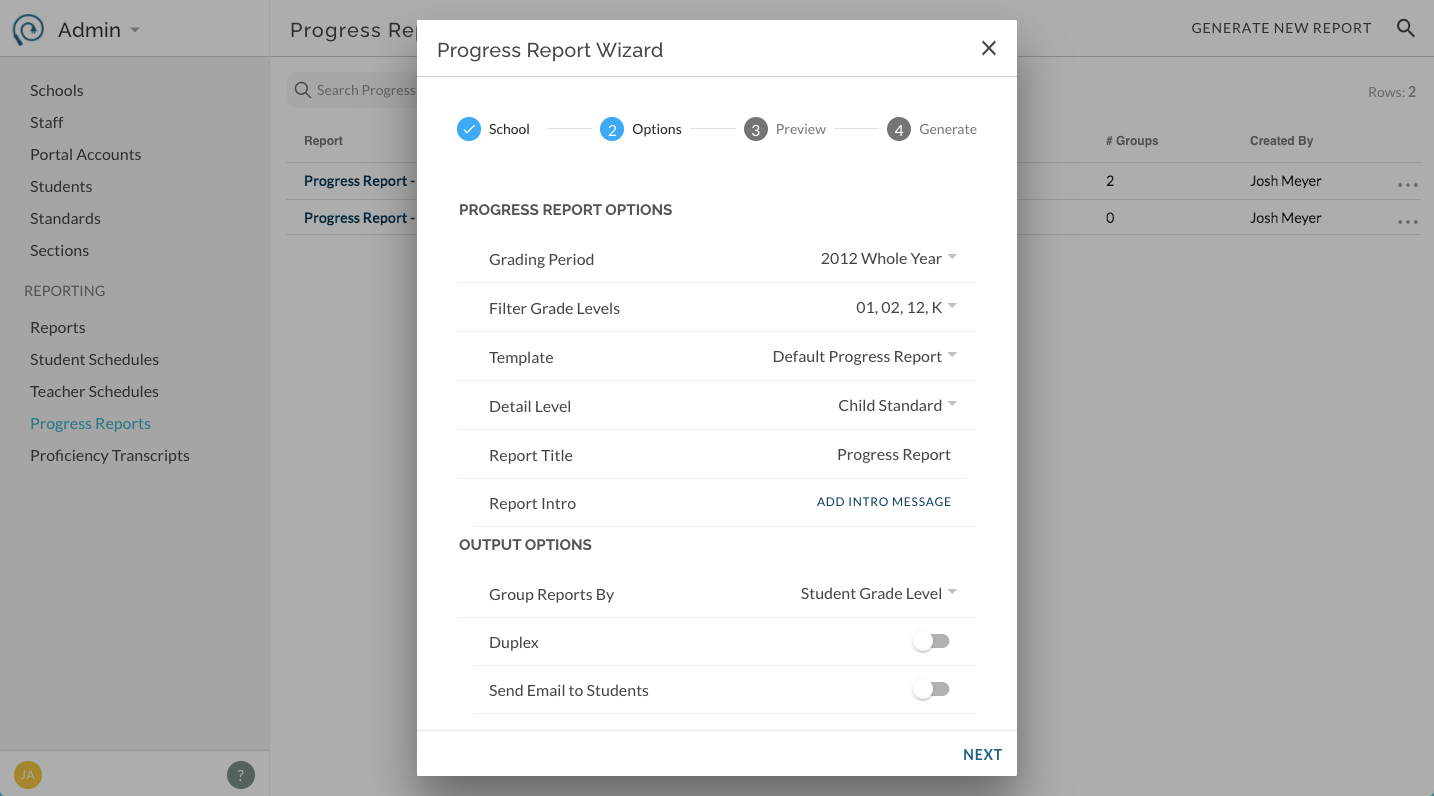
- Select School if prompted
- Select options:
- Grading Period - Defaults to currently active Grading Period. Available Periods are managed administratively.
- Filter Grade Levels - Defaults to all available grade levels.
- Template - Defaults to Progress Report template for school. Available templates are administratively managed.
- Detail Level - Defaults to selected Template's detail level.
- Report Title - Defaults to selected Template's Title. You can edit the title for this single run of reports.
- Report Intro - Select to create or edit text to be included at top of report. This is often used as a 'key'.
- Group Reports by - Select how the set of individual student reports should be grouped (helpful for distribution of printed reports).
- Duplex - Adds extra blank page where needed to accommodate duplex (front-to-back) printing.
- Send Email to Students - Generates set of reports and then walks user through process of sending PDF files to email addresses (there are multiple checks through this process; toggling here does not send the emails yet, you must confirm in several locations). If toggled off, PDF files are not emailed and are available for download within JumpRope; we recommend first creating a set before emailing so that you can review the files. Email can be sent in a later step shown below and described here.
Click Next to generate files. Completion report will display in the Wizard.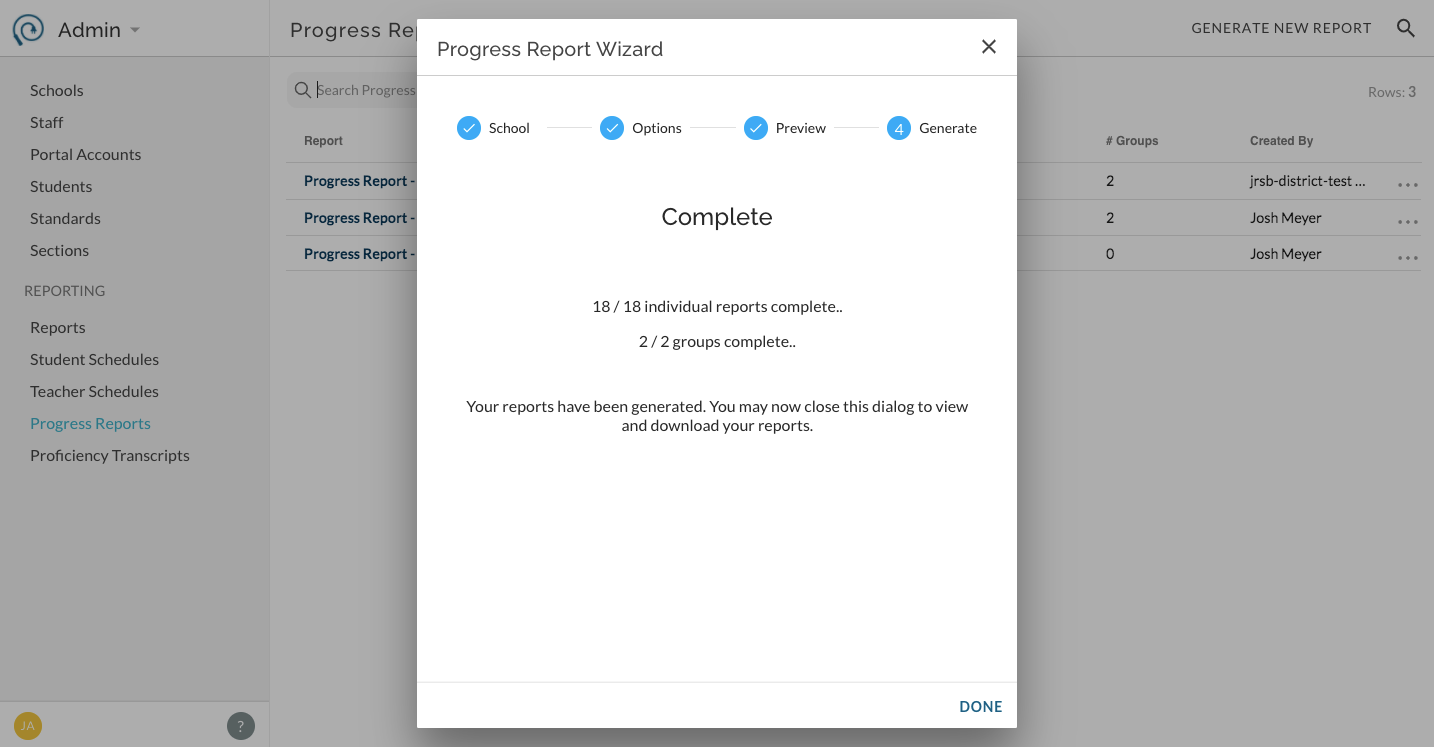
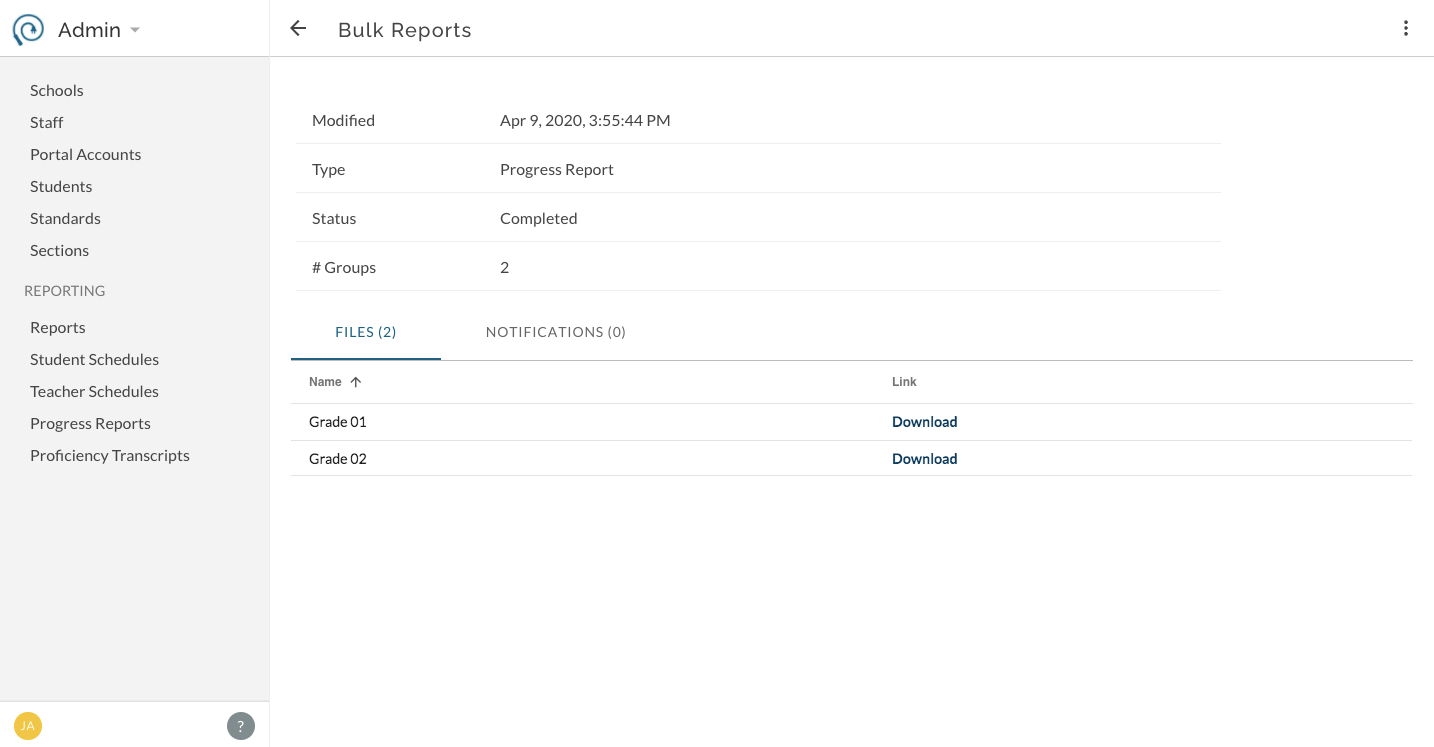
Select Done (if you have not enabled to send email) and Download page opens. Once created, you can also access them as needed from the list view of reports. Click on an item in the list view to see the details of the given item and the downloadable files: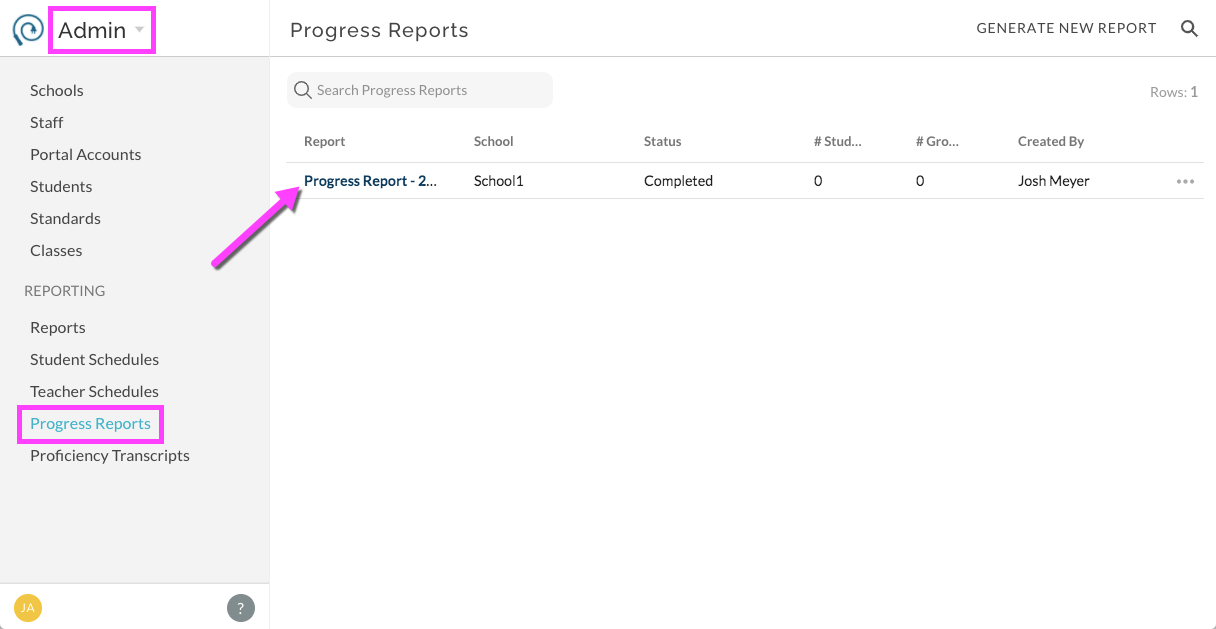
Files are listed by the Group Reports selection made in step 2 of the wizard. Select to download the set of PDFs. At this point you can choose to send these files via email: Select to send reports via email.