

California – Family Language Instrument
Family Language & Interest Interview (California)
Overview
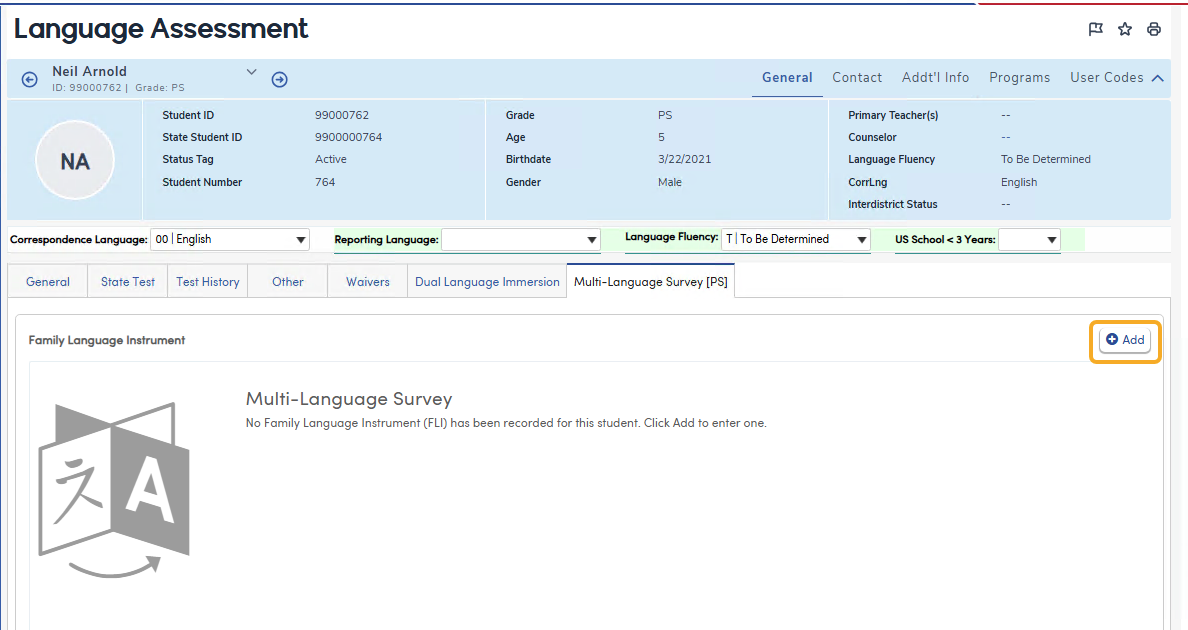
Navigate to Student Data > Programs > Language Assessment and select the Multi-Language Survey tab.
The Multi-Language Survey tab records the languages a student hears, understands and speaks, along with the family's preferred languages for written and oral communication. Each language question can hold up to five languages. A student can have one survey.
- California – the tab holds the Family Language Instrument (FLI) for preschool students. Aeries uses the answers to set the student's Dual Language Learner (DLL) designation. When the designation is Y, a Family Language & Interest Interview can also be recorded.
- Texas – the tab holds a multi-language Home Language Survey.
The other tabs on the Language Assessment page are described in Language Assessment Data Form.
Who Sees the Tab
| State | Tab name | Students |
| California | Multi-Language Survey [PS] | Only students whose grade is PS (preschool). The tab does not display for students in TK or higher grades. |
| Texas | Multi-Language Survey | All students. |
Security
Permissions are set in the English Learner area of security.
| Security Area | Permission | Allows the user to |
| Multi-Language Survey (MLS) | Read | View the survey |
| Insert | Add a survey | |
| Update | Edit a survey | |
| Delete | Delete a survey | |
| Multi-Language Interview (MLI) (California only) | Read | View the Family Language & Interest Interview |
| Insert or Update | Add or edit the interview | |
| Delete | Delete the interview |
Adding a Survey
When no survey has been recorded for the student, the tab displays a message saying so. Click Add to enter one.
- Enter the Date completed.
- For each question, select a language in the first box. After a language is selected, the next box becomes available, up to five languages per question.
- Select the follow-up languages (see the field tables below).
- Click Save. A Record Saved message displays. Click Cancel to leave without saving.
The language lists contain the same languages as the student's Home Language. While editing, each language shows its code and description; after saving, only the description displays, and unused boxes show as Slot 2, Slot 3, and so on.
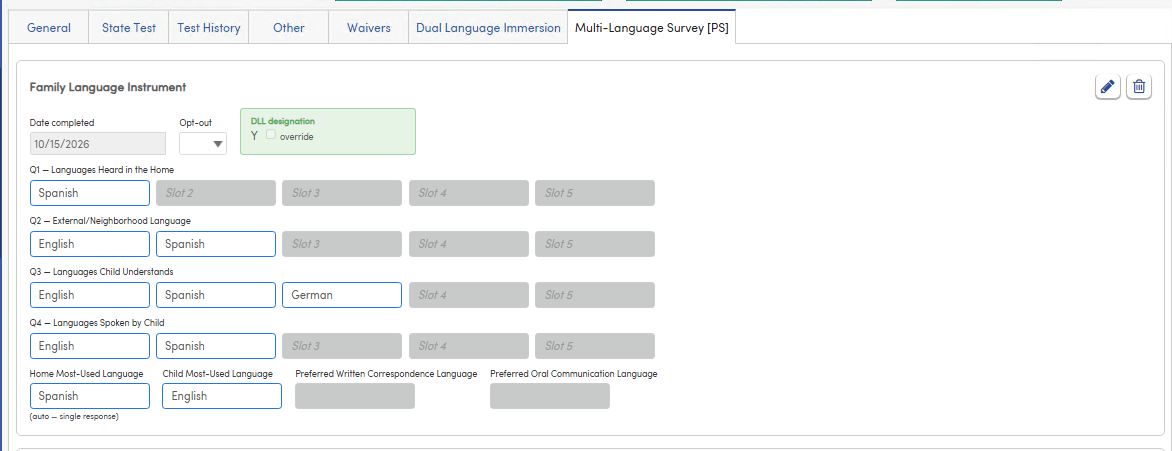
California – Family Language Instrument
| Field | Description |
| Date completed | The date the Family Language Instrument was completed. |
| Opt-out | Yes when the family chose not to complete the Family Language Instrument. |
| DLL designation | The student's Dual Language Learner designation (Y or N), set automatically from the answers (see below). |
| Q1 – Languages Heard in the Home | Up to five languages. |
| Q2 – External/Neighborhood Language | Up to five languages. |
| Q3 – Languages Child Understands | Up to five languages. |
| Q4 – Languages Spoken by Child | Up to five languages. |
| Home Most-Used Language | Filled in automatically when only one language is selected in Q1 (marked auto – single response). Otherwise, select the language. |
| Child Most-Used Language | Filled in automatically when only one language is selected in Q4 (marked auto – single response). Otherwise, select the language. |
| Preferred Written Correspondence Language | The family's preferred language for written communication. |
| Preferred Oral Communication Language | The family's preferred language for oral communication. |
How the DLL designation is set
The DLL designation is Y when any language other than English is selected in Q1 (Heard in the Home), Q3 (Child Understands) or Q4 (Spoken by Child). Otherwise it is N. Languages in Q2 (External/Neighborhood Language) do not affect the designation. The designation updates as languages are selected.
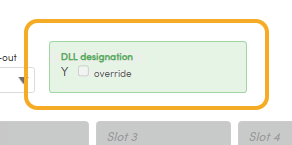
When the designation is Y, the Family Language & Interest Interview displays below the survey.
Texas – Home Language Survey
In Texas the tab displays a Home Language Survey. It works the same way as the California survey, with three questions. There is no Opt-out, DLL designation or interview.
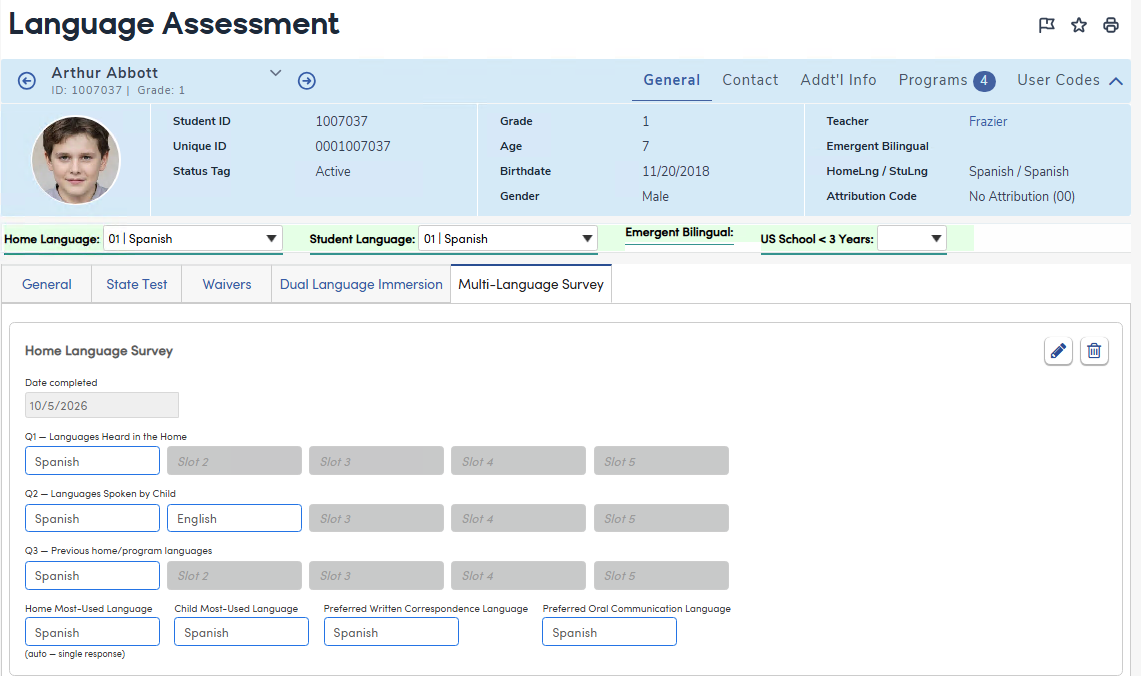
| Field | Description |
| Date completed | The date the survey was completed. |
| Q1 – Languages Heard in the Home | Up to five languages. |
| Q2 – Languages Spoken by Child | Up to five languages. |
| Q3 – Previous home/program languages | Up to five languages. |
| Home Most-Used Language | Filled in automatically when only one language is selected in Q1. Otherwise, select the language. |
| Child Most-Used Language | Filled in automatically when only one language is selected in Q2. Otherwise, select the language. |
| Preferred Written Correspondence Language | The family's preferred language for written communication. |
| Preferred Oral Communication Language | The family's preferred language for oral communication. |
Family Language & Interest Interview (California)
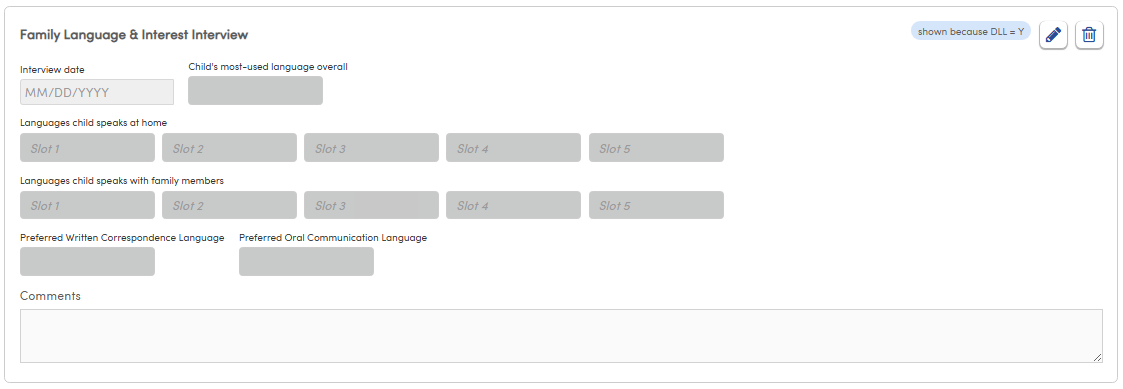
The Family Language & Interest Interview displays below the survey when the student's DLL designation is Y and the user has Read permission to Multi-Language Interview (MLI). It is labeled shown because DLL = Y.
Click Edit to enter or change the interview, then click Save. The survey must be saved before the interview can be saved; otherwise the message "Please save the Multi-Language Survey before adding the interview." displays.
| Field | Description |
| Interview date | The date of the interview. |
| Child's most-used language overall | The language the child uses most. |
| Languages child speaks at home | Up to five languages. |
| Languages child speaks with family members | Up to five languages. |
| Preferred Written Correspondence Language | The family's preferred language for written communication. |
| Preferred Oral Communication Language | The family's preferred language for oral communication. |
| Comments | Notes from the interview. |
Editing and Deleting
- Click Edit to change the survey, then click Save.
- Click Delete to delete the survey. A confirmation displays: "Delete this Multi-Language Survey record?" Deleting the survey also deletes the student's Family Language & Interest Interview.
- To delete only the interview, click Delete on the interview and confirm "Delete this Multi-Language Interview record?"