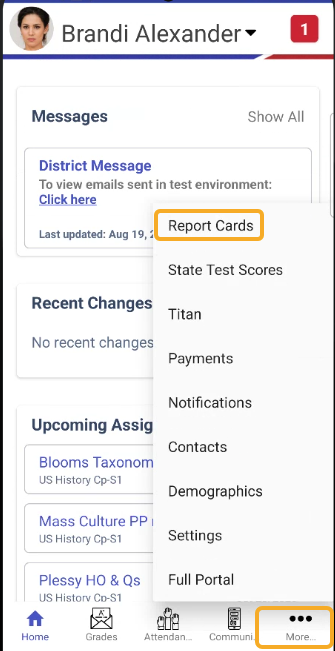
The Report Card section offers a way to view your student's report cards on file. Tap Report Cards on the bottom bar; if you don't see it there, tap More and then Report Cards. Which icons fit on the bottom bar depends on what your school has turned on.
Main screen
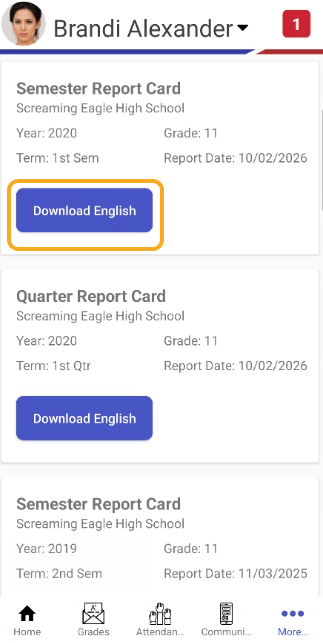
On the main list of report cards, you'll see all the report cards on file for the selected student, from every year, with the newest first. Each report card in the list shows which school it's from, the year, grade, term and report date; standards-based report cards are titled "Standards Based Report Cards." Below that is a Download English button. If the school also printed the report card in your home language, a second button appears for that language. If no report cards are on file, the screen says "No report cards to show".
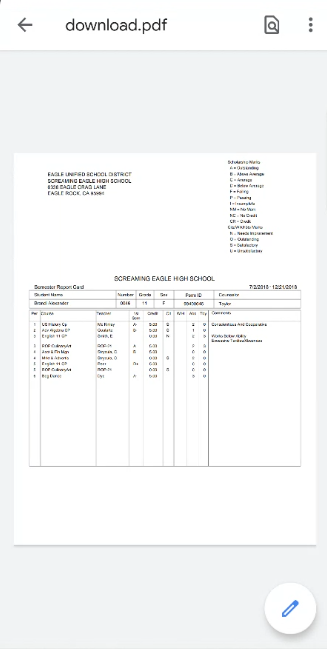
Tap Download English, or the button for your home language, to open the report card as a PDF. It opens in your phone's PDF viewer or web browser. From there you can save it, or share it to email to view on a computer.