

Students can select a pre-approved Service Learning Organization when logging hours or add a new Service Learning Recipient. The Service Learning Recipient can be reviewed and approved or denied by the Service Learning Administrator. The new Service Learning Recipient can then be linked to an existing organization.
The pre-approved Service Learning Organizations can be added by the Service Learning Administrator. Go to Service Learning > Svc Lrng Organizations.
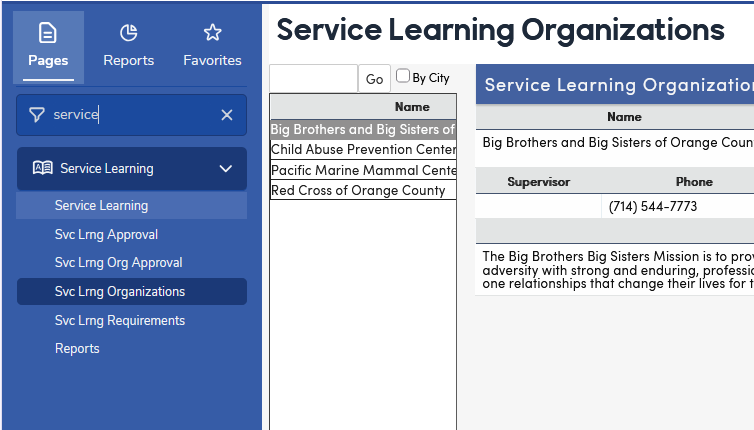
A list of existing organizations displays on the left of the form; type in the search box and click Go to find one, or check By City to search by city instead of name. Use the Add button (Add New Record when no organizations exist yet) to add a new organization that will be pre-approved, enter its details and click Save. Check one or more Requirement Areas to show which requirements this organization counts toward; areas marked Default on Svc Lrng Requirements are checked automatically for new organizations. An organization needs a name that isn't already used ("Please Enter an Organization Name!" / "Organization Name Already Exists!"), and the email address must be valid ("Please enter a valid email address!").
Note: There is currently no way to inactivate a Service Learning Organization. To remove an approved Service Learning Organization, click Delete on Svc Lrng Organizations and confirm (requires Delete permission to Service Learning Organizations). This does not affect prior Service Learning Recipient or Log data, because the organization's name and contact details are copied onto the student's Recipient record (SLR table) when it is linked or approved.

Students can select a pre-approved Service Learning Organization when logging hours or add a new Service Learning Recipient. If they select to add a new organization, the Service Learning Administrator can link the student’s recipient organization to an existing organization, approve it and add as a new organization or deny it.
All Service Learning Recipients added by the students must be approved by the Service Learning Administrator before the student can log hours for them; students can't add log entries while the Recipient is pending or denied. A pre-approved organization chosen by the student is approved immediately.
Go to Service Learning > Svc Lrng Org Approval. The page requires Administer permission to Service Learning Organizations (SLO) and lists pending requests for the school (all schools when logged in at the district level), not just one coordinator's students.
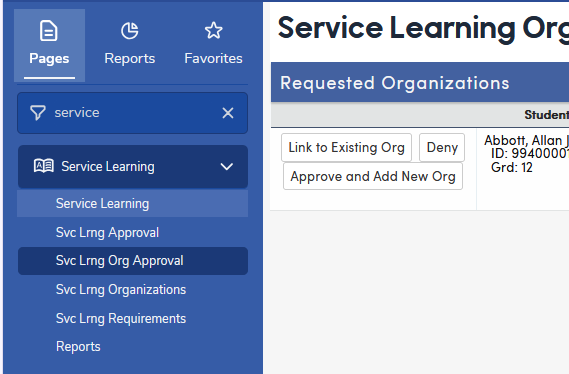
The Requested Organizations list shows each pending Recipient with Link to Existing Org, Deny and Approve and Add New Org buttons.

If the Link to Existing Org button is selected, the following page will display. The existing approved organizations will display. To link the student’s recipient organization to an existing organization, click an organization to select it (use the Search box at the top to find it). The Link Selected button becomes available.

Click the Link Selected button to link and approve the recipient organization. The status changes to Linked and Approved.
If Approve and Add New Org is selected, the New Service Learning Organization Data window opens, filled in from the student's request (name, address, supervisor, phone, email and website). Add a comment and check the Requirement Areas if needed, then click Add Organization. This adds the organization to the pre-approved list and approves the Recipient; the status changes to Added and Approved.
If Deny is selected, a window asks for the reason for denying the organization; the reason is emailed to the student and parents. Enter the reason and click OK. The status changes to Denied. A denied request can still be linked or approved afterward.
Approving or denying sends an email to the student's email address, the parent email address on the student record, and every portal account linked to the student. The approval email tells the student they can now enter log records; the denial email includes the reason.