

Before utilizing Service Learning, the options under Service Learning Requirements need to be defined. Go to Service Learning > Svc Lrng Requirements. To make changes, users need Update permission to the Service Learning Requirements security area; with Read permission only, the page is view-only and the Save button does not display.
Create at least one Area by typing a description in the blank New Requirements Area row and clicking Save. One blank row displays at a time. Areas cannot be deleted, and clearing an Area's description does not remove it. Students can be matched to one or multiple Areas. For example, suppose certain students must earn additional hours to count towards a special Scholarship. An additional area could be used for this purpose and tied to the student. Each organization additionally gets matched to one or more areas.
Enter the Required Hours Per Year. This is the amount of hours the student is expected to serve per year in each grade level. Enter the hours for each grade level, not the total required by the end of 12th grade; requirements are accumulated each year. Secondly, enter the Maximum Parent Contributed Hours. This is the maximum amount of hours a parent can serve which will count towards the student's required hours when Allow Banking Hours is unchecked. The limit is cumulative across grade levels, so any parent allowance not used in one grade carries into the next. Hours can be banked from year to year if the Allow Banking Hours checkbox is checked, otherwise hours are not banked if the student is over the required hours in any given year: each grade's student hours are capped at that grade's required hours minus the parent hours counted for that grade. Selecting the Default checkbox does two things:
- When adding an organization on Svc Lrng Organizations, or with Approve and Add New Org on Svc Lrng Org Approval, Default areas are pre-checked. They can be unchecked.
- Default areas are automatically assigned to every student in grades 9-12 the next time the student's Service Learning page is opened.
Enter the date when Service Learning hours will begin to accumulate for that school year. This will allow any Service Learning Hours completed during the summer to be applied to the next school year’s grade level. Service Learning Hours completed on or after the current school year's start date, and before next school year's start date, count toward the student's current grade level. Hours completed on or after next school year's start date are credited to the student's next grade level once an enrollment record with that grade level has been created. The page lists next school year, the current school year and the five prior school years. If a year has no start date entered, July 1 is used.
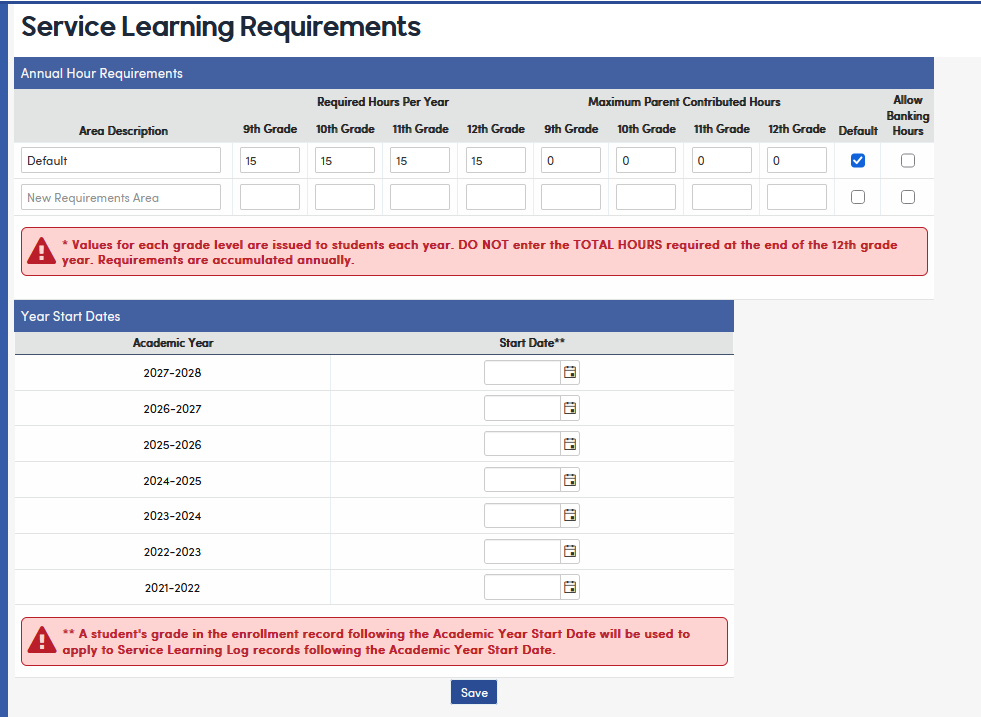
Click Save. The message "Requirements Saved at" followed by the date and time displays.
Note: The Area settings (description, required hours, maximum parent hours, Default and Allow Banking Hours) are stored in the SLA table. The Year Start Dates are stored as district options in the DPT table.
To better understand how Banking Hours works, here are some examples. This first screenshot has Banking turned on. It shows 22 hours completed and is displayed for the Total.

With Banking turned off, the total hours is only 20, even though the student completed 22 hours in the 9th grade.
Only Approved log entries count toward completed hours.

Note: Service Learning Required hours are recalculated for a student each time the Service Learning page is opened for that student, so changes to the requirements or to the student's enrollment are picked up automatically. The calculation works as follows:
- Prior grades: the grade gets its required hours only if the student has an enrollment history record for that grade at the current school. Otherwise it stays 0.00.
- Current grade: if the student was not enrolled for the whole year, the required hours are pro-rated by days enrolled compared to school days, rounded to a whole number.
- Future grades: the full required hours, or 0 if the student is inactive.
There is no option to turn off this calculation. The required hours are stored in the R9, R10, R11 and R12 fields: the SLH table holds them for each Area, and the SLD table holds the student's total across all Areas.