

Color Layouts can be added to a Custom Report. Go to School Info > Configurations > Custom Reports. Click the Color Layouts dropdown, then click Add New Color Layout. The report can be associated to display different colors for the different levels that will be printed on the report. Every color layout is available to all users of the Custom Reports page. Only the person who created a layout, or a user with Administer permission on Custom Reports, can change or delete it.

The following page will display.

Enter a Name. Each level starts with a default description (Far Below Standards, Below Standards, Meet Standards, Above Standards, Far Above Standards) and the color white. To change a level’s color, click the down arrow under Color and click a color in the palette.
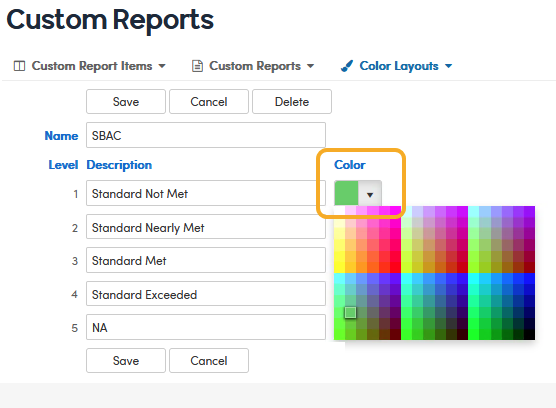
Click Save when the level colors have been selected. The Name and all five Level Descriptions are required.
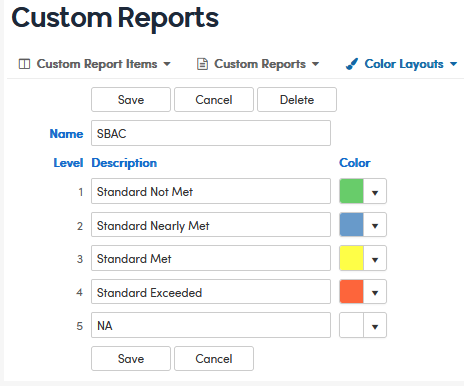
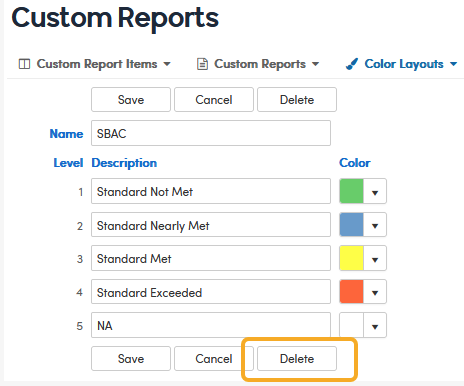
After you click Save, the Delete button appears so the layout can be deleted later if needed. The new Color Layout is also listed in the Color Layouts dropdown:
The Level Descriptions are for your reference only and do not print on the report. When legends are printed, the report legend shows only the five colors.
Colors print only when the report has a Color Layout assigned, and only for TST Table Score items whose Score Field is Scale Score or Performance Level. For a Scale Score item, Aeries looks for score ranges in the Testing Number Possible (TNP) table by Test ID, Test Part, Score Field, testing administration and grade. This requires a numeric Test Part and a Date Option other than Most Recent; for most tests, choose Testing Admin. If a match is found, the TNP ranges are used instead of the item’s Rubric Ranges.
To use a layout, select it in the report’s Color Layout dropdown when creating or editing a Custom Report. The Testing Number Possible (TNP) table is populated during the AdminCS update when testing vendors release the new score ranges.
If there is no matching TNP record, or the Score Field is Performance Level, enter the high value for all five levels in the Custom Report Item’s Rubric Ranges (Lvl 1 - Lvl 5). If any level is left blank or 0, that item is not colored.