

The Student Gradebook Summary report lists the students' current Gradebooks and Marks.

The Report is accessible from multiple areas.
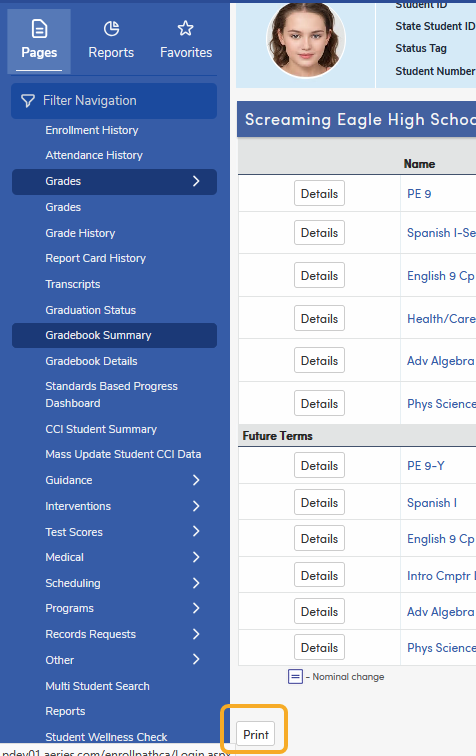
Under Student Data > Grades > Gradebook Summary using the 'Print' button
Under Grades > Reports > Gradebook Summary (also listed under View All Reports in the Grades category). This school-wide version is available only when you are logged into a school, not the District Office.
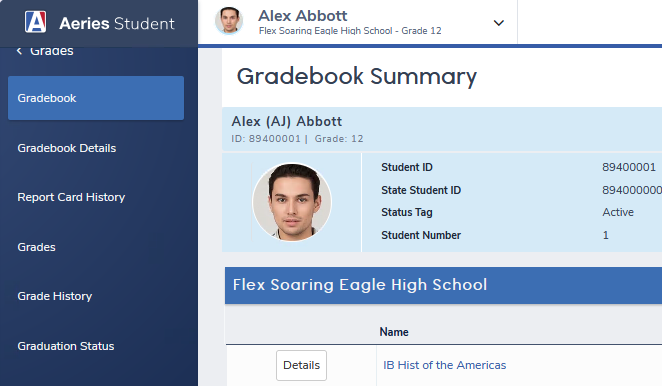
And in both the Parent and Student Portals under Grades > Gradebook using the 'Print' button

Student Gradebook Summary Report Options
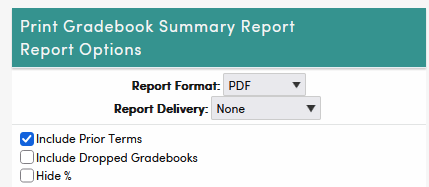
When run from Student Data > Grades > Gradebook Summary, the Parent Portal or the Student Portal, three options are available:
- Include Prior Terms (selected by default) – adds gradebooks from earlier terms in the current school year
- Include Dropped Gradebooks – adds gradebooks the student has been dropped from
- Hide % – leaves the percentage column off the report
If neither Include option is selected, only current gradebooks print. This version always prints just the current student.

When the Report is run from Grades > Reports > Gradebook Summary, the Report is school-wide and more options are available.

The first two options work the same as in the Parent/Student Portal. The option to print only Current Gradebooks or include Prior and Dropped Gradebooks. The report will not include future terms.

The Hide % option leaves the percentage column off the report, the same as in the single-student version.

The next section contains Include Inactive Students?, Print Each Student on a Separate Page (selected by default), Sort by Grade, and Grade Levels (all selected by default; at least one must stay selected). Multi-track schools also see Track To Print.

The last section has 4 options. Selecting the first option 'Print All Students' will print all students and their Gradebook Summary. The Report will honor KEEP/SKIP.

Choosing any of the last 3 options displays a Minimum Missing Assignments box, which defaults to 0. Enter a number greater than 0; if it is left at 0, every student prints, the same as Print All Students.

This is the way these 3 options work:

Will look for the TOTAL missing assignments from ALL Gradebooks. For example, if the 'Minimum Missing Assignments' is set to 5, and a student has 5 Gradebooks with 1 missing assignment in each, they will have a TOTAL of 5 missing assignments and will be included in the report.

Will look for the 'N' number of missing assignments in any 1 Gradebook. If the 'Minimum Missing Assignments' is set to 5 then the student would need 5 missed assignments in any ONE Gradebook to be included in the Report.

Uses the Minimum Missing Assignments number to limit which gradebooks print for each student. The report is still listed by student, then gradebook.