

Add Work Permit
To access the Work Permit form, click the mouse on the Other node under Student Data on the Navigation Tree. Next click the mouse on Work Permit. To add a work permit, use the Locate functions to select a student. Click the mouse on the Add New Record button.
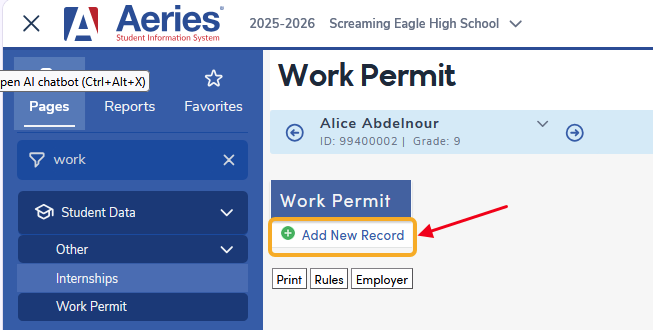
When a work permit record is added and the school’s default expiration date has not been set, is not a valid date, has passed, or is less than 5 days away, a message will display asking “What is the default expiration date for work permits?” The date entered will be used for new work permits. Enter a valid date and then click the mouse on the OK button. The value is stored in the OPT table.

The Work Permit form will now display. Notice the information for the Age of the student along with Hours fields under School In Session and School not in Session. As a student is selected the Age is calculated and the Hours fields change to display the State’s standards depending upon the age of the student.
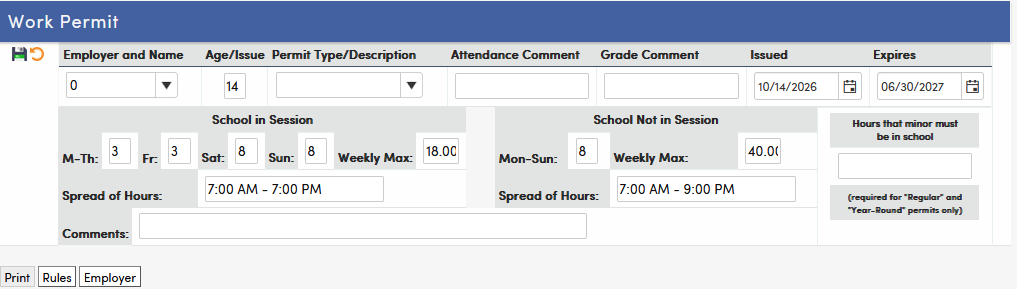
Click the mouse on the Employer and Name drop down list. The screen will now display the active employers in the EMP table (employers with a blank Tag). To select an employer click the mouse on an employer name from the drop down list.

Press Tab twice and the cursor will display in the Permit Type/Description field. Click the mouse on the drop down arrow and select a work permit type code from the list.

Press Tab to access the remaining fields. Enter any information that needs to be changed and when complete click the mouse on the Save Record icon.

NOTE: Remember that the Hours section displays the state standards that a student can work while “School is in Session” and “School is Not in Session”.
Rev. 02-14 of the Permit to Employ and Work form (CDE Form B1-4) no longer contains the wording “or day preceding a non-school day” for the maximum number of work hours on a non-school day. For this reason the maximum number of hours to work on Friday has been updated to be the same number as every other school day.
Change Work Permit Information
To change work permit information, use the Locate functions to select a student. Click the mouse on the Edit icon to the left of the Employer and Name field.

Press Tab to access the field to change. Enter any information that needs to be changed and when complete click the mouse on the Save icon.
Delete Work Permit
To delete a work permit, use the Locate function to select a student. Click the mouse on the Edit icon on the left side of the work permit to be deleted.
Click the mouse on the Delete Record icon and confirm. Deleting a work permit also deletes its Work Permit Visits.

Change Defaults
The State Standards that display on the Work Permit form can be accessed and changed by clicking the mouse on the Rules button on the Work permit form.

Click the mouse on the Default button from the Work Permit Letter Text Editor.

The information displayed under the School in Session and School NOT in Session are default values setup by the state. These values should not be changed unless State Standards have changed.

The Hours that minor Must be in School can be setup as a default value from this form to automatically display on the Work Permit form.
The expiration date can be reset from this form by entering the date in the Default Work Permit Expiration Date field. The new date will display in the Expires field for new work permits added on the Work Permit form. Existing work permits are not changed.
Options from this form are:
- Allow Extended Hours for WEE Students – this option is saved but is not currently used.
- Reset to State-defined maximum values – fills in the state values. Click OK to save them.
- Reset Default Rules/Footer – restores the default Rules and Footer text. The change is saved immediately.